One desk for your whole stream.
OBS stays in the background.
Sendezentrale — your streaming control room — plans the date, sets up the scenes, applies the overlay, starts the broadcast and tidies up afterwards. OBS runs alongside as the engine — you no longer need to look at it. Your stream schedule keeps itself up to date on Twitch, YouTube, Discord and your website.
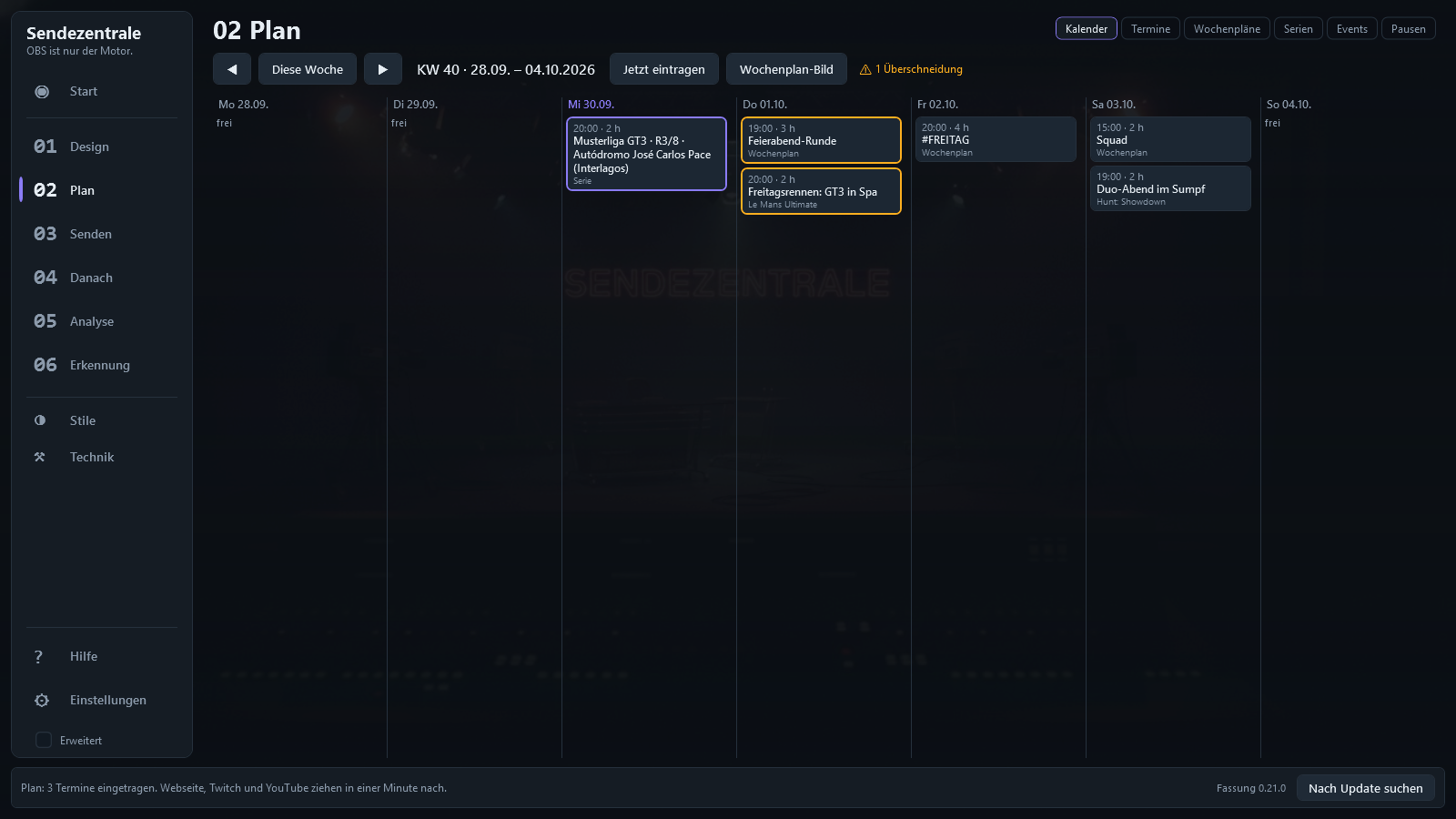
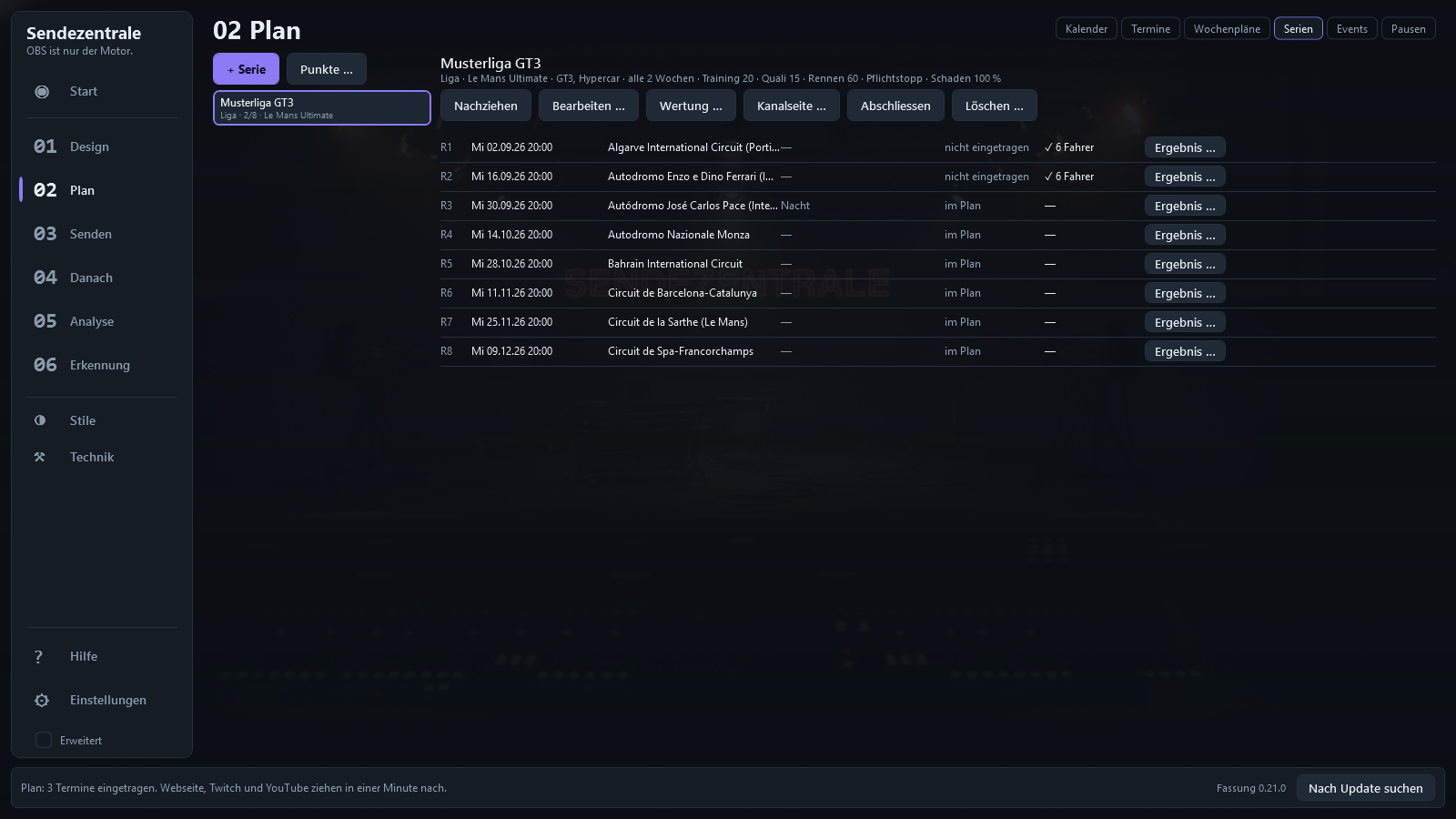
Your stream schedule — plan once, up to date everywhere
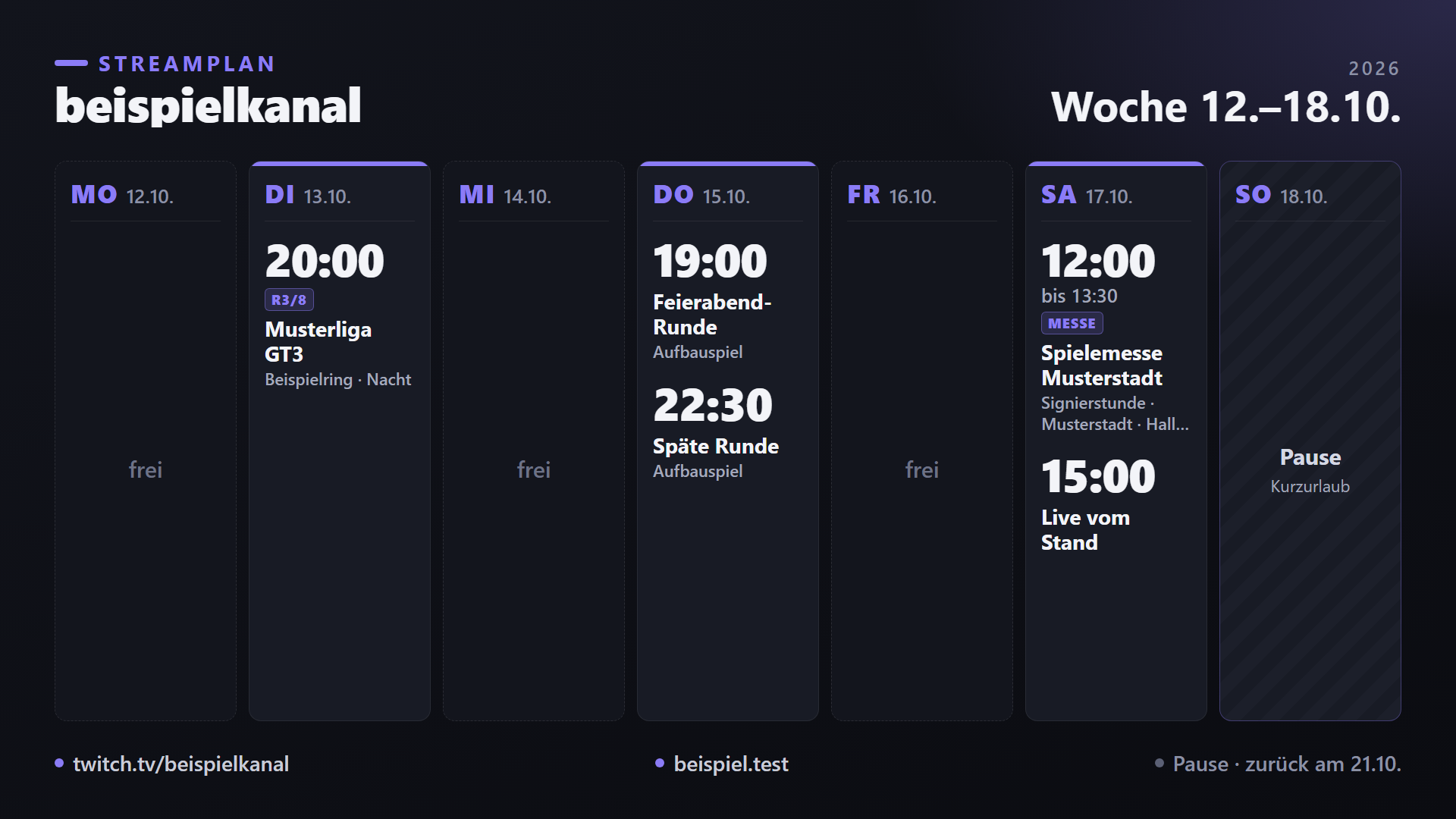
Weekly schedule, league series, events and breaks in one place. Sendezentrale enters the dates itself and keeps Twitch, YouTube, Discord and your website current — one minute after every change, without you having to update anything anywhere.
Twitch
Dates in your channel's schedule — individually with Affiliate, as recurring weekly slots without Affiliate. Off weeks of a series get canceled, breaks show up as vacation.
YouTube
Every date becomes a scheduled live stream with a thumbnail. League races get the rules and season calendar in the description and land straight in the series playlist — optionally as a shelf on your channel page.
Discord
Your dates as server events with reminders for the community. Plus messages to your channels: new, rescheduled, canceled · “Live now” at the start · results and standings after the race · the weekly schedule image every week.
Your website
The stream calendar to embed: a combined schedule with an expandable track map, events with location, breaks, series with standings and “Our week”. Plus calendar subscriptions — per series, too.
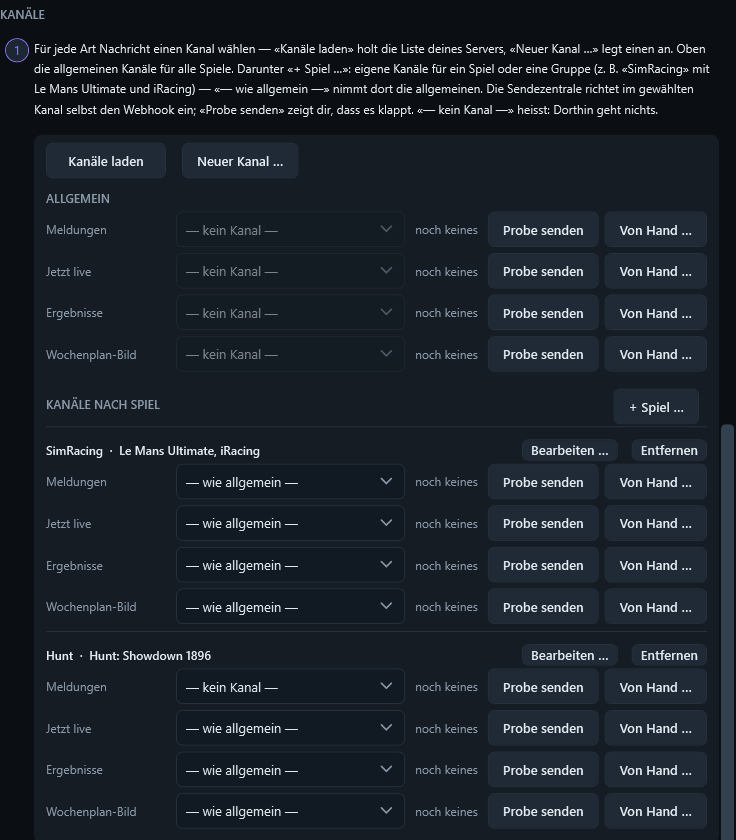
Discord — connected step by step
- Guided setup. “Connect Discord …” (Discord verbinden …) walks you through the Developer Portal, field by field: name, app icon and banner to upload are included, install link, bot, token. The notes on app verification are explained, too — you don't need it for your own server.
- One bot, with only the permissions it needs. It creates server events and sets up the webhooks in the chosen channels on its own. No copying webhook URLs.
- Channels from your server. “Load channels” (Kanäle laden) fetches the list, “New channel …” (Neuer Kanal …) creates one. One channel per type: announcements, “Live now”, results, weekly schedule image.
- Separate channels per game. The general channels at the top, below them groups like “SimRacing” with Le Mans Ultimate and iRacing, or “Hunt” — each with its own channels or “same as general”. A Hunt night won't end up in the racing channel.
- “Send test” (Probe senden). One click shows you in the channel that everything arrives.
What Sendezentrale does
Everything between “I'm streaming tonight” and “The video is online” — in one place, in the order it happens.
Stream control
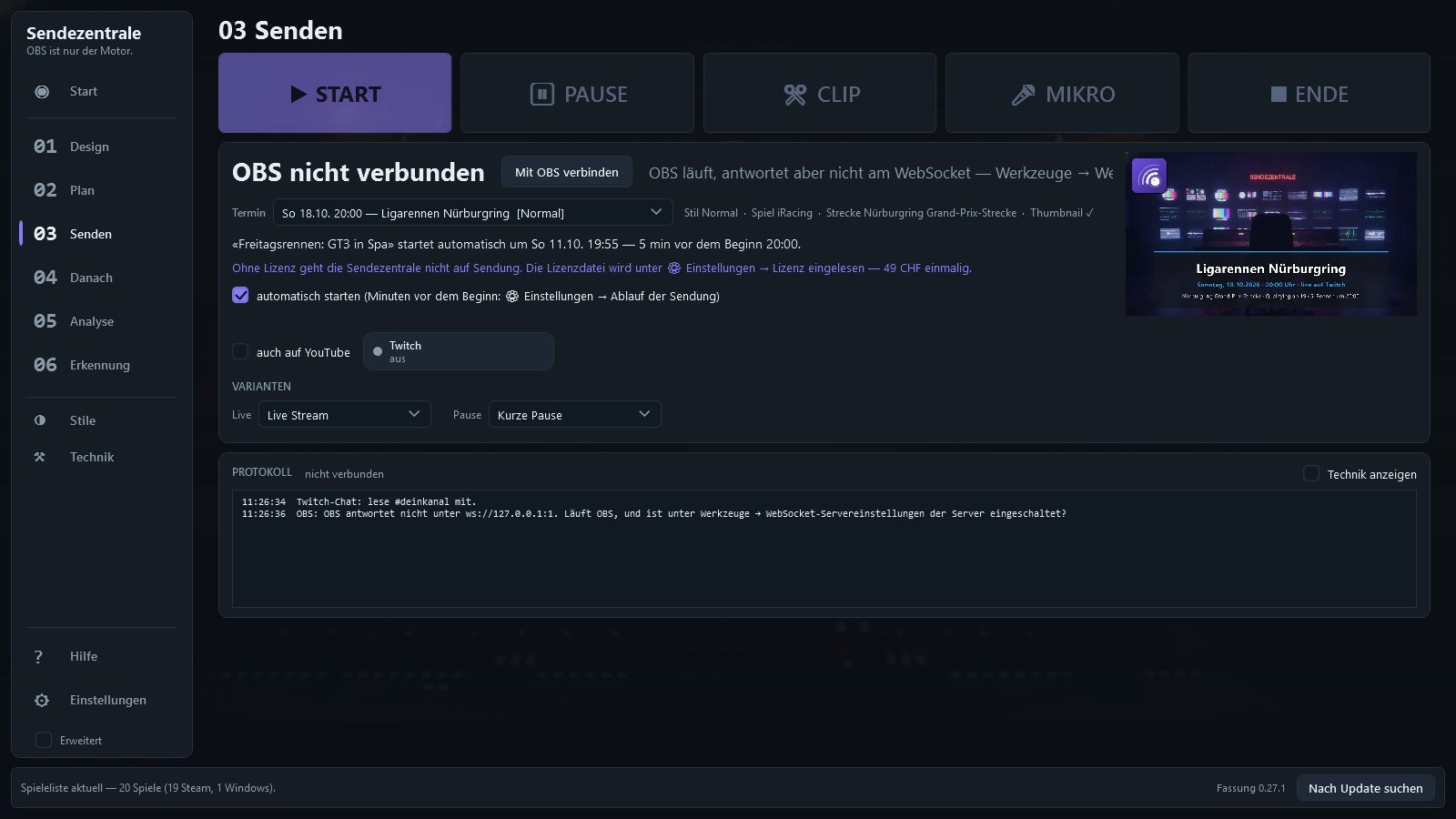
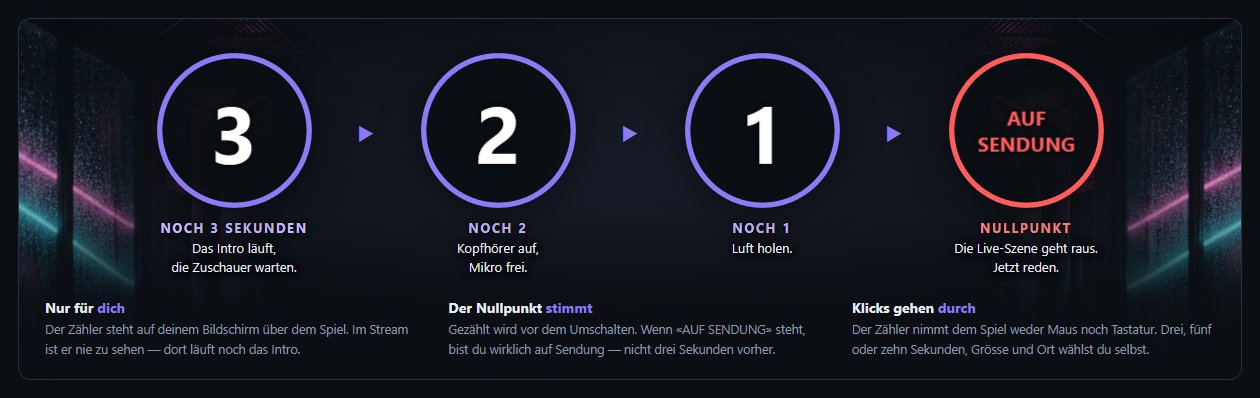
Four big buttons: START, PAUSE, CLIP, END. Scenes, audio and recording follow along — from the Stream Deck, too. Before you go live, your screen counts 3, 2, 1.
Broadcast schedule
Create dates, enter title and game. Shortly before the start, the stream goes live by itself if you want it to. Or the date is a recording only: scenes, overlay and recording run, but nothing goes out.
Overlay designer
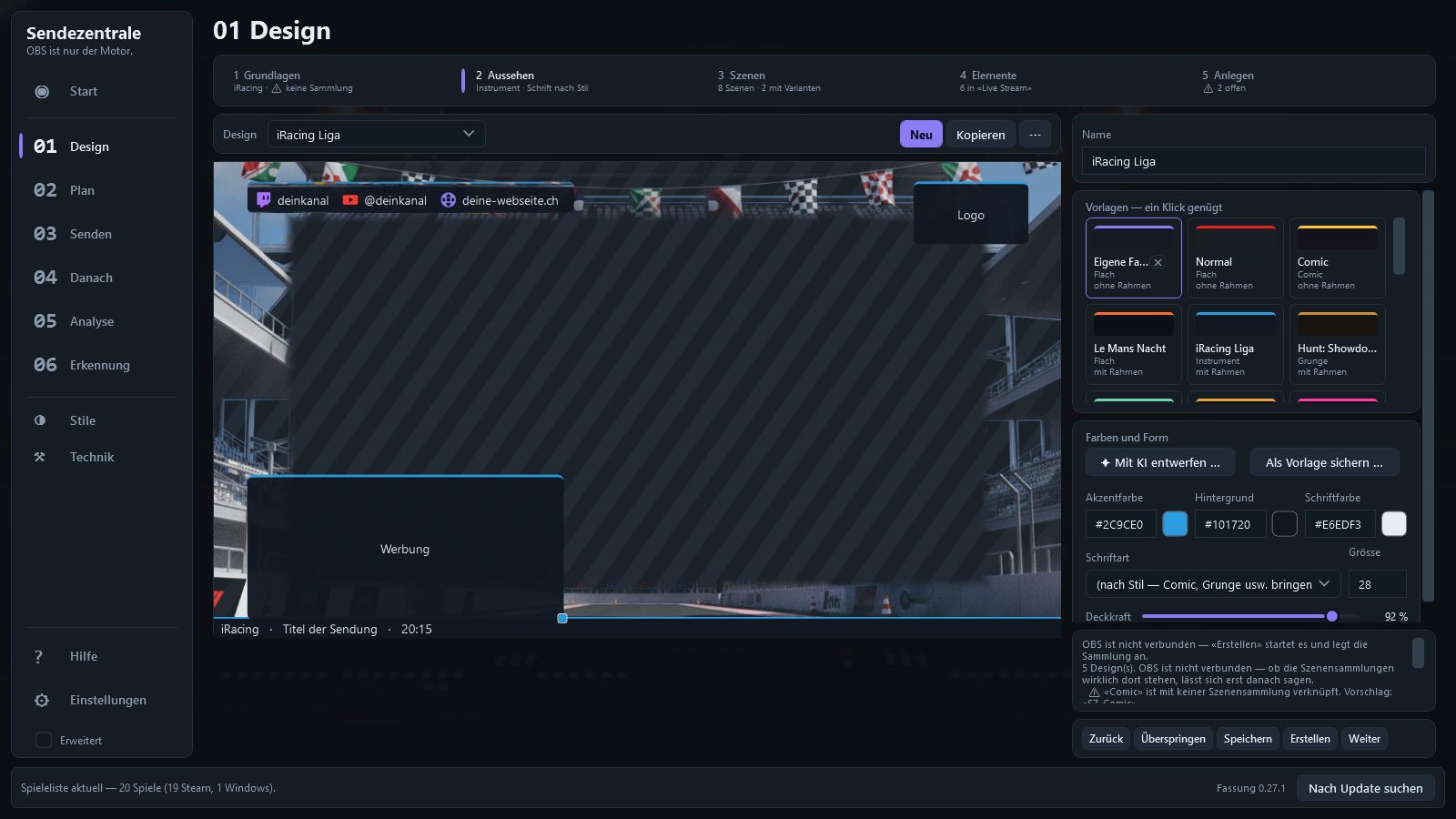
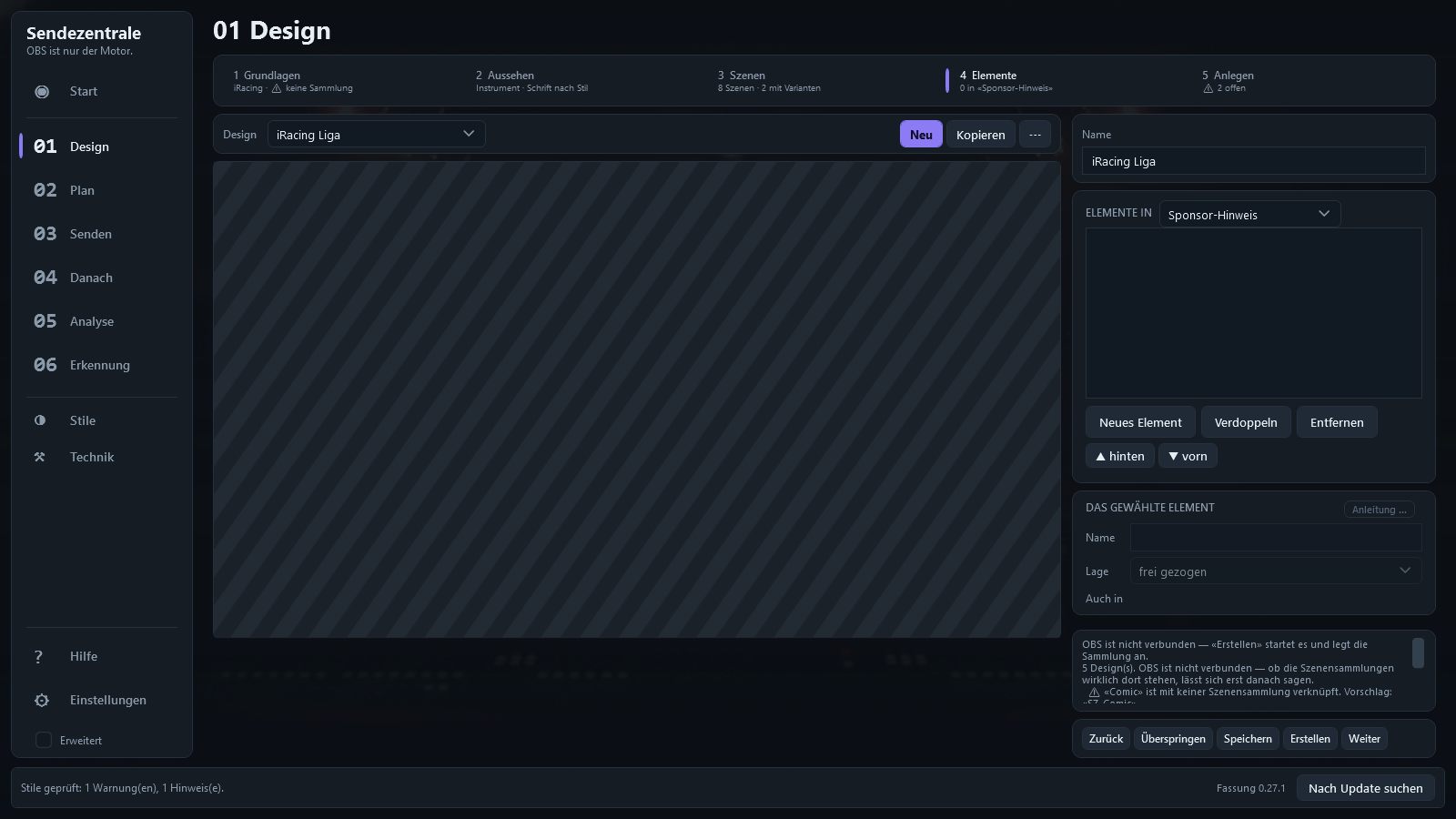
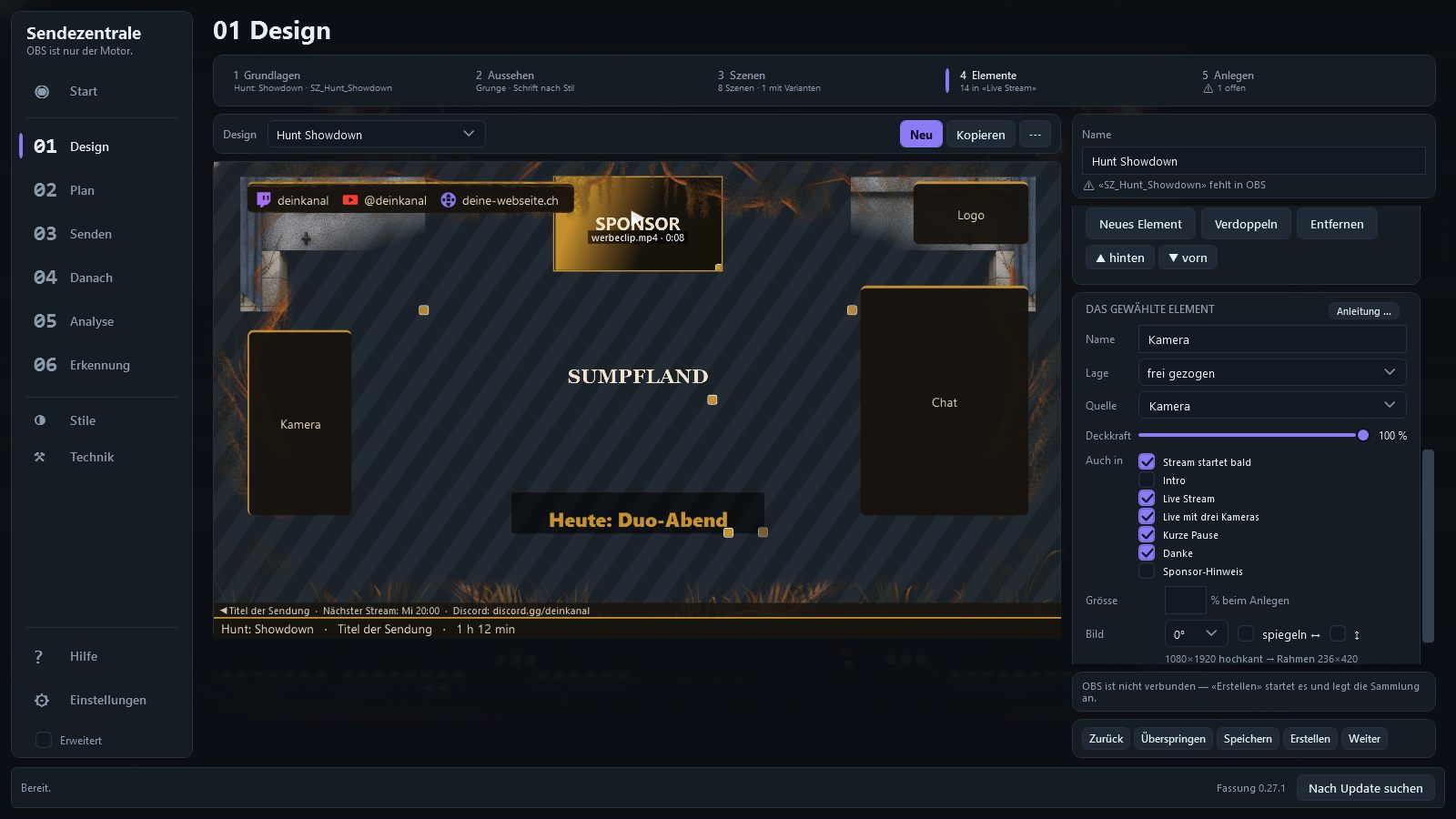
One design per game, in five steps: Basics, Look, Scenes, Elements, Create. The workflow sits at the top, the stage layout on the left, and on the right only the settings of the current step. The look is template and colors — everything else you set on the element itself. Every change is visible instantly.
Scenes and variants
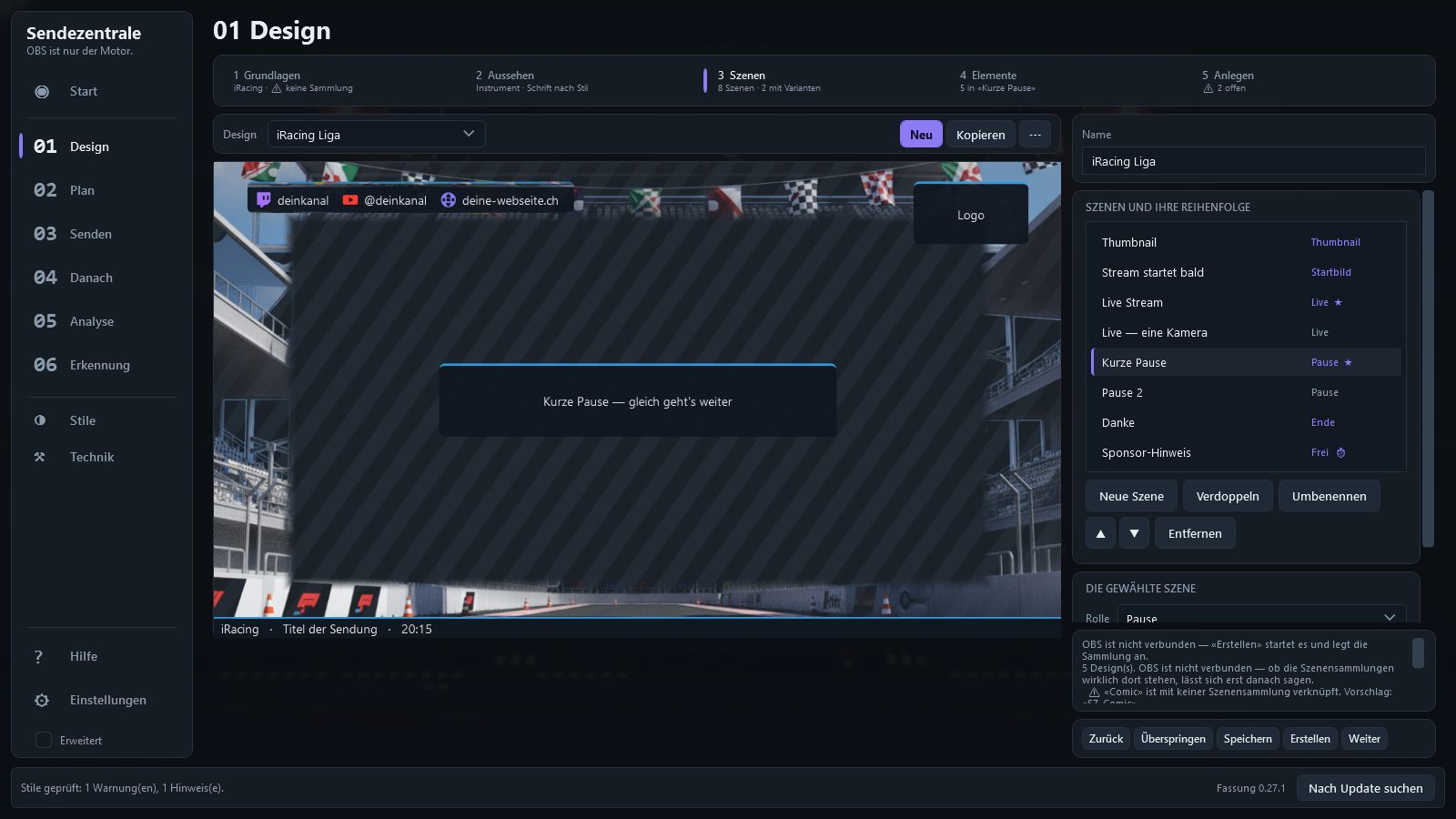
The scenes are yours — add them one by one, name them, sort them. Several with the same role are variants: “Live with three cameras” next to “Live with one camera”, “Break 1” next to “Break 2”. Which one a night uses, you switch when you go live.
Everything is an element
Game, camera, image, text, frame, chat, ticker, social bar, RaceLab and GoFast — one list per scene, and the order is also the stacking order. You drag each element into a zone of the layout or place it freely. Every type has its own settings right below it: the camera has size, aspect ratio, rotate, mirror and frame; the chat has source, style, lines and fade-out; ads have layout, size, order and interval.
Styles
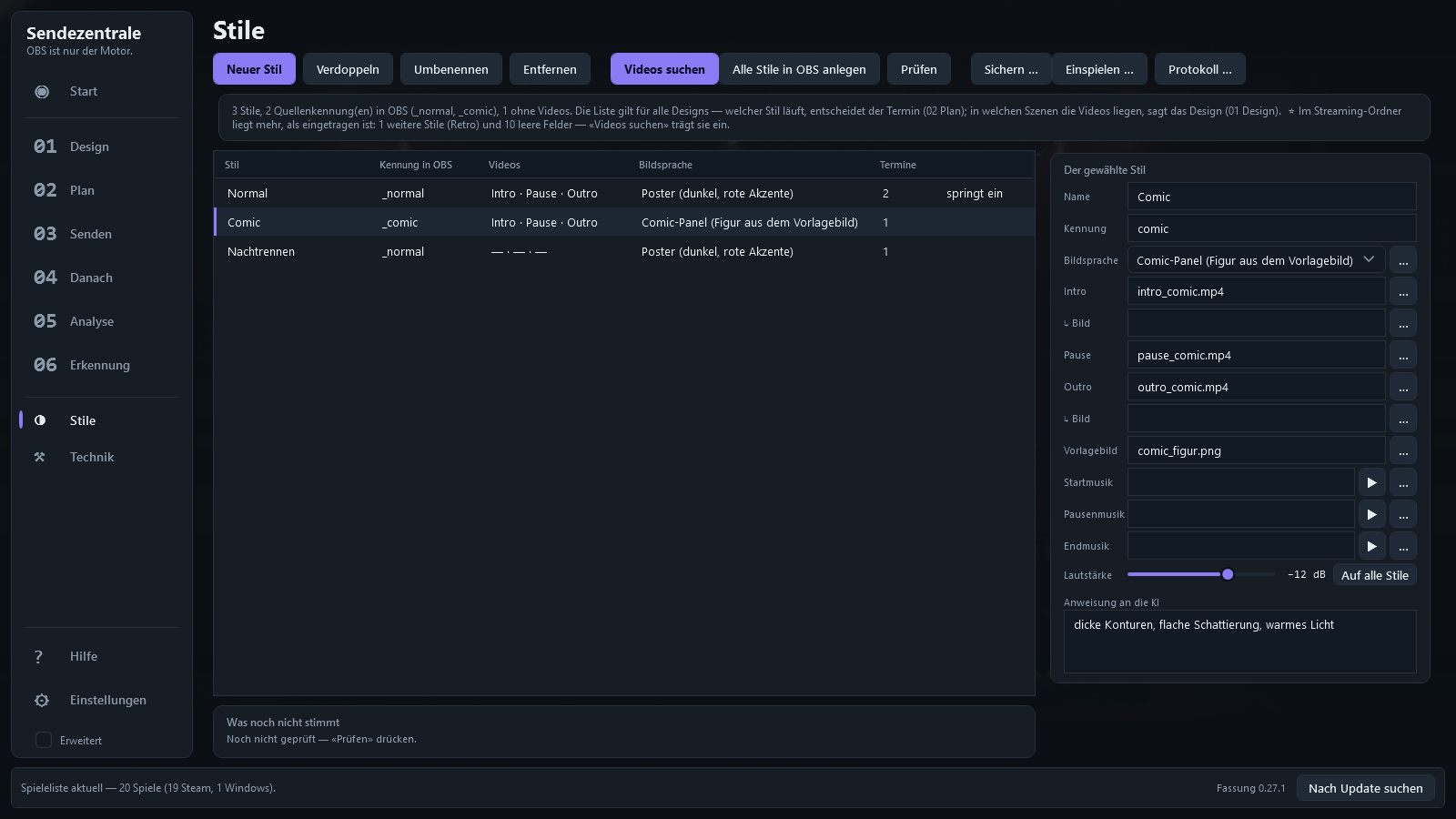
Intro, break loop, outro, music for pre-show, break and sign-off, and the visual style for the thumbnail — maintained once, for all designs. The music runs on its own channel and fades out by itself. “Find videos” (Videos suchen) sorts your streaming folder automatically, “Create all styles in OBS” (Alle Stile in OBS anlegen) builds every variant, and the date decides which one plays.
Layouts like in Windows 11
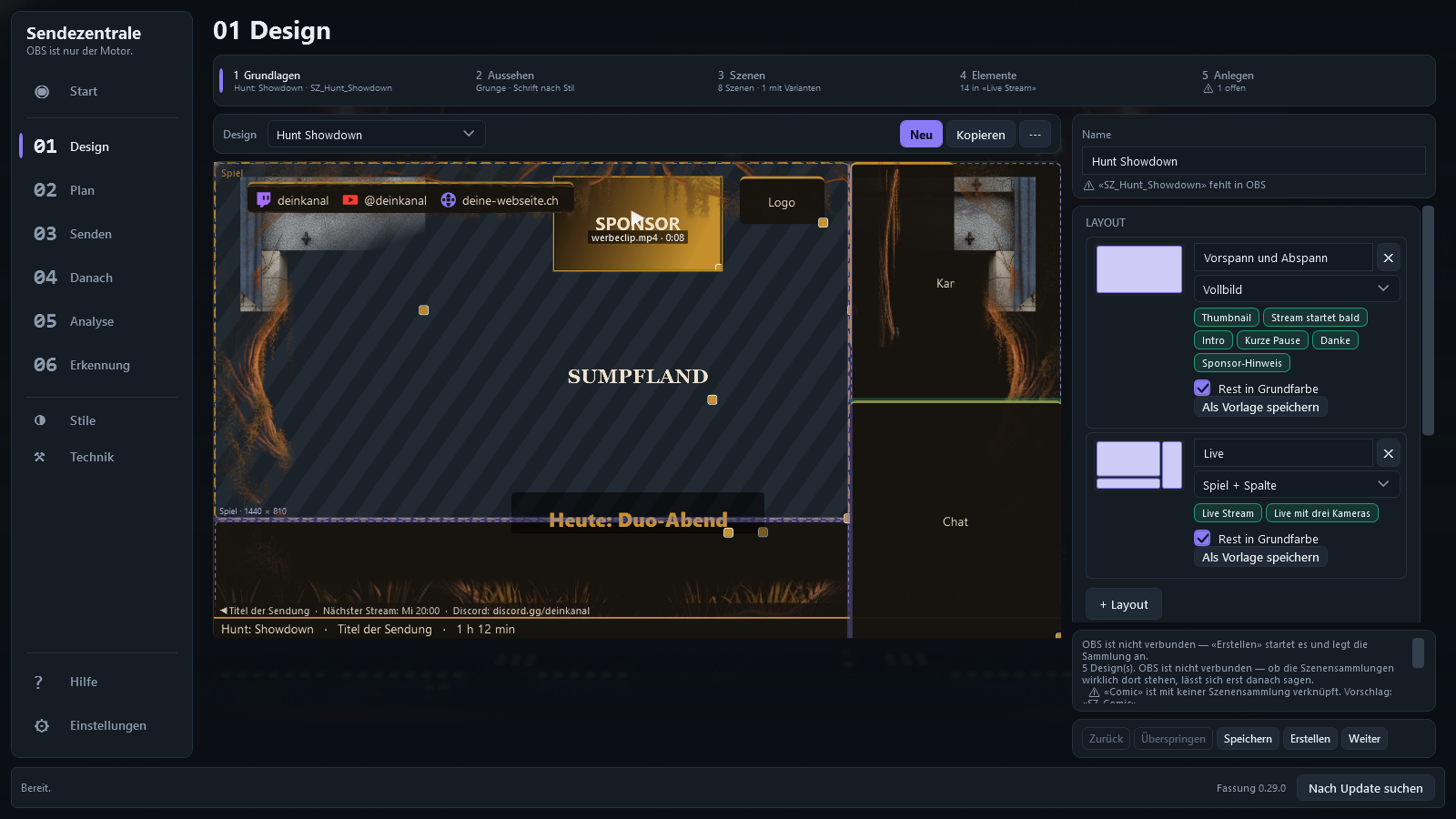
The canvas split into zones — full screen, game + column, picture-in-picture, stage below, widescreen on top or your own template. Elements snap into the zones and fill them, several can share one, every divider can be moved. Each scene picks its layout: pre-show in full screen, live with a column. Learn more.
Multiple games in one stream
An hour of Hunt, then WARDOGS: the date knows several games, each with its own design. The switch happens at the planned time or at the push of a button, with a transition break in the style of the new game. Twitch gets the new category, and the recording is split per game or gets chapters.
Frames
Your own frames, cut out and tinted, as an element in the picture — the AI paints frames to match the game or based on an image of your own. Finished designs move to your next PC as a package.
Ultrawide monitors
Playing on 21:9 or 32:9 — 3440×1440, 3840×1080, 5120×1440? The canvas stays 16:9 for Twitch and YouTube, at the height of your monitor. You decide how the wide image fits in: complete with bars, the center filling the frame, or as a widescreen strip above camera and panel — sharp, with no upscaling.
Chat
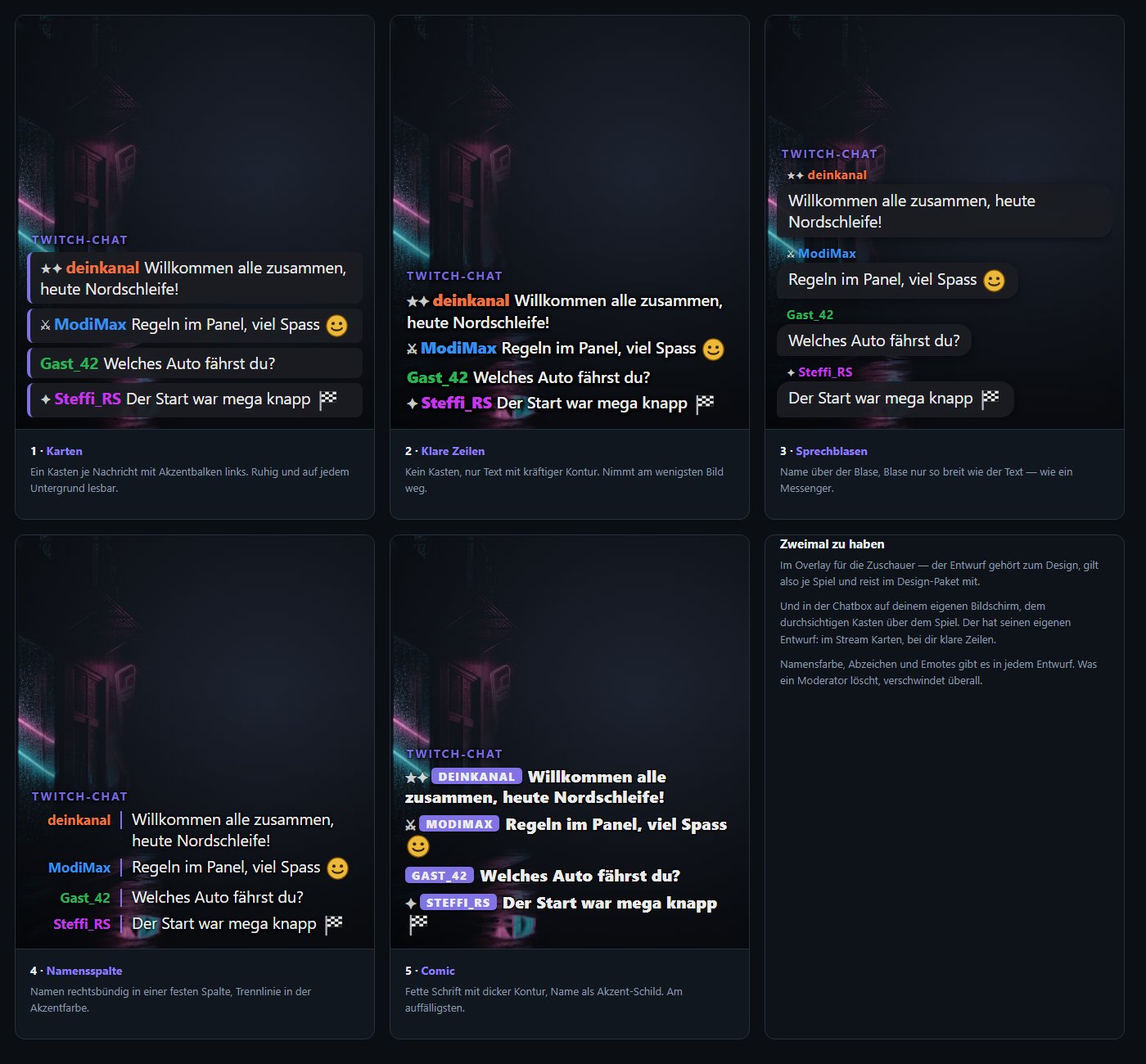
Twitch chat runs right in the overlay — with name colors, badges and emotes, no login required. If you also stream to YouTube, YouTube chat joins in: both in one box, with the platform's icon and Super Chats in yellow. And as a transparent box over the game, just for you. Five designs to choose from.
Twitch and YouTube at the same time
Selectable per date: the second OBS output starts along with it, the YouTube broadcast goes live by itself and ends again with END. Two status fields show both paths with bitrate; if YouTube drops, Sendezentrale reconnects automatically. Whether the recording is uploaded as well, you decide on the date.
Dashboard (Leitstand)
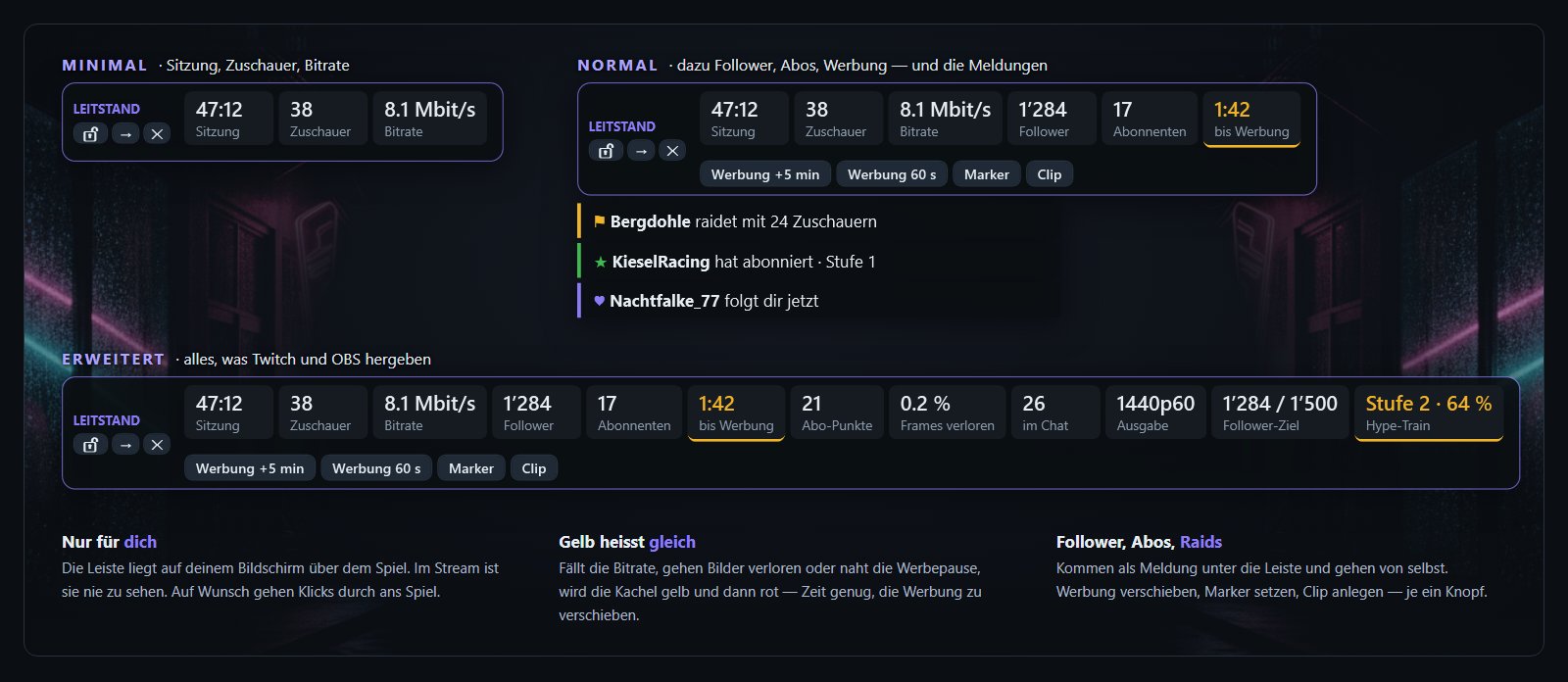
The numbers from Twitch's Stream Manager as a bar over the game — just for you: session, viewers, bitrate, followers, subs, countdown to the next ad. Follower, sub and raid alerts appear below it. Minimal, Normal or Extended.
Thumbnail
Every date gets a thumbnail — logo, title, date, game, and for race dates the track map with elevation profile. It also becomes the thumbnail on YouTube right away.
Ads in your stream
Your own ad images on an interval, as a rotation or permanently on screen — shuffled, in sequence or in your own order, with text beside, below or image only, at any size you drag. Can be limited per date and is labeled as an ad on screen.
Twitch, YouTube, Discord & website
The schedule on Twitch, the broadcast on YouTube, the event in Discord and the calendar on your website are created and updated. Past entries clean themselves up. More about the stream schedule.
Afterwards
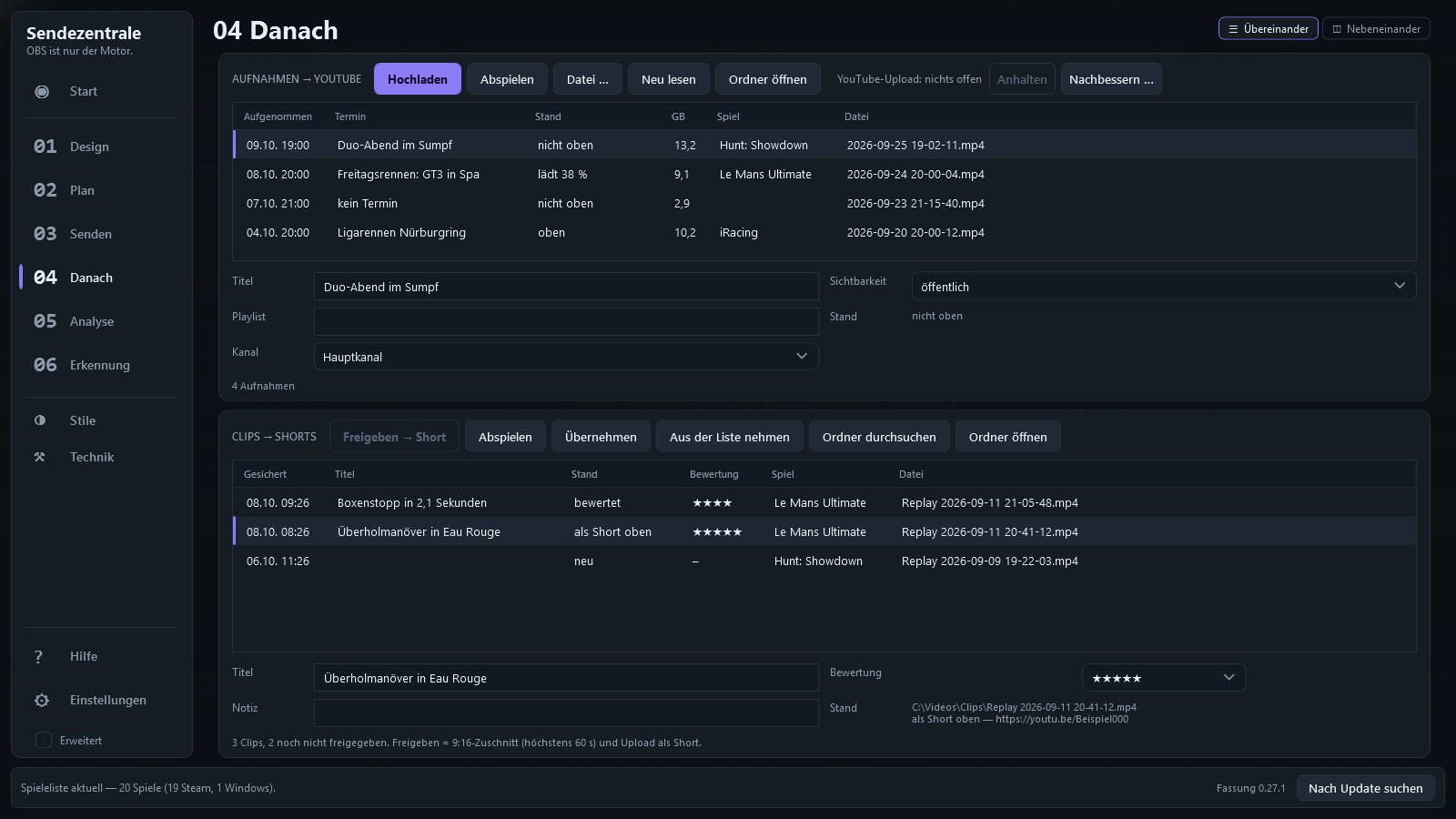
Two lists, stacked or side by side: the recordings with their status on YouTube — uploaded automatically or at the push of a button, with title, visibility and playlist — and the clips from the stream, which become Shorts without a video editor. Whatever went wrong can be fixed.
Quality
Stream and recording configured separately: resolution, encoder, bitrate and audio per path, suggestions based on Twitch's and YouTube's guidelines, one click writes it all to OBS. The recording gets its own audio track, optionally with mic, game and Discord separated. And the audio doesn't come through twice: if the game captures its own sound, desktop audio stays silent.
Setup
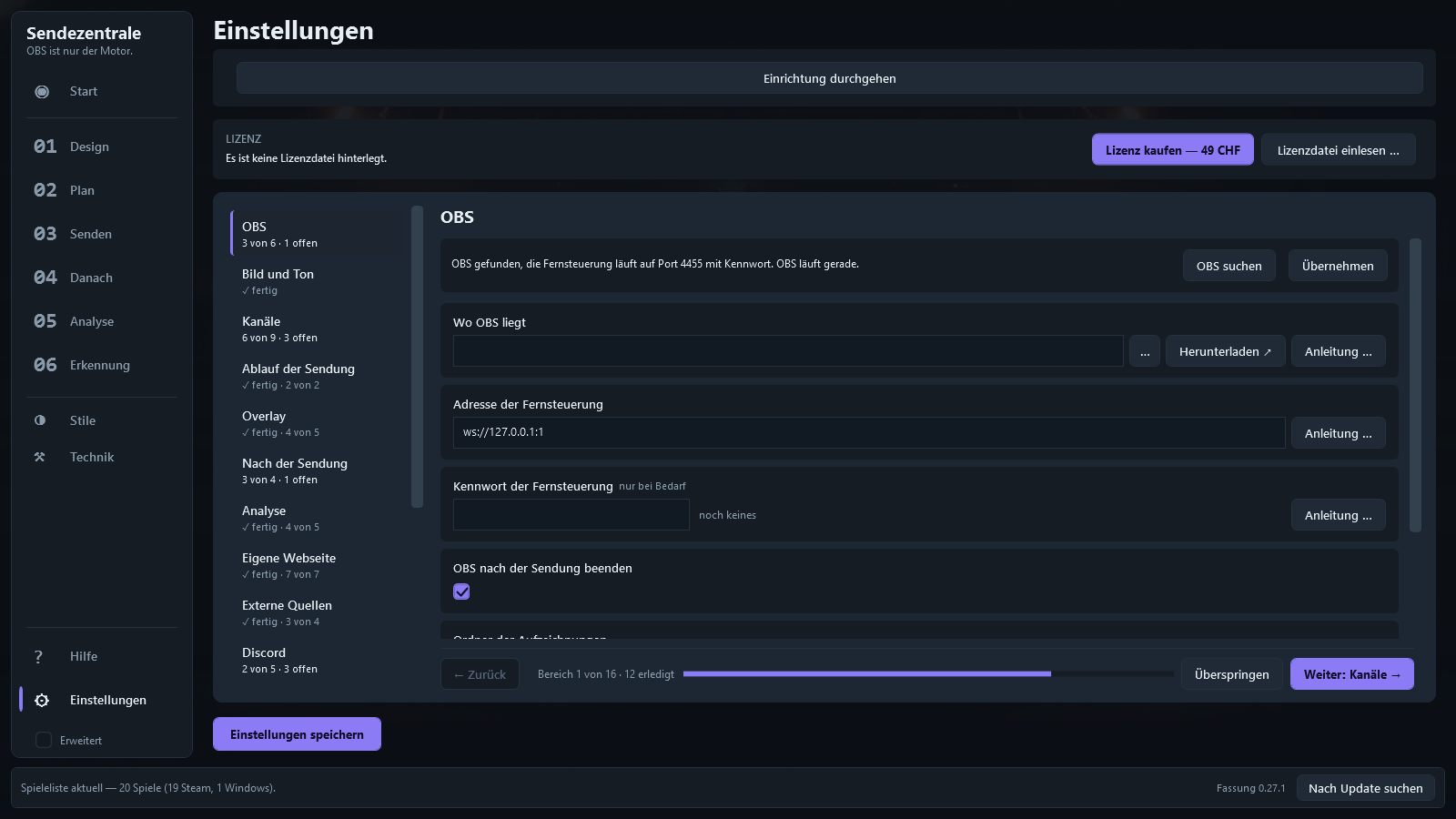
“Run through setup” (Einrichtung durchgehen) asks only what's necessary and pulls in what OBS already knows. The checklist under Technik (Tech) shows at a glance whether OBS, remote control, scenes, overlay, quality and audio are right — and what to do if they're not.
Analysis — kills, deaths, rounds and more
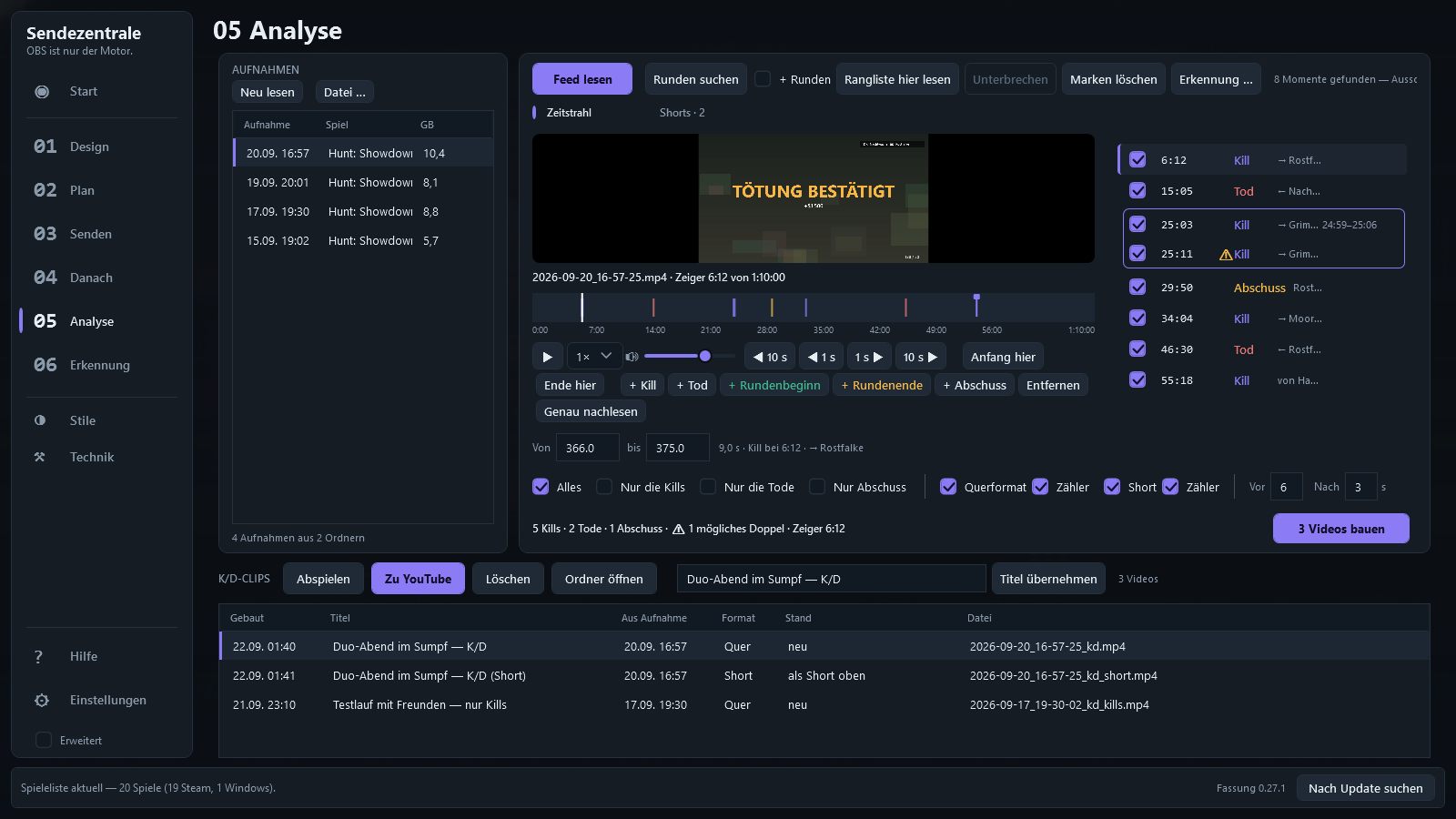
A page of its own: the latest recordings on the left, player and timeline on the right, the finished clips below. “Read feed” (Feed lesen) uses Windows' built-in text recognition — no AI, no internet, no cost — to find everything your game has been taught: kills and deaths, rounds, wins, or in a racing game contact, spins and pit stops. While playing back, you add markers with a key press. From that you build videos in landscape and as Shorts, per round or as a compilation — with a counter that shows what matters for each game: “12 kills / 3 deaths” in a shooter, “Lap 7/24 · Pit 1” in a race.
Detection — teach it your game
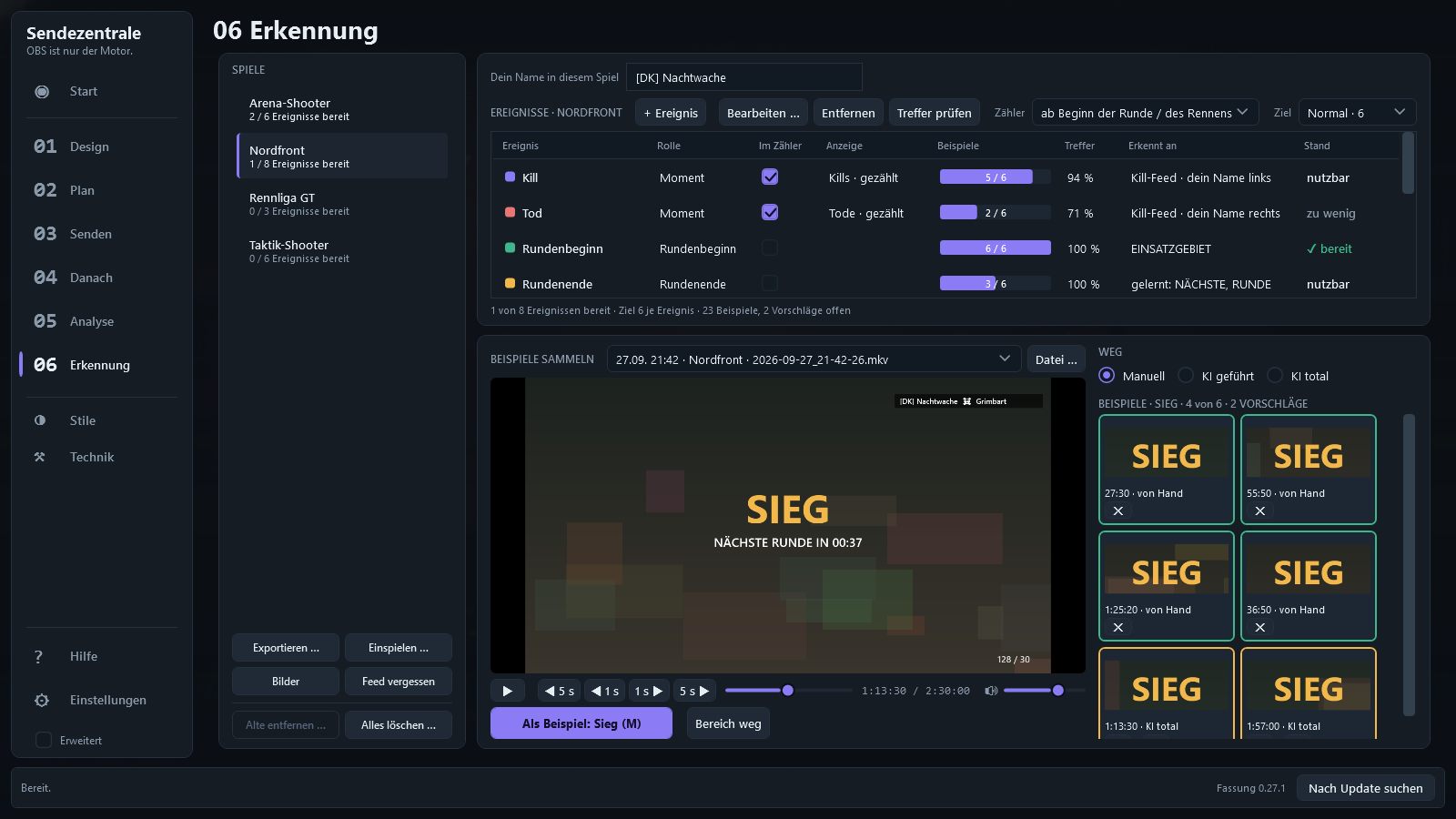
For each game you define which events count — round start and end are events, too. You collect examples by hand: a spot in the video, drag a region, done. Sendezentrale reads the text in it, measures the hit rate and tells you when an event is ready. If you like, let the AI search along — beforehand you see requests, cost and daily limit and confirm.
Layouts — the canvas in zones, like in Windows 11
Pick a layout, drag your elements into the zones — they snap in and fill them. Every zone shows its size in pixels, calculated for your canvas. What you see on the stage is exactly what OBS gets when the scenes are created: game and camera sit in their fields.
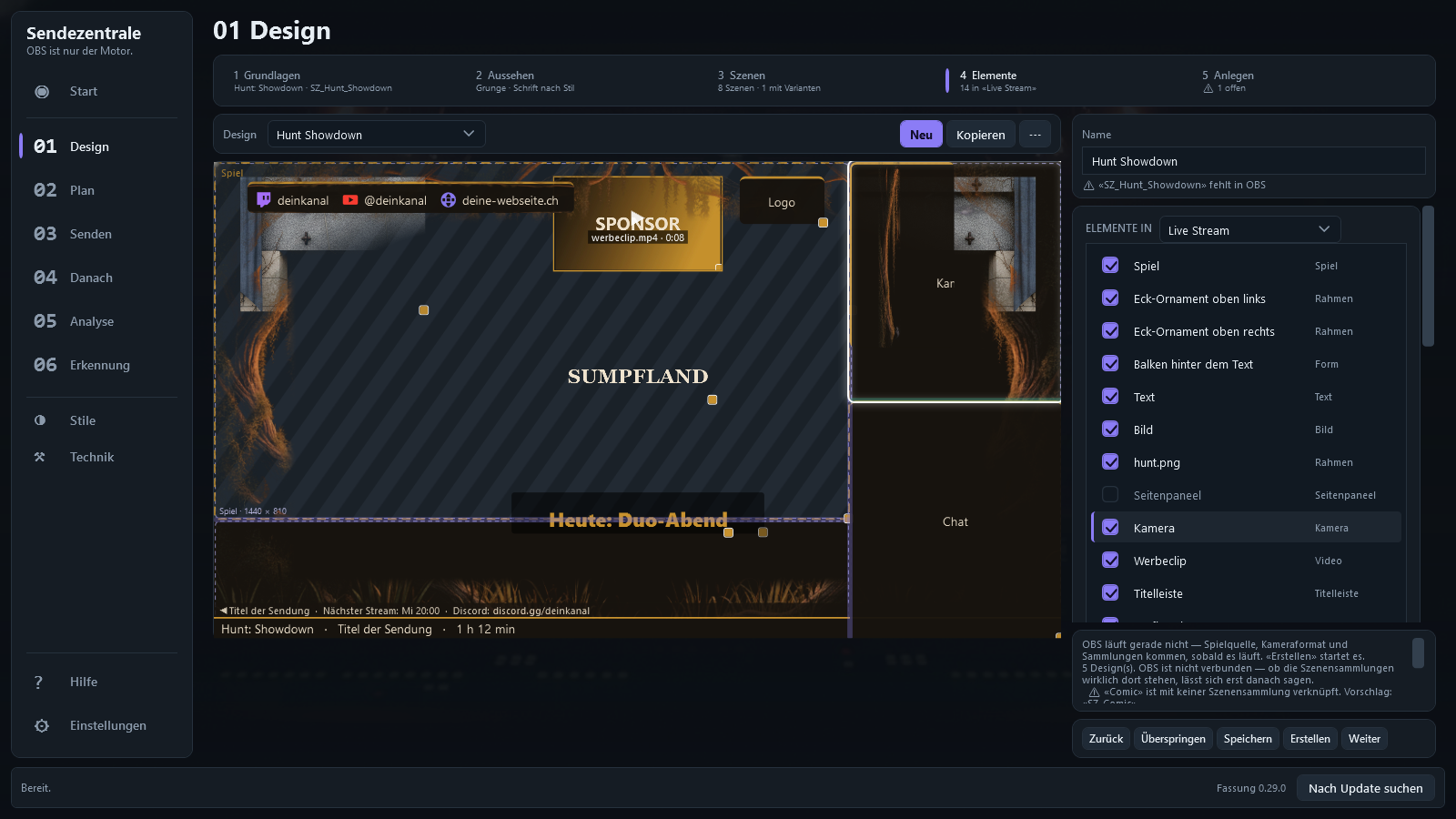
Snap and share
Drag an element into a zone — it lights up, let go, the element fills it. Two elements in one zone share it; the divider between them can be moved. Hold Shift to place an element freely.
One layout per scene
Intro and outro in full screen, live with a column, the break with a big camera: every scene shows its layout, and the elements have their own place in every layout.
Cropped or scaled
On the game, the camera and the video you choose: show it all — with bars if the aspect ratio doesn't fit — or fill the zone, cropped to the center, left, right, top or bottom.
Your own templates
Moved the dividers to suit you? “Save as template” (Als Vorlage speichern) — and the layout is available in every design.
Multiple games in one stream
- One date, multiple games. In the date window, “+ Spiel” (+ game): game, design, minutes. Schedule, website, Discord and YouTube show “Hunt: Showdown → WARDOGS”.
- On time or at the push of a button. Automatically, it switches into the transition break at the planned time — both designs sit in a shared scene collection for this, seamlessly. In manual mode, Sendezentrale reminds you, and “Next game” (Nächstes Spiel) switches — from the Stream Deck, too.
- The transition break in the style of the new game. “Back in a moment with WARDOGS” — and as soon as the game is running, it goes live by itself.
- Twitch and the recording follow along. New category and title in the running stream, a marker in the VOD. The recording split per game — one video and one K/D analysis per game — or continuous with chapters.
The stream schedule in detail — weekly schedule, series, events and breaks
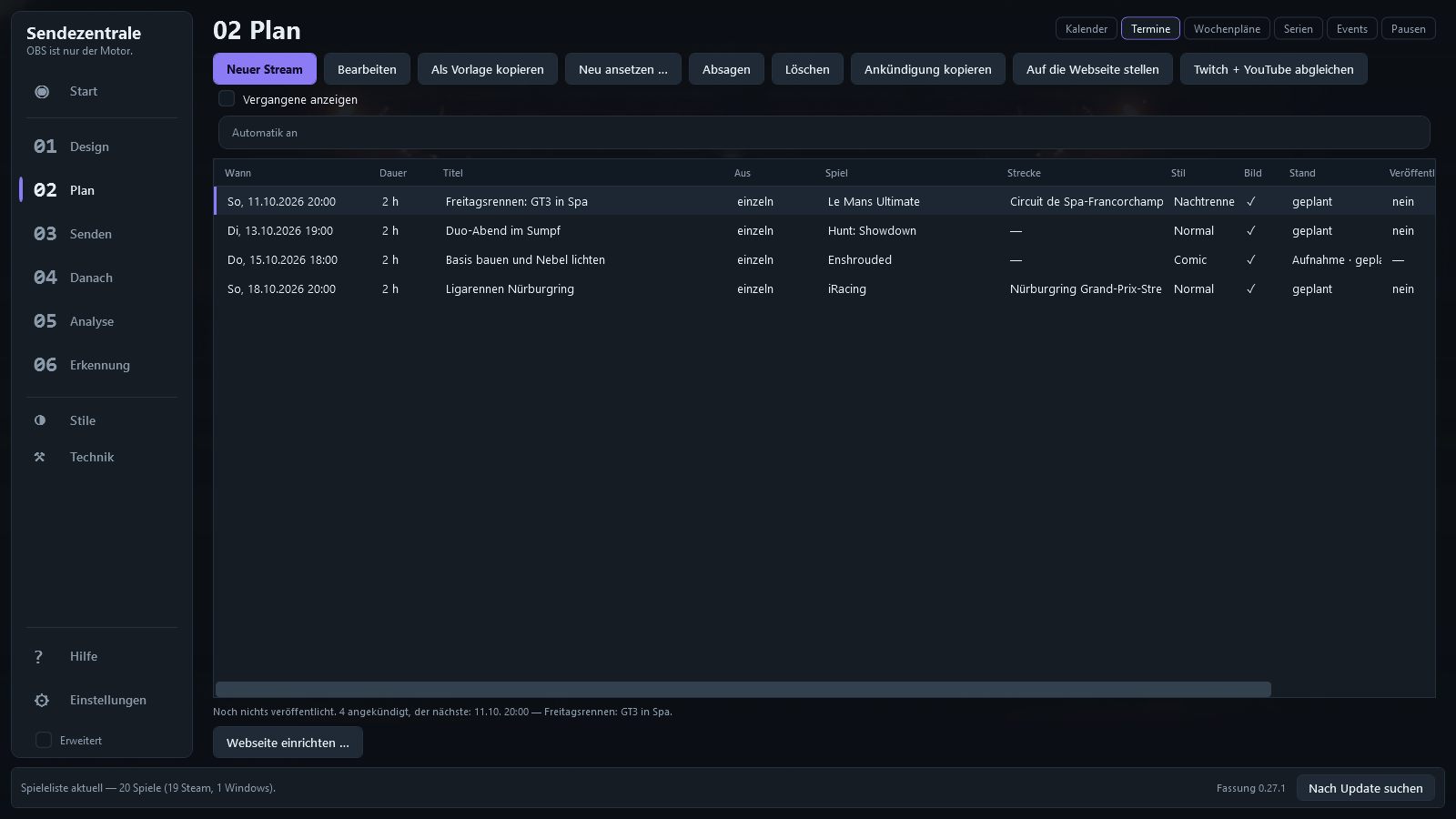
If you stream regularly, you have a fixed rhythm. In «02 Plan» you set it up once — Sendezentrale enters the dates itself and keeps your website, Twitch, YouTube and Discord current. Everything ends up as a regular date in the same list.
Weekly schedule
Monday to Sunday, several entries on one day if you like, each with time, game and format name. Every week or every other week, from a start date, open-ended or for a set number of weeks. Dates are entered on a fixed weekday or on a rolling basis for the coming weeks. If the program was off, it catches up on the next start. Whatever you change or cancel by hand, the schedule no longer overwrites.
Series and leagues
League, season, cup, tour or endurance: all rounds with track, class, format, rules and special rule. Enter them all at once, shift all following ones. The title comes from a template like “GT3 League · R3/8 · Spa”. On race day, the series takes priority over the weekly schedule.
Championship standings
One table per class plus the overall standings. Scoring is by player name, and points are awarded only for races driven; teams have their own ranking from the sum of their drivers. For Le Mans Ultimate, Sendezentrale reads the result from the game's results file; for other games, the “Leaderboard” (Rangliste) element in the analysis reads the names from the results screen. Before publishing, you check and correct it in a list. Points templates based on WEC, ELMS, Le Mans Cup, GT World Challenge, DTM, ADAC GT Masters, Porsche Supercup and F1 — or your own.
Events
A trade fair visit, a community night, a tournament: location, hall and booth, several time slots across several days and a link to registration or tickets. A time slot can be a stream; the usual streams during that time can be suspended.
Breaks
A vacation or a single day off. During a break, no weekly-schedule dates are created, and ones already entered are canceled. On Twitch the break goes into the schedule as vacation; on the website it says “Break · back on …”.
Out to the world automatically
With “update automatically” (automatisch nachziehen) on, changes are bundled and sent after about one minute to your website, Twitch, YouTube and Discord. That applies to dates you create by hand, too. Without Twitch Affiliate, Twitch only allows recurring weekly slots — exactly what Sendezentrale enters. On YouTube, every race gets a scheduled live stream in the series playlist.
On your website
The stream calendar shows the schedule with an expandable track map, events with location and the next break. With your own web space, you also get the series with all rounds and standings and “Our week”. For subscribing there's a calendar file — per series, too.
Weekly schedule as an image
An image of your week for Discord, X and Instagram, in 1920×1080, 1080×1350 and 1080×1920, saved to a folder of your choice. It goes to the chosen Discord channel automatically, per game to a separate one if you like; for X and Instagram, image and text are ready to upload.
How a stream night goes
Create a date
Title, game, time. Thumbnail and announcement are created along the way, and Twitch and YouTube are informed.
Press START
OBS is launched, the scenes are ready, the overlay shows the countdown. Or the autopilot takes over shortly before.
Go live
Pause, clip and end are one button each. What's happening on screen, you see in the preview inside the program.
Wrap up
Upload the recording, build the K/D video, rate clips, approve Shorts. The next date is already set.
What it looks like
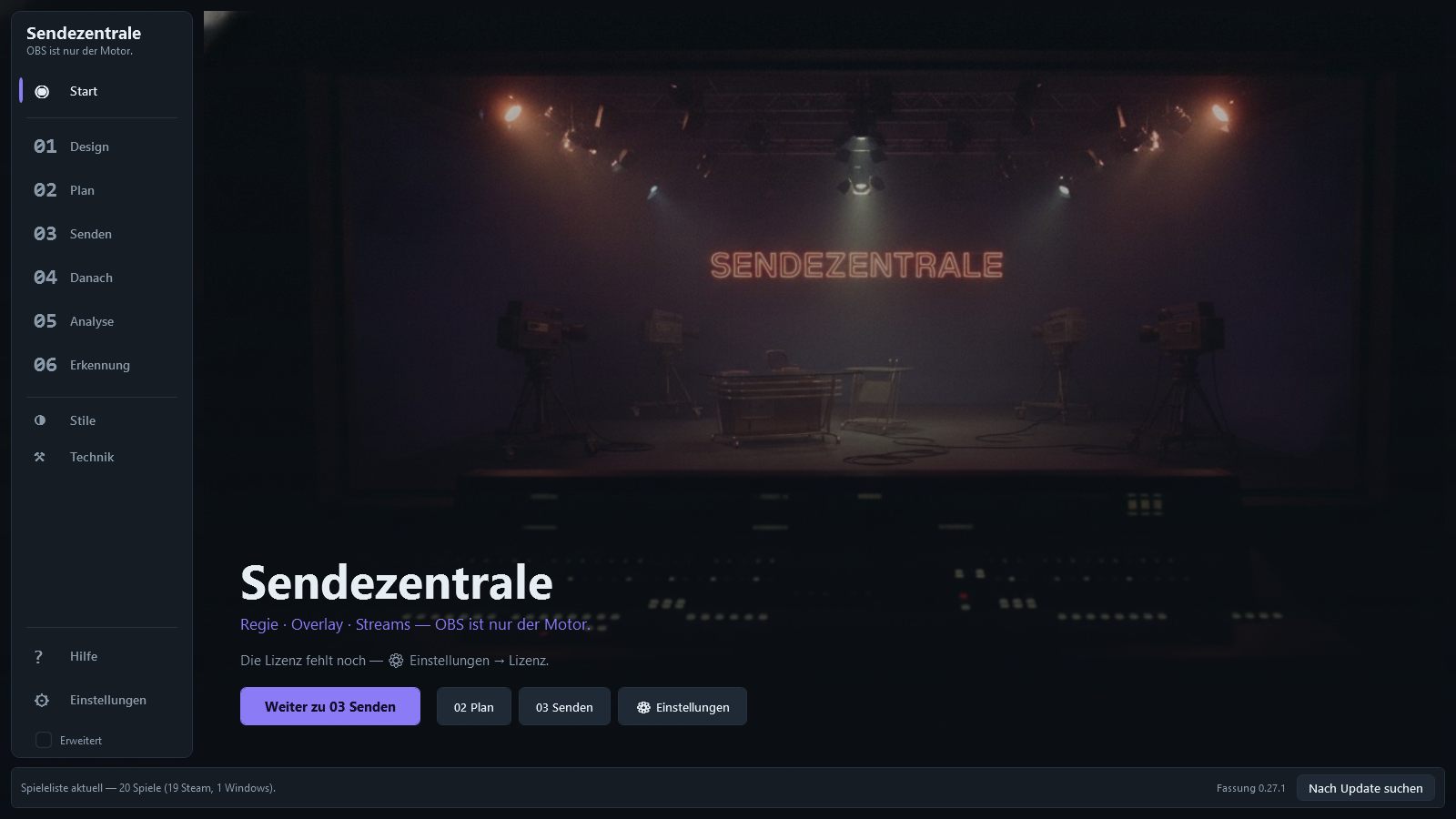
Eleven screenshots in the order of a stream night, from the current version. The screenshots show sample data.
Chat on screen — five designs
Twitch chat runs right in the overlay: name colors, badges and emotes, no login and no token. With Twitch + YouTube, YouTube chat lands in the same box, every message marked with its platform's icon. How a message looks, you choose from five designs — on the chat element, along with the number of lines and when old messages fade out. That way every design has its own chat. The same chat is also available as a transparent box over the game, just for you, with its own design.
3, 2, 1 — on air
Just before the live scene goes out, your screen counts you in. Not the stream: viewers still see the intro, you see the countdown disc over the game. The count happens before the switch so that zero is exact — when it says “AUF SENDUNG” (on air), you're on air. You drag the disc where you want it once with the mouse — onto your second monitor, too — and it stays there.
The dashboard (Leitstand) — your numbers over the game
What you'd normally see in Twitch's Stream Manager sits as a slim bar over the game — only on your screen, never in the stream. Three levels are ready: Minimal with session, viewers and bitrate; Normal with followers, subs and the countdown to the next ad break; Extended with everything Twitch and OBS can provide. Or tick each tile individually. New follower, sub and raid alerts appear below the bar and disappear on their own; snoozing an ad, setting a marker or creating a clip is one button each.
Try it first, then buy
Without a license, Sendezentrale runs fully for you to explore: set it up, plan dates, create designs, generate thumbnails, rate clips. Two things require the license: going live and creating the scene collection in OBS. No trial period, no counter.
After purchase, your license file arrives by email. Load it once under ⚙ Einstellungen (Settings) → Lizenz (License) → «Lizenzdatei einlesen …» (Load license file …), done. It's valid permanently and works without internet.
Windows 10/11 (64-bit) and OBS Studio 30 or later. Version 0.35.1 · Installer 101.5 MB ·
SHA-256 AF65AACE…F4525C2F
The app speaks German and English — switch any time with “DE | EN” at the top right.
Payment is handled by Polar, which acts as the seller and takes care of VAT. Credit card, PayPal and other methods are available.
How to install
▶ All video tutorials Design, styles, YouTube channels and more — sorted by topic and searchable.
- Download: “Download installer”. If your browser says the file is rarely downloaded, choose Keep in the download menu “…”.
- Launch: Double-click
Sendezentrale-Setup.exe. If Windows shows “Windows protected your PC” with only “Don't run”: click More info in the text, and Run anyway appears. Windows warns like this for every program without a purchased digital signature, which Sendezentrale doesn't have. - Install: “Weiter” (Next), optionally tick a desktop icon and “Mit Windows starten” (Start with Windows) (the autopilot in the broadcast schedule needs this), then “Installieren” (Install). No administrator rights needed; it installs for your user account.
- First launch: “Fertigstellen” (Finish) launches Sendezentrale, and the initial setup opens by itself: it guides you through everything needed and takes over what OBS already knows. OBS Studio 30 or later must be installed.
- License: After purchase, load the license file from the email under ⚙ Einstellungen (Settings) → Lizenz (License) → «Lizenzdatei einlesen …» (Load license file …).
If Smart App Control is turned on in Windows 11, Windows won't allow unsigned programs at all.
To check that the file is unchanged, run Get-FileHash .\Sendezentrale-Setup.exe in PowerShell — the result must match the
checksum. Later versions are fetched with “Nach Update suchen” (Check for updates) at the bottom right of the program.
How buying works
1. Buy
Pay via Polar — credit card, PayPal and other methods. Polar issues the invoice.
2. Receive your license file
After purchase, you get your personal license file by email, along with the link to the program.
3. Load it and get started
Select the license file once in the program. It's valid permanently and works without internet.
No account, no data collection
No sign-up, no license server. Sendezentrale checks the license on your PC and sends nothing out in the process.
Questions? support@tausendfreund.me