Sim racing liveries.
No Photoshop.
RacePaintShop is the livery designer for iRacing and Le Mans Ultimate: colors, gradients, patterns, WordArt, car parts and AI design — and the export drops the finished livery straight into the sim.
Windows 10/11 · approx. 58 MB incl. .NET runtime · Trial with the full design toolset (no export & AI)
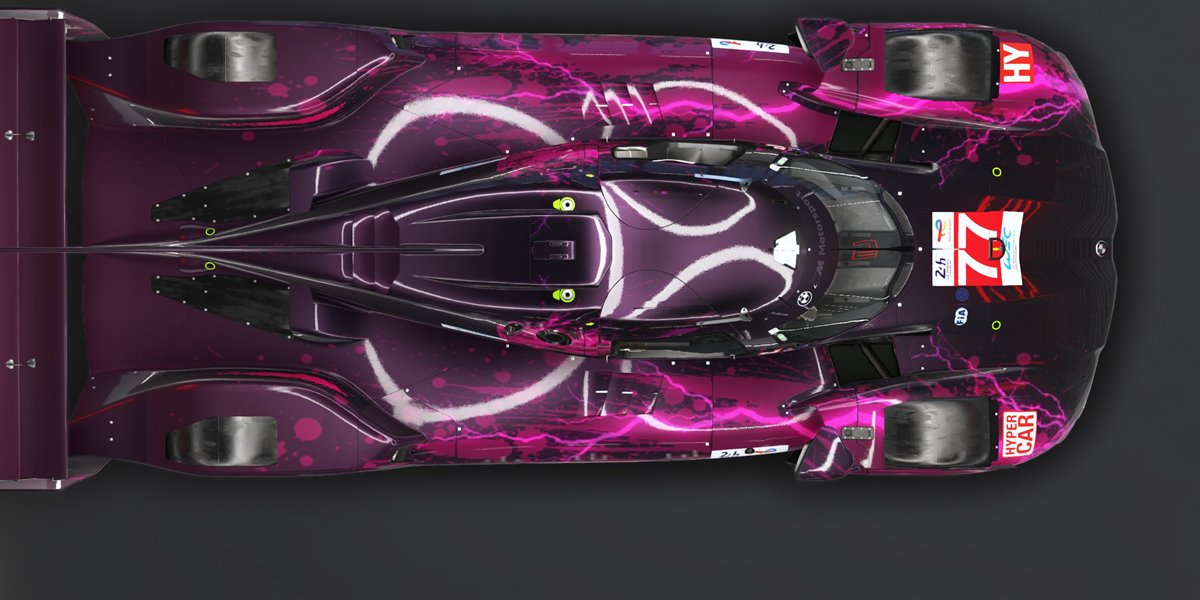
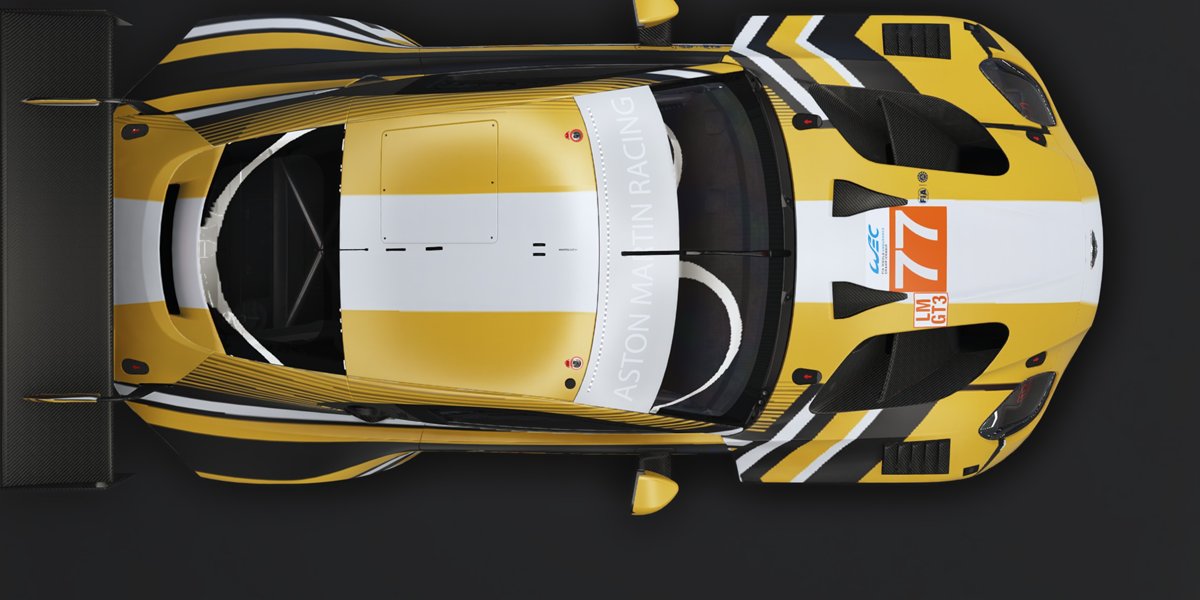
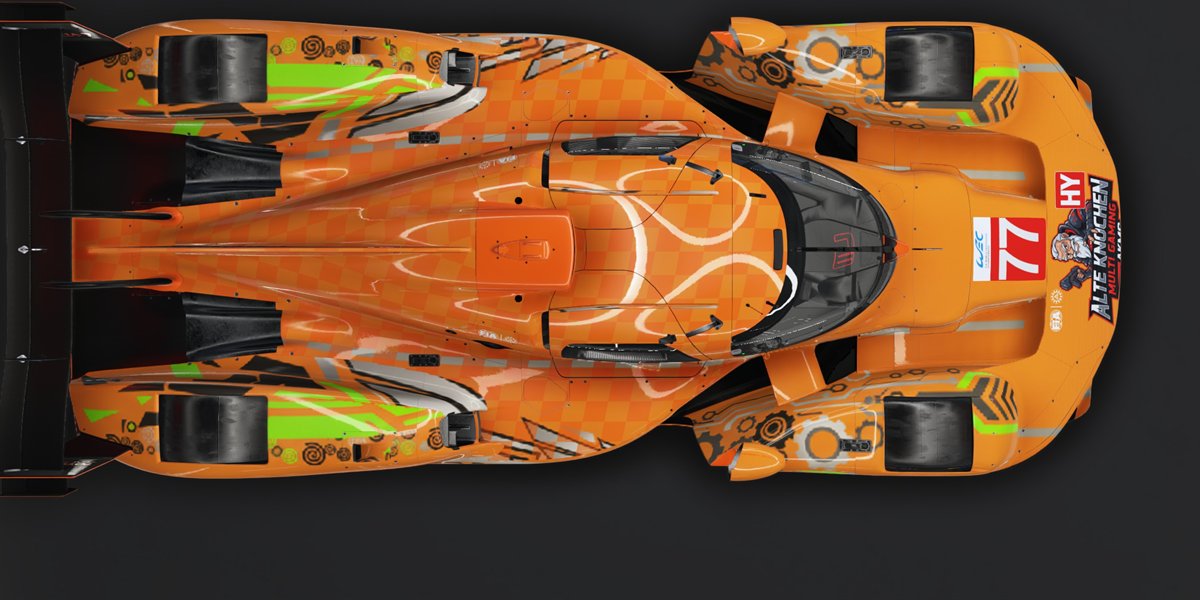
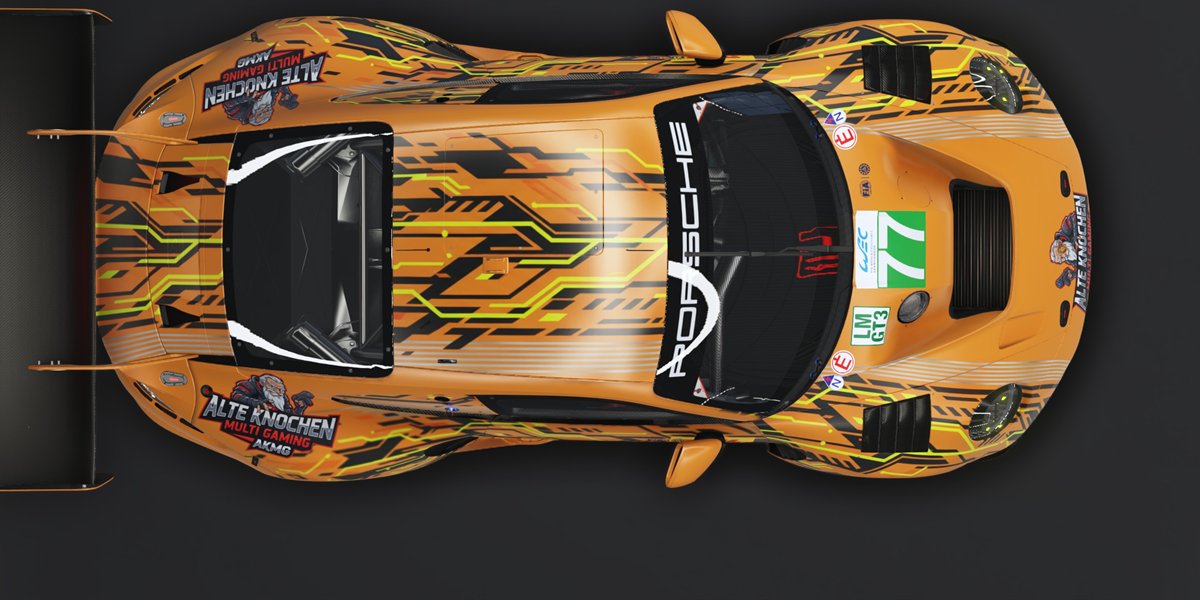
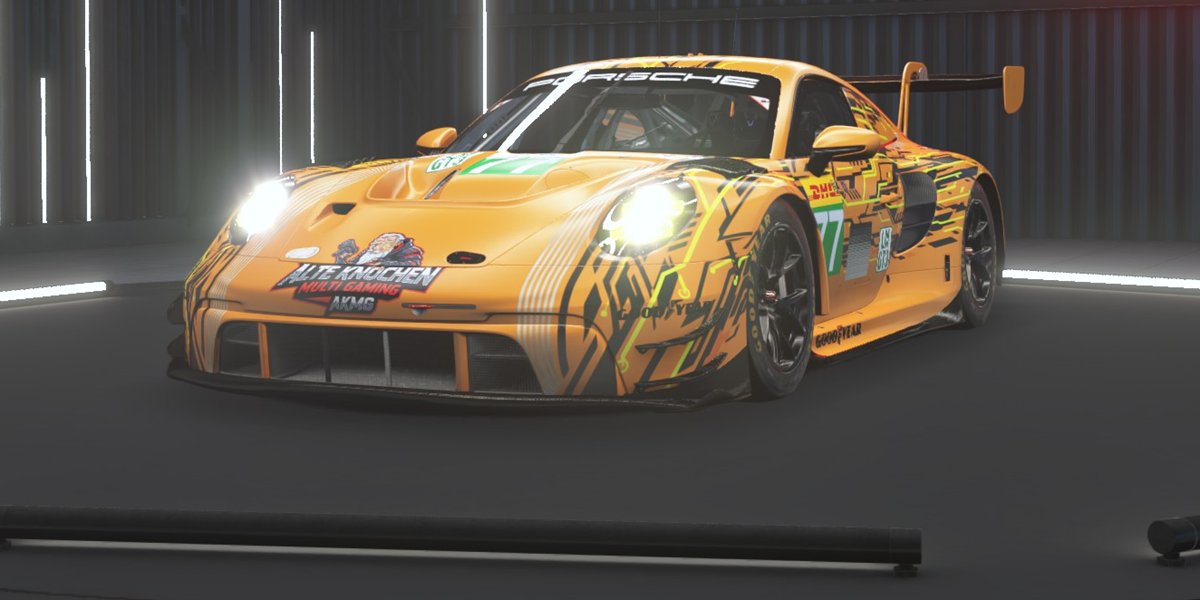
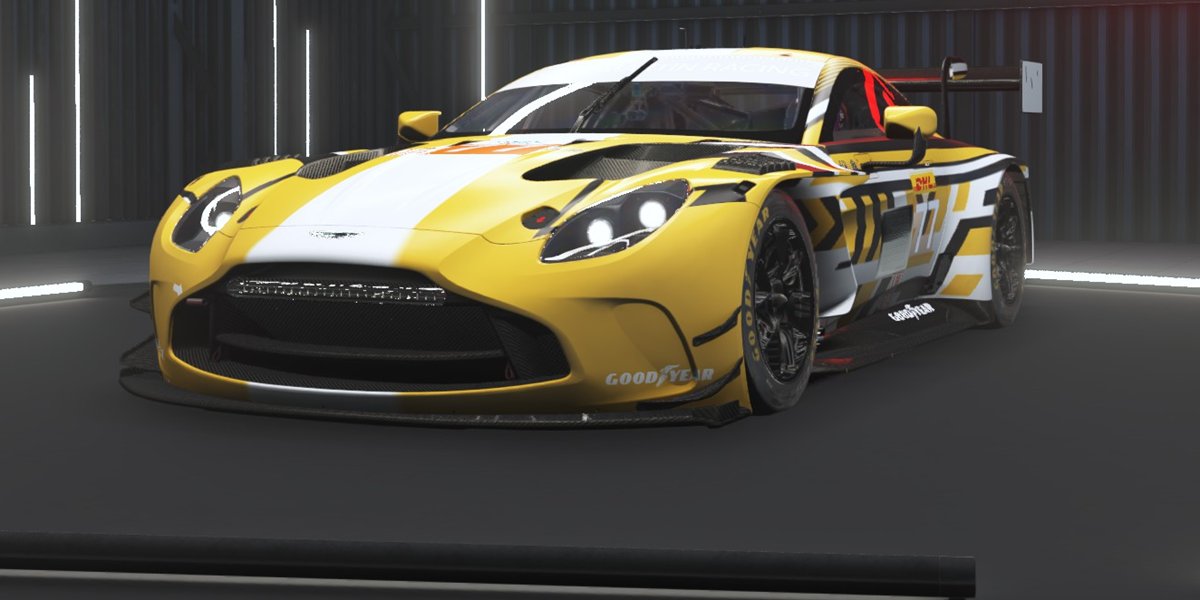
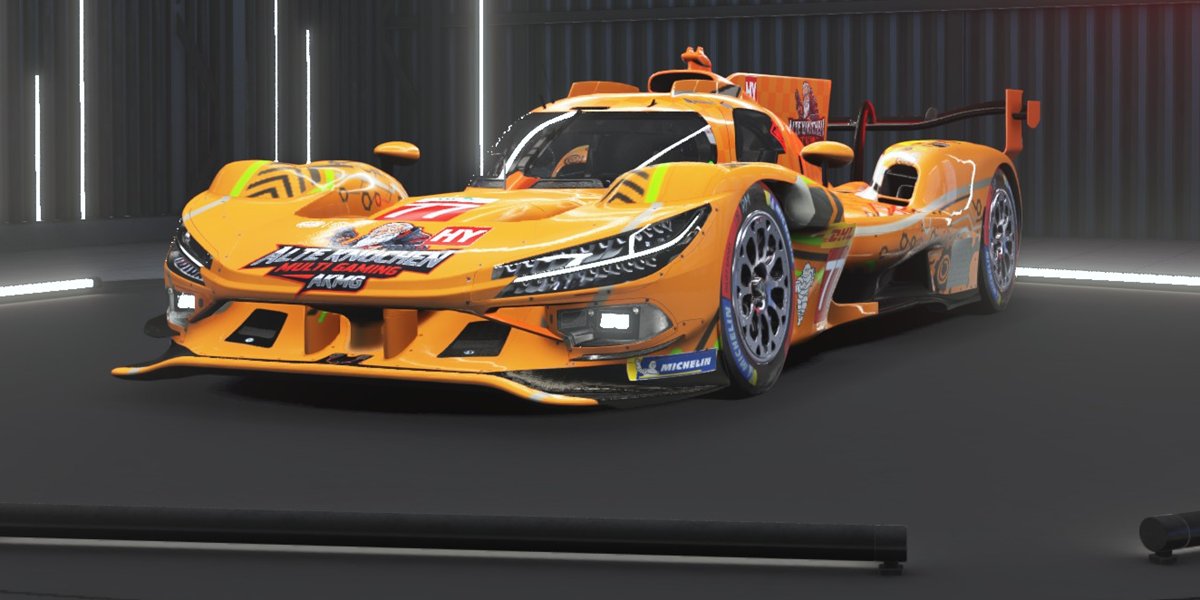
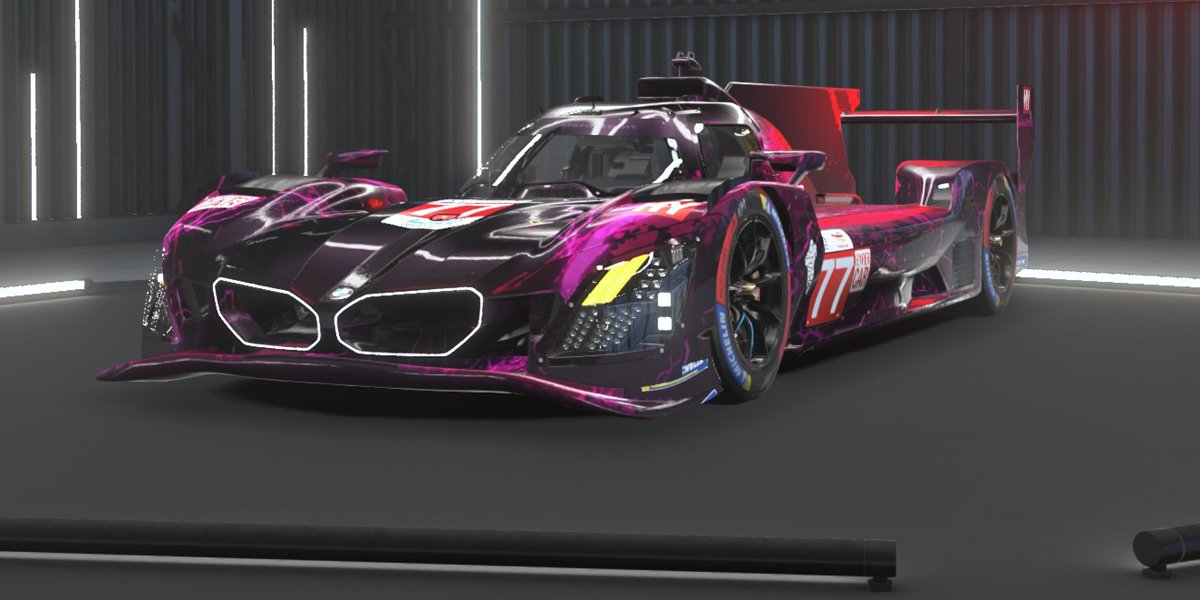
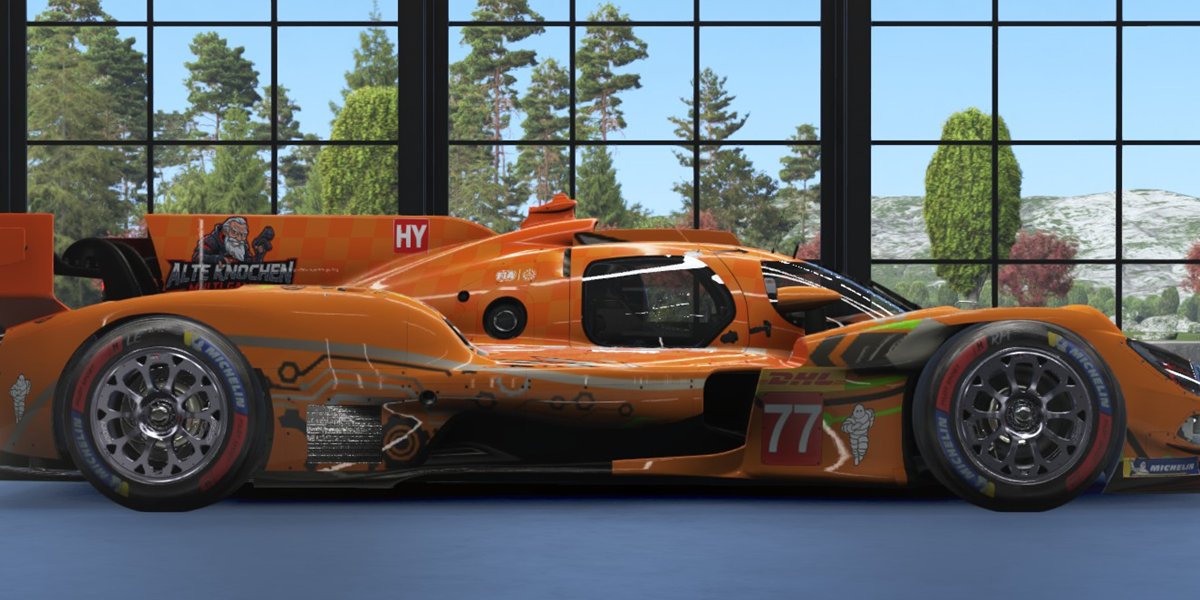
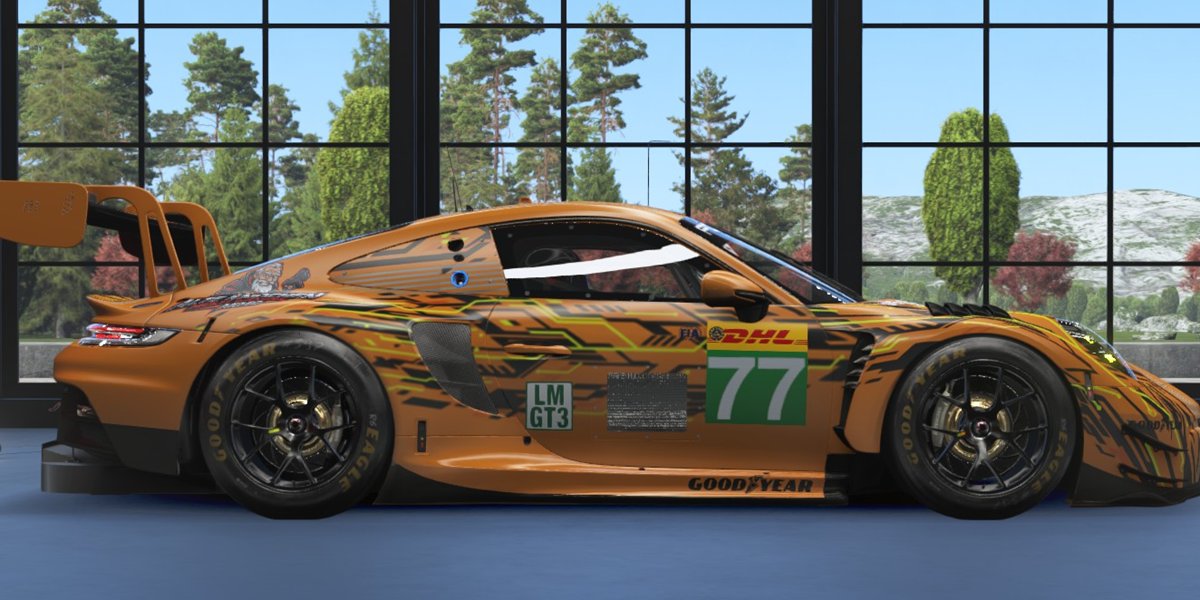
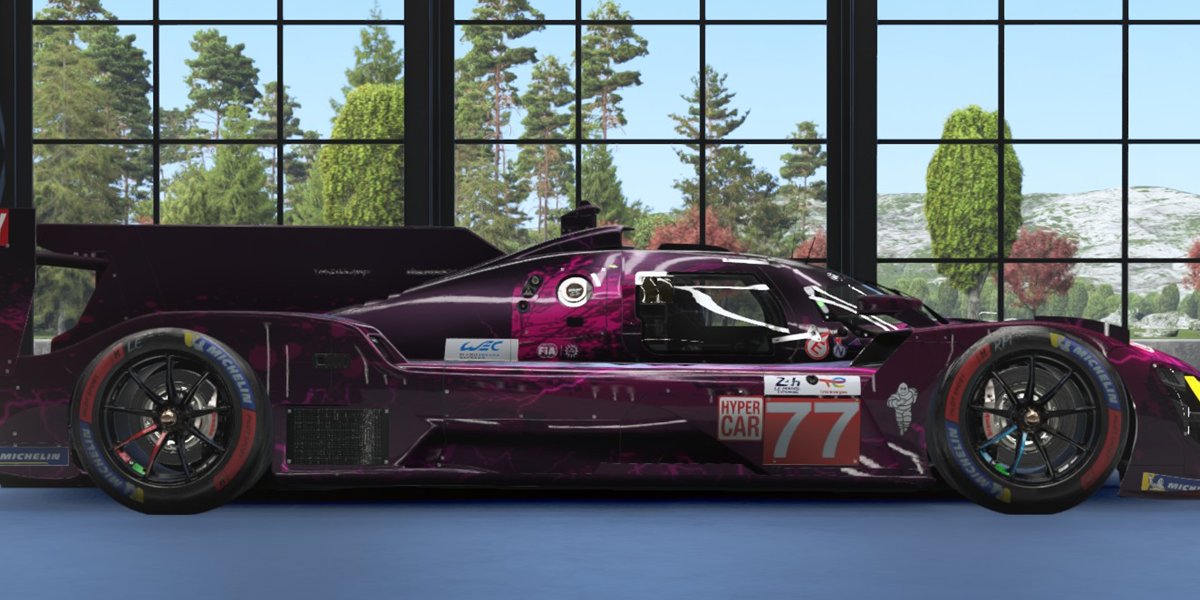
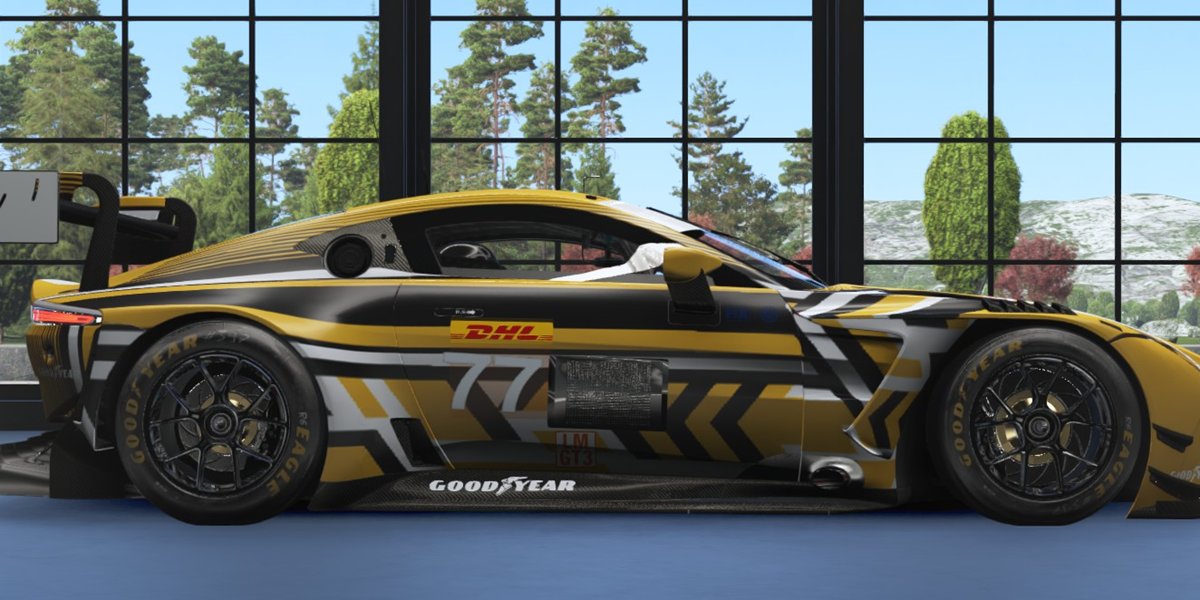
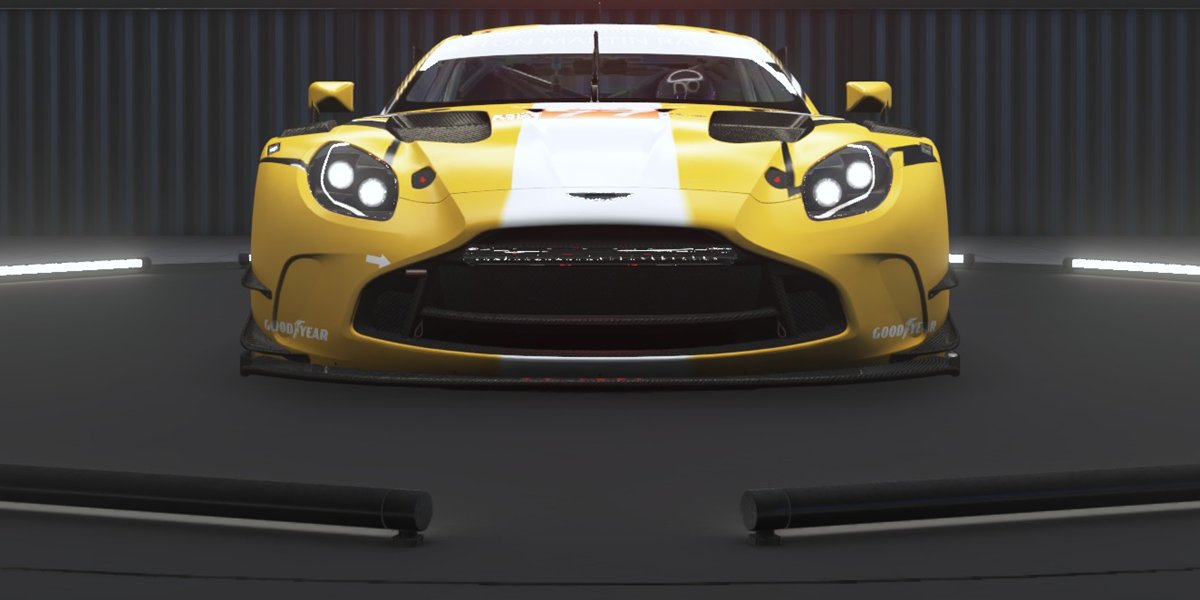
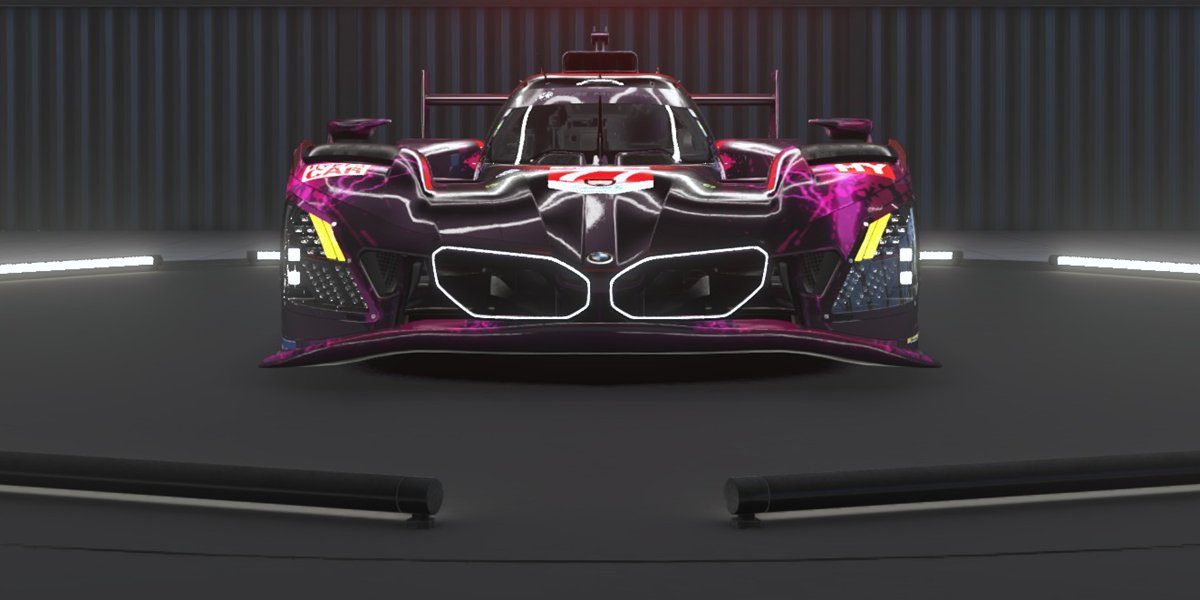
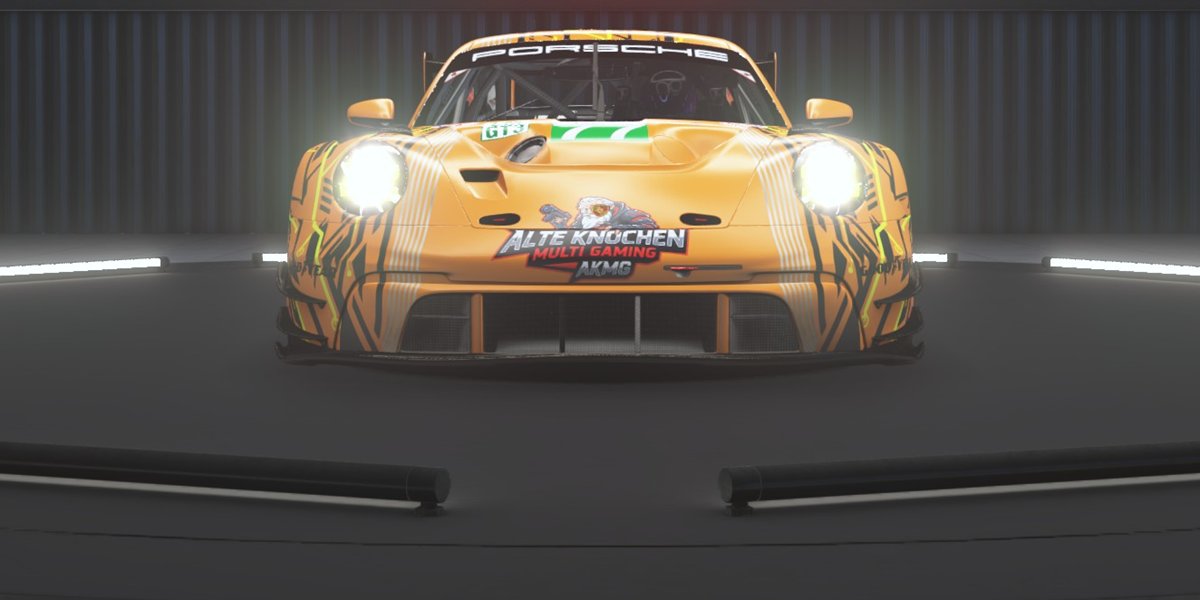
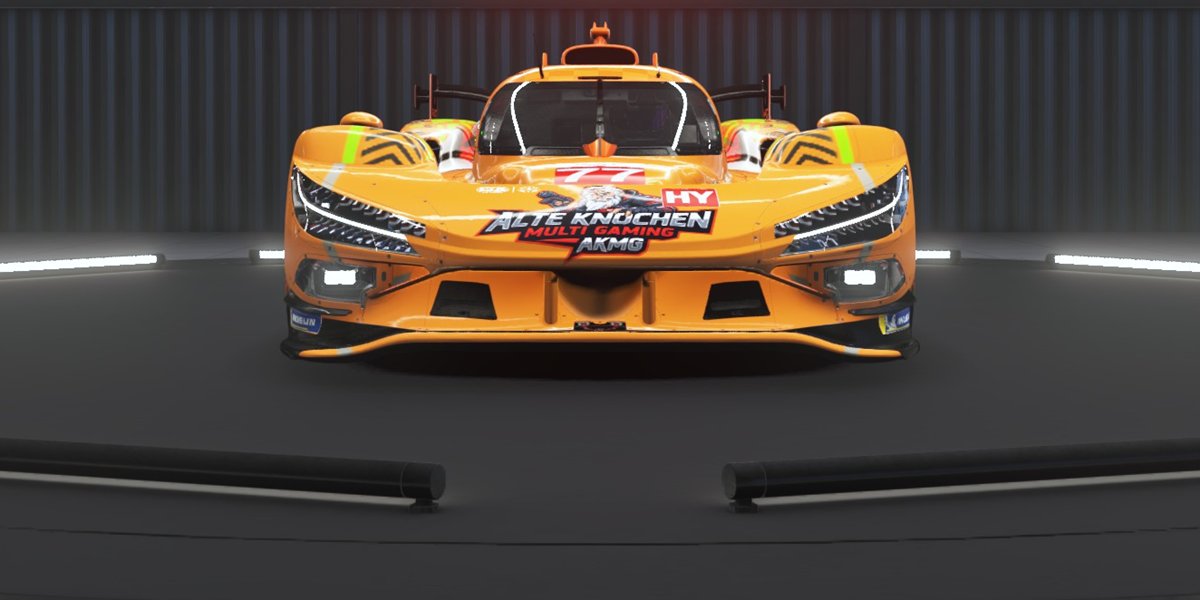
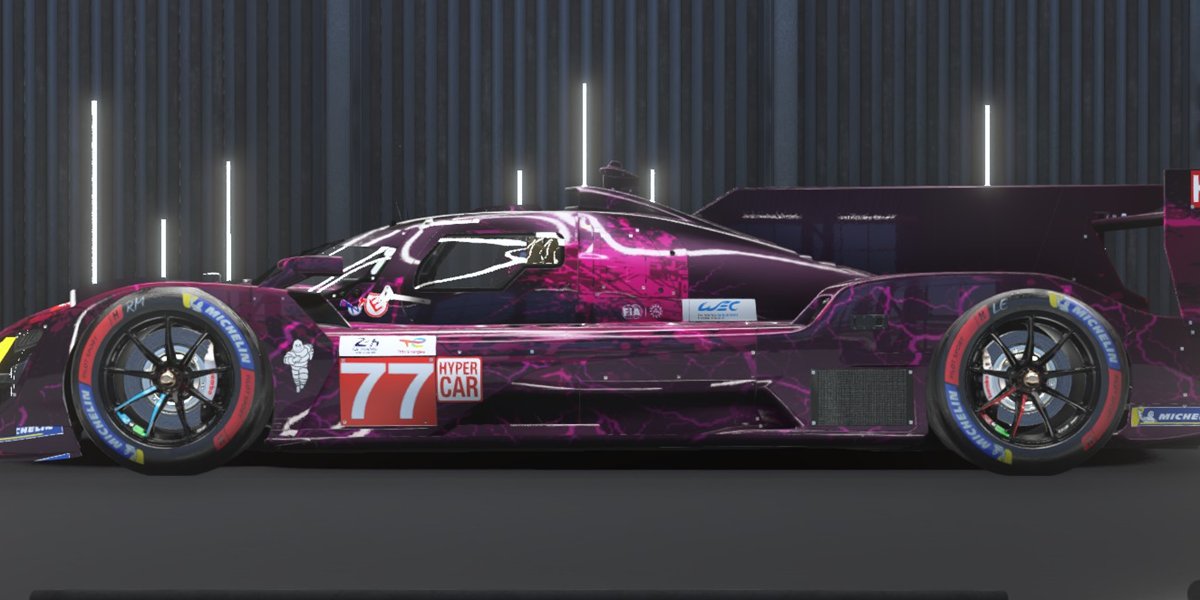
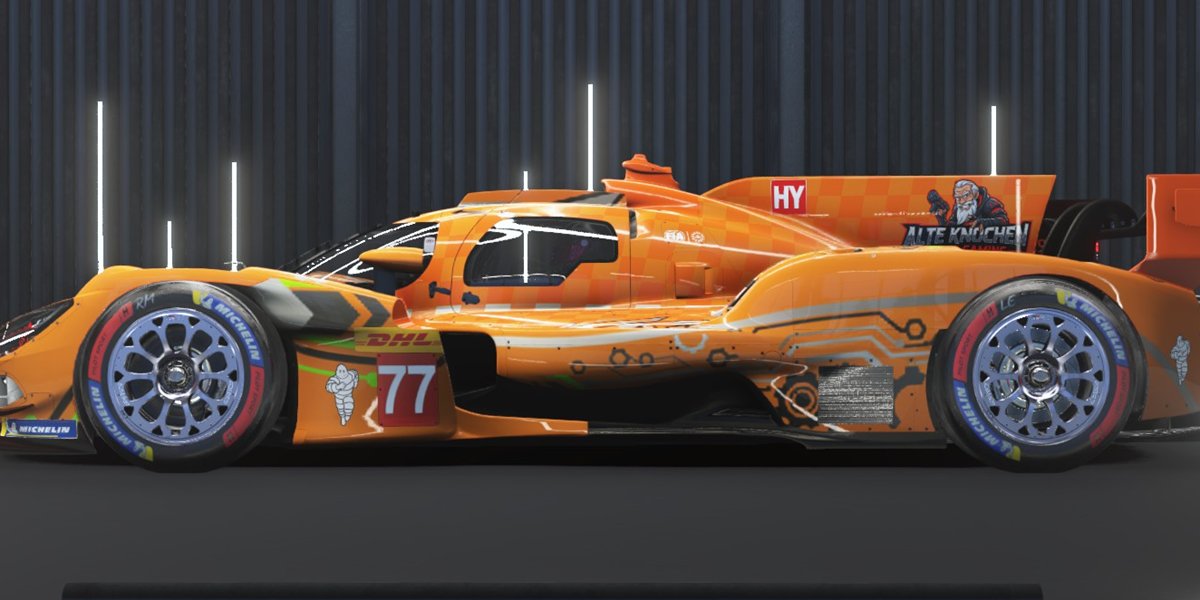
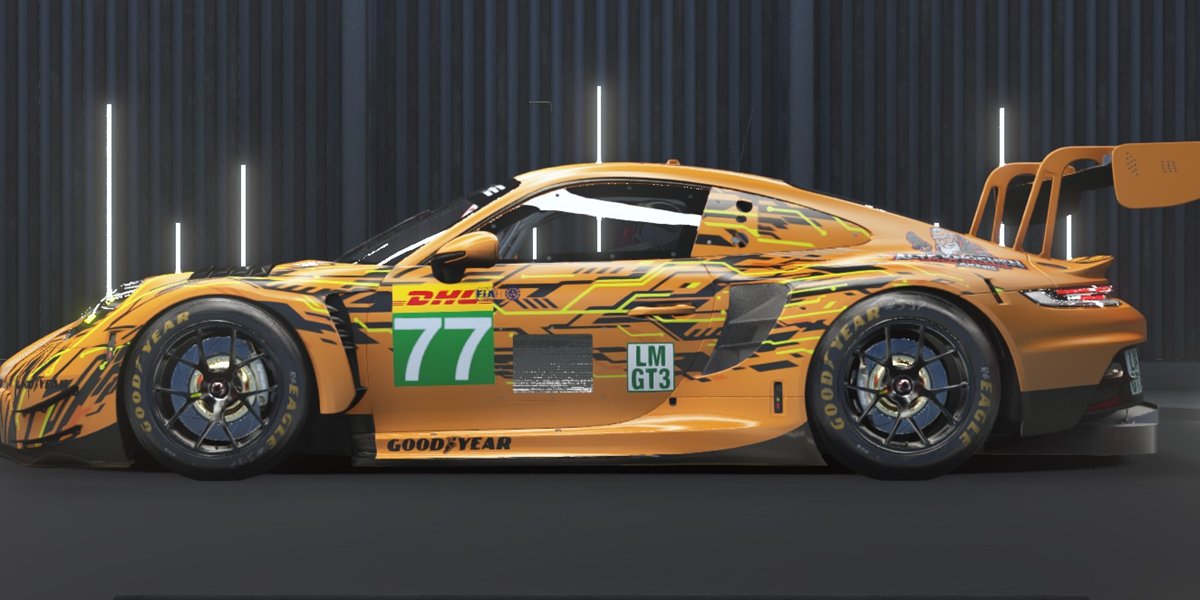
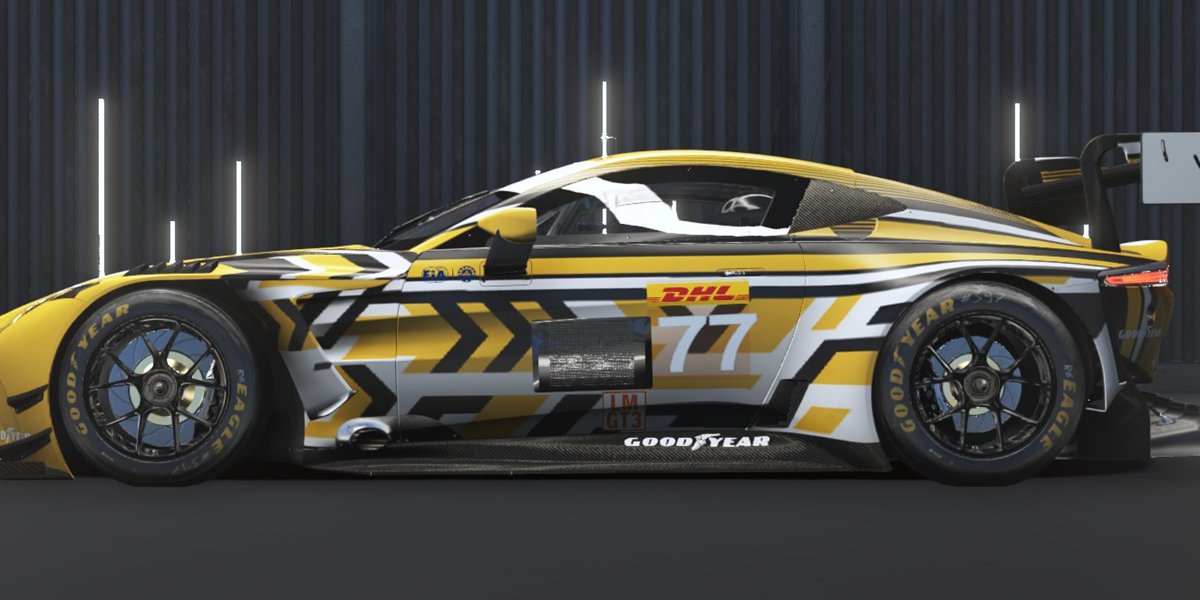
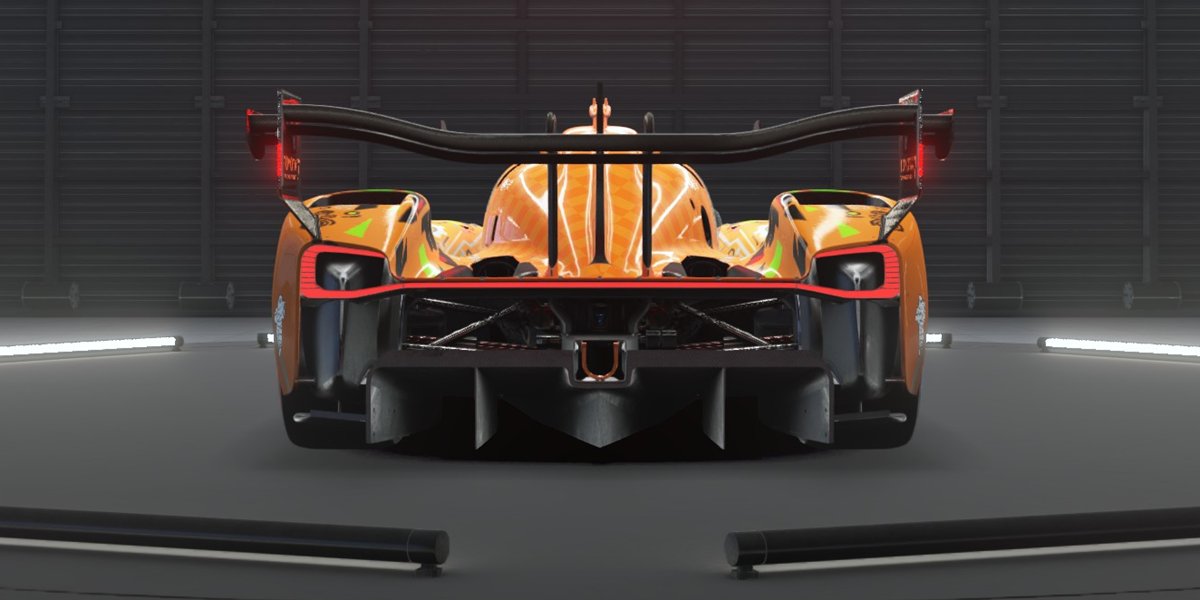
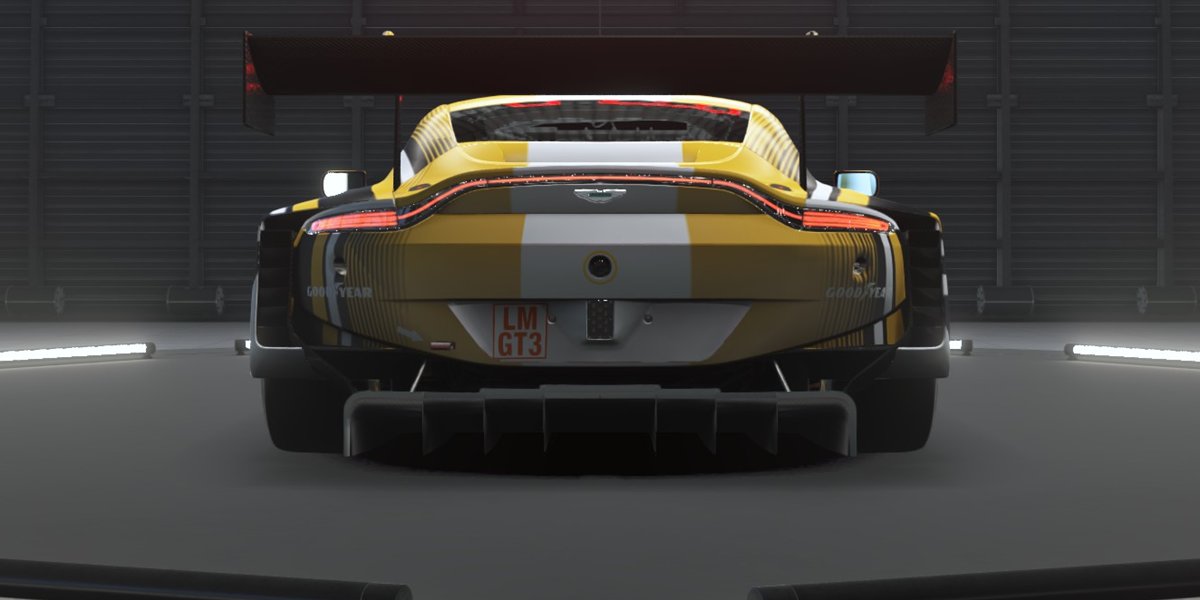
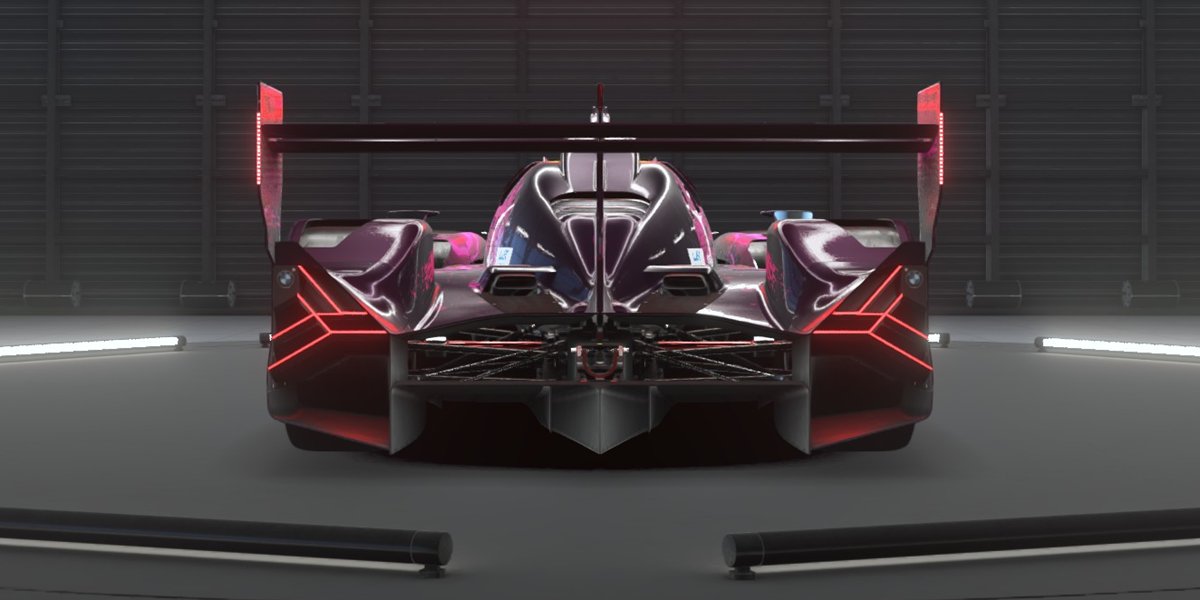
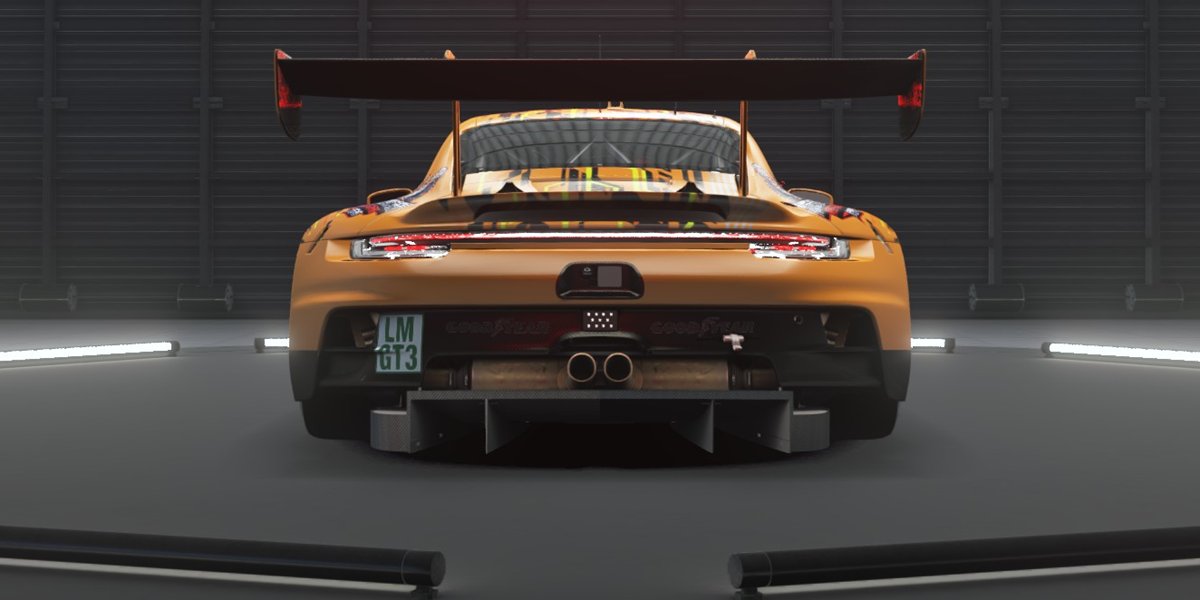
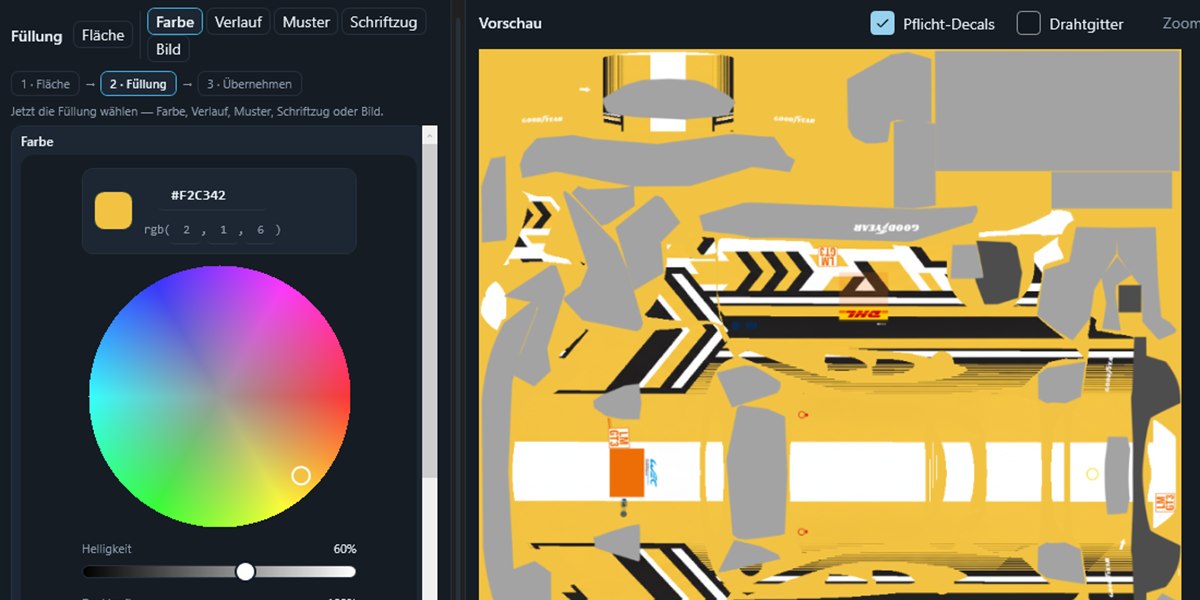
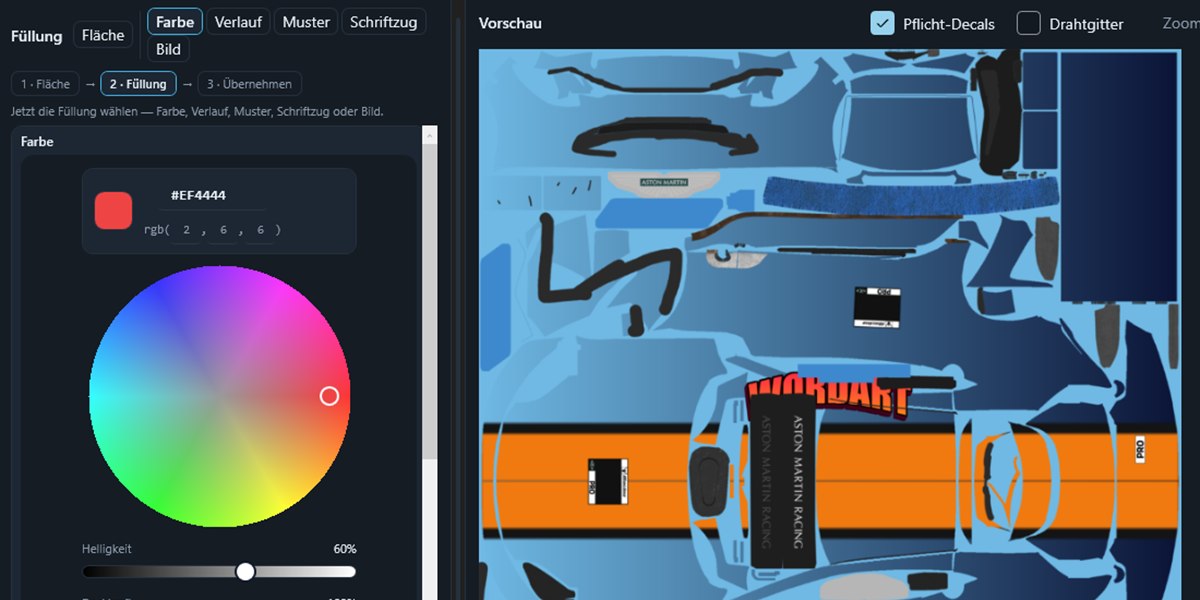
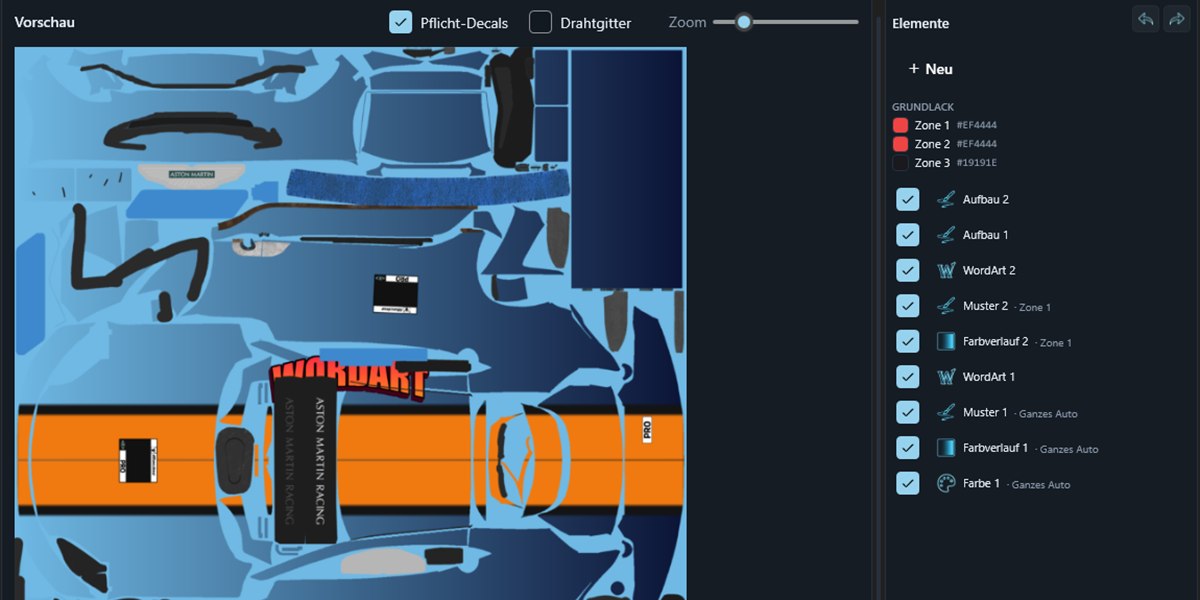
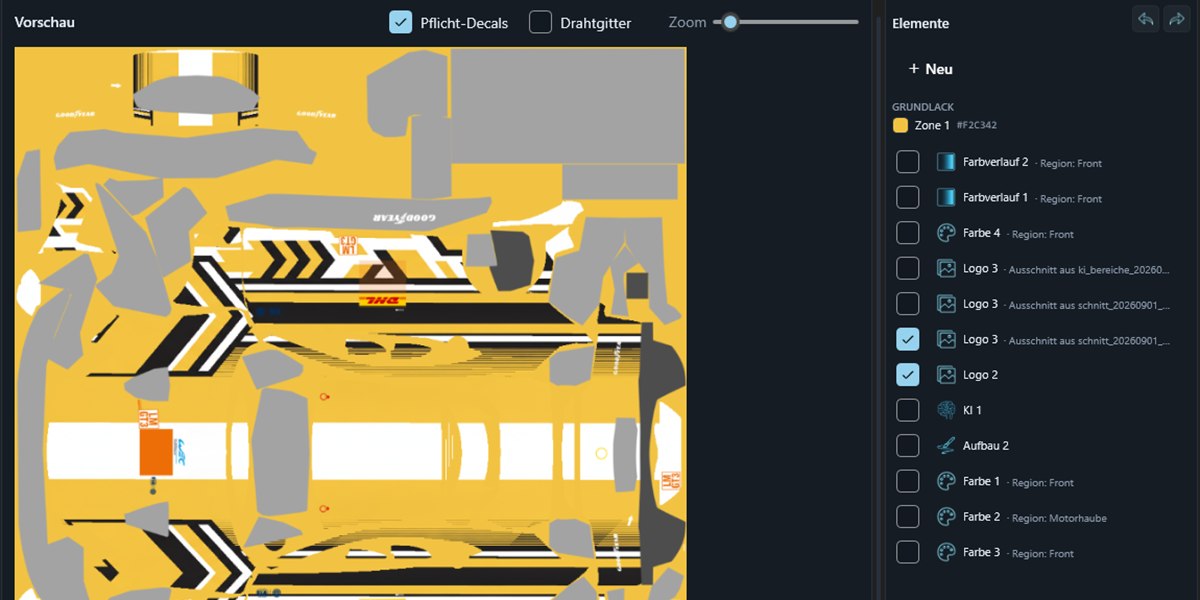
Everything a livery needs
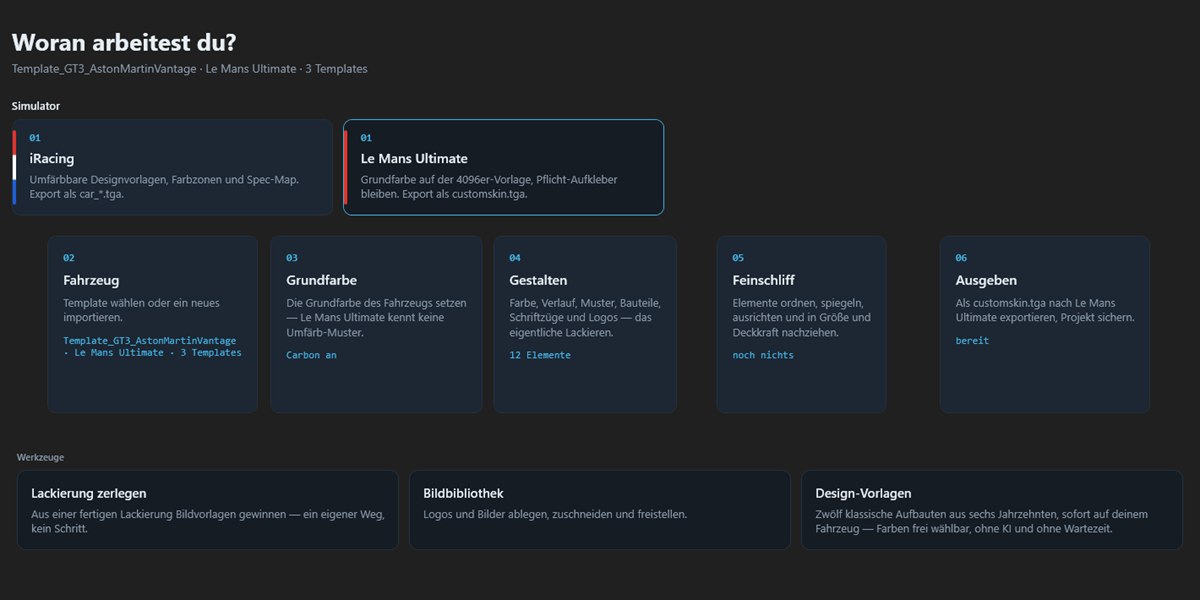
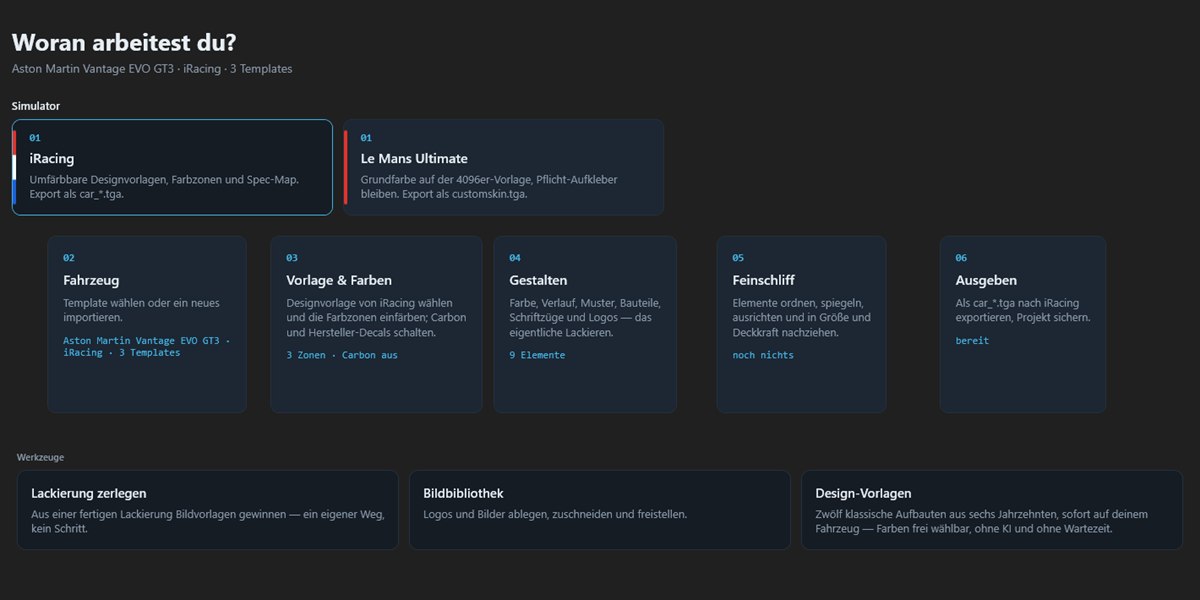
One tool instead of Photoshop layer acrobatics: pick the target, set the source, apply — done.
Module workflow
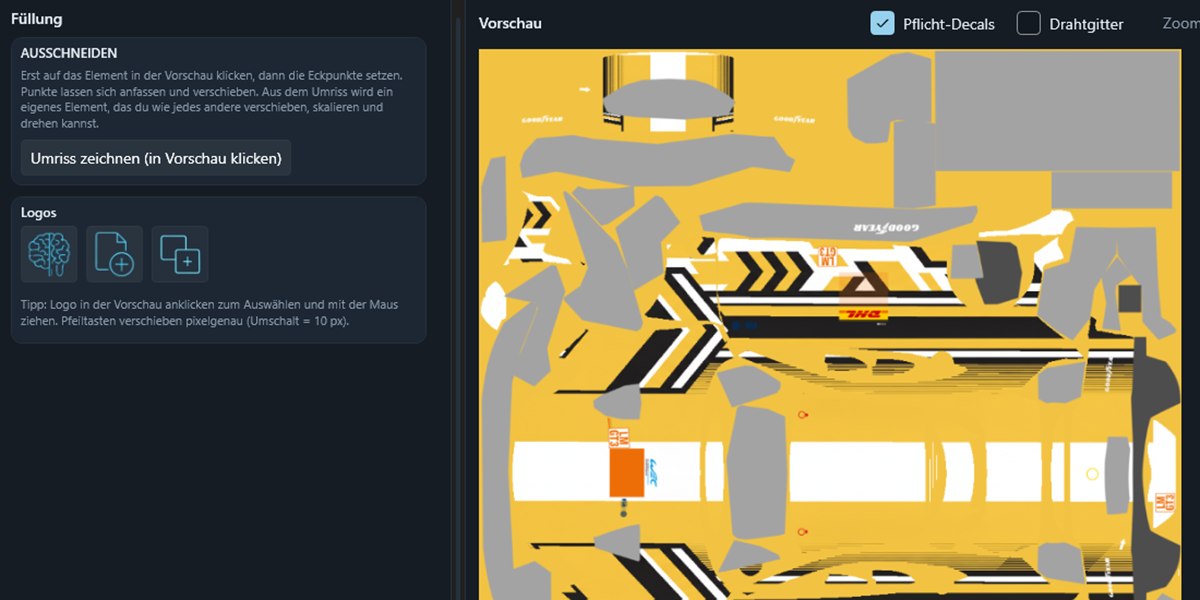
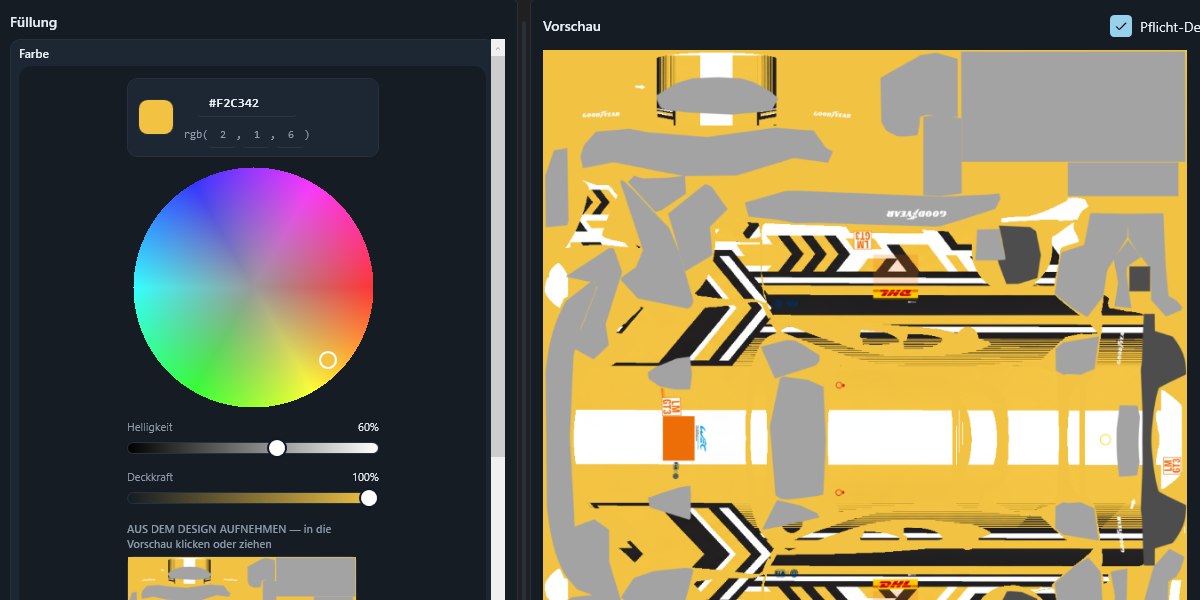
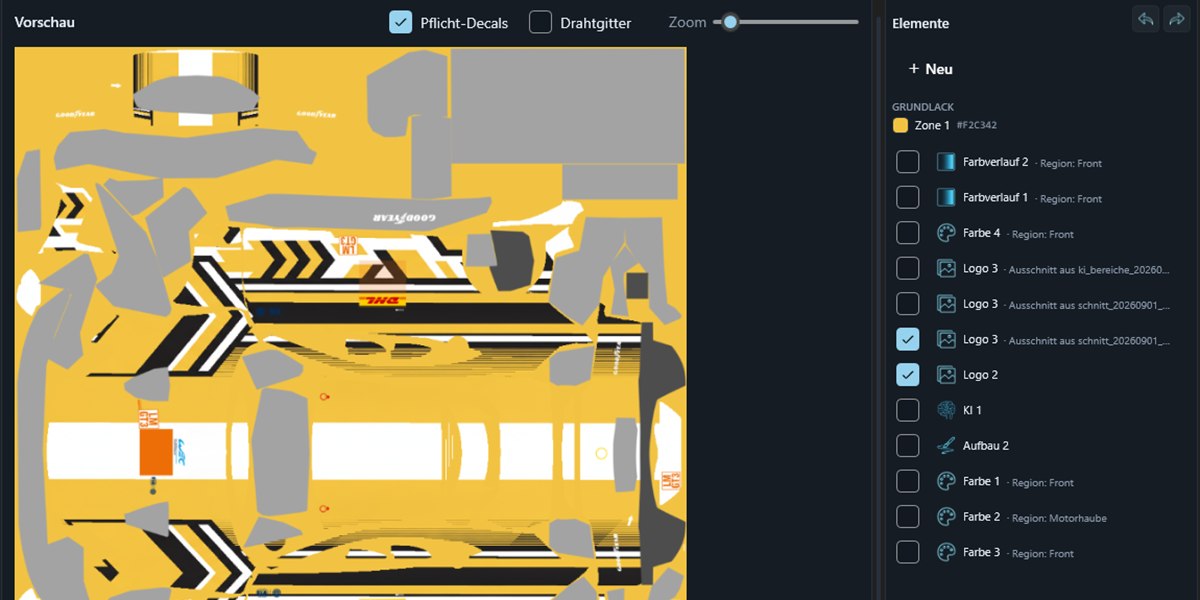
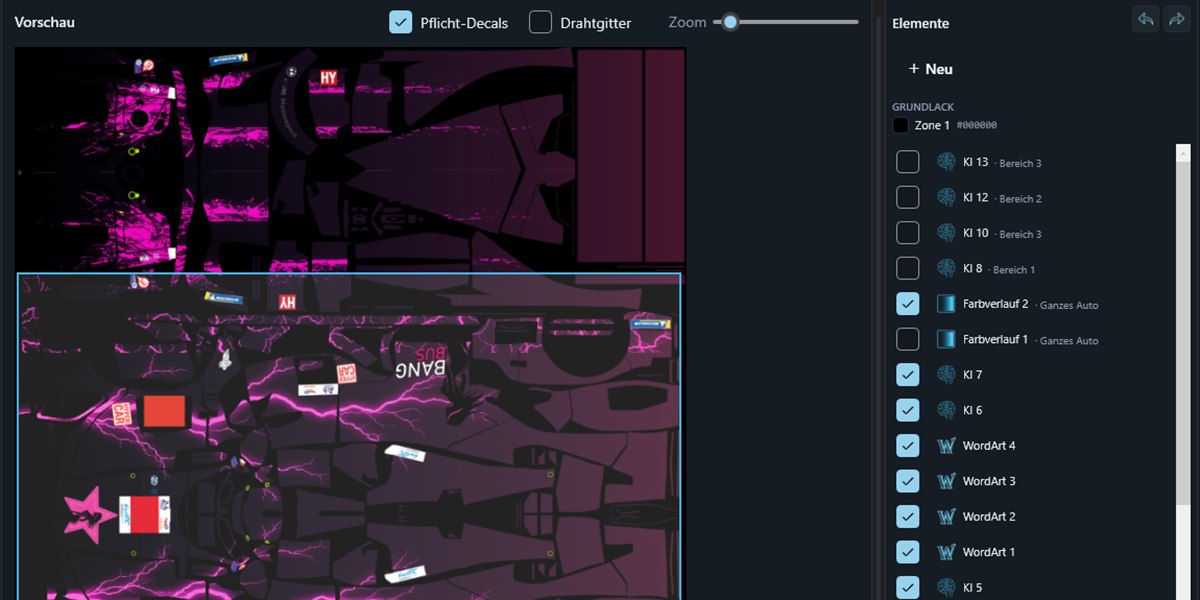
Surface · Color · Gradient · Stripes/Pattern · Lettering · Image — always the same three-step flow: Where? What? ✓ Apply (Übernehmen — or just hit Enter). The element list is the paint order: top means front.
Design templates
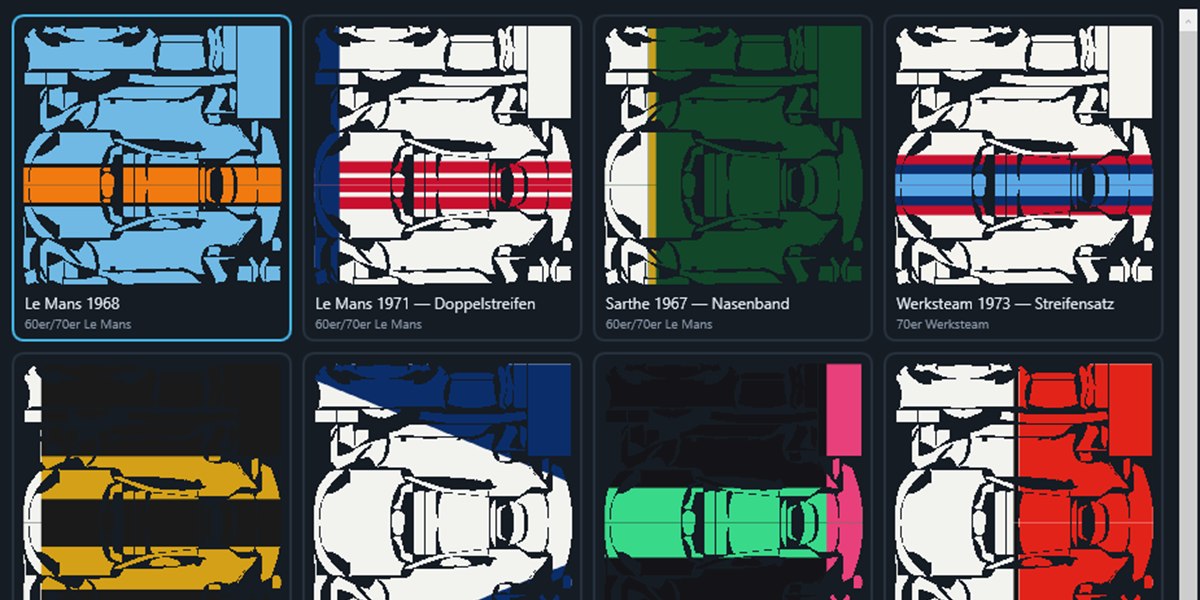
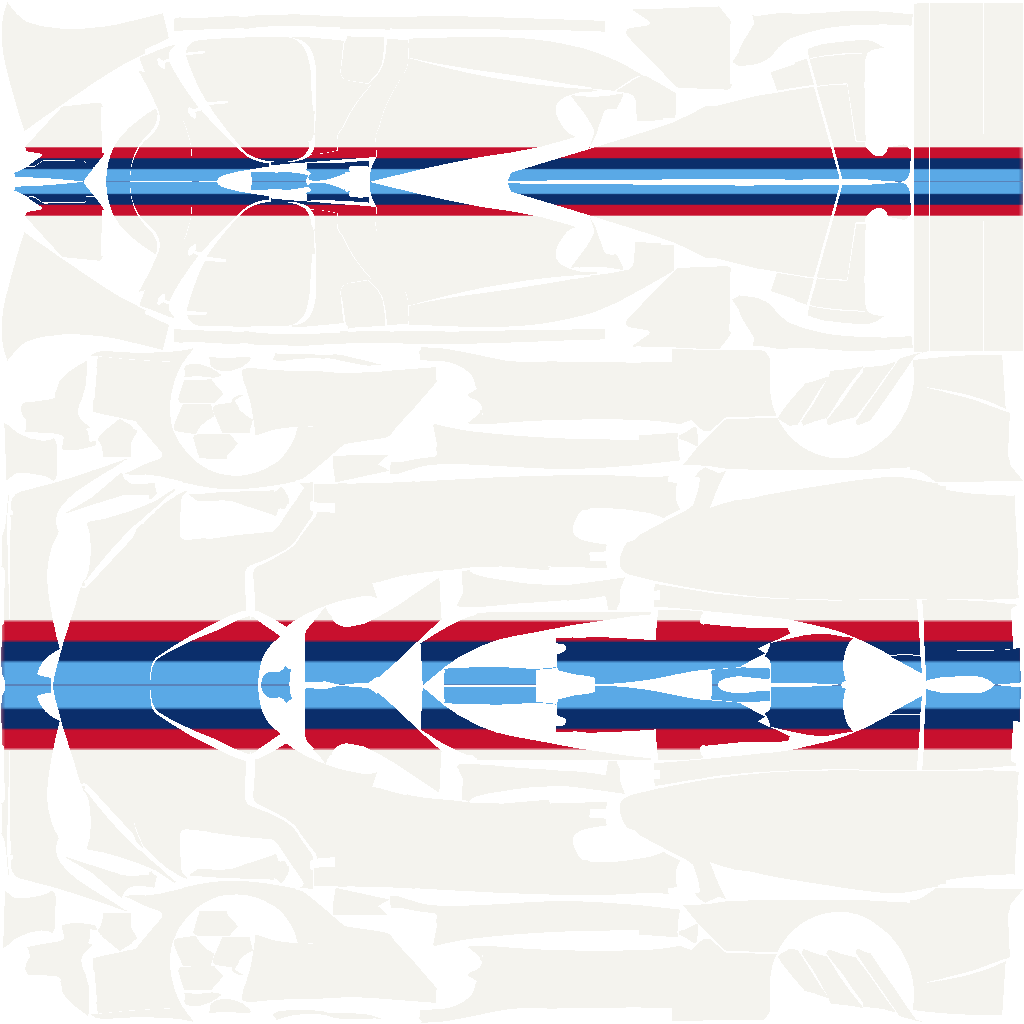
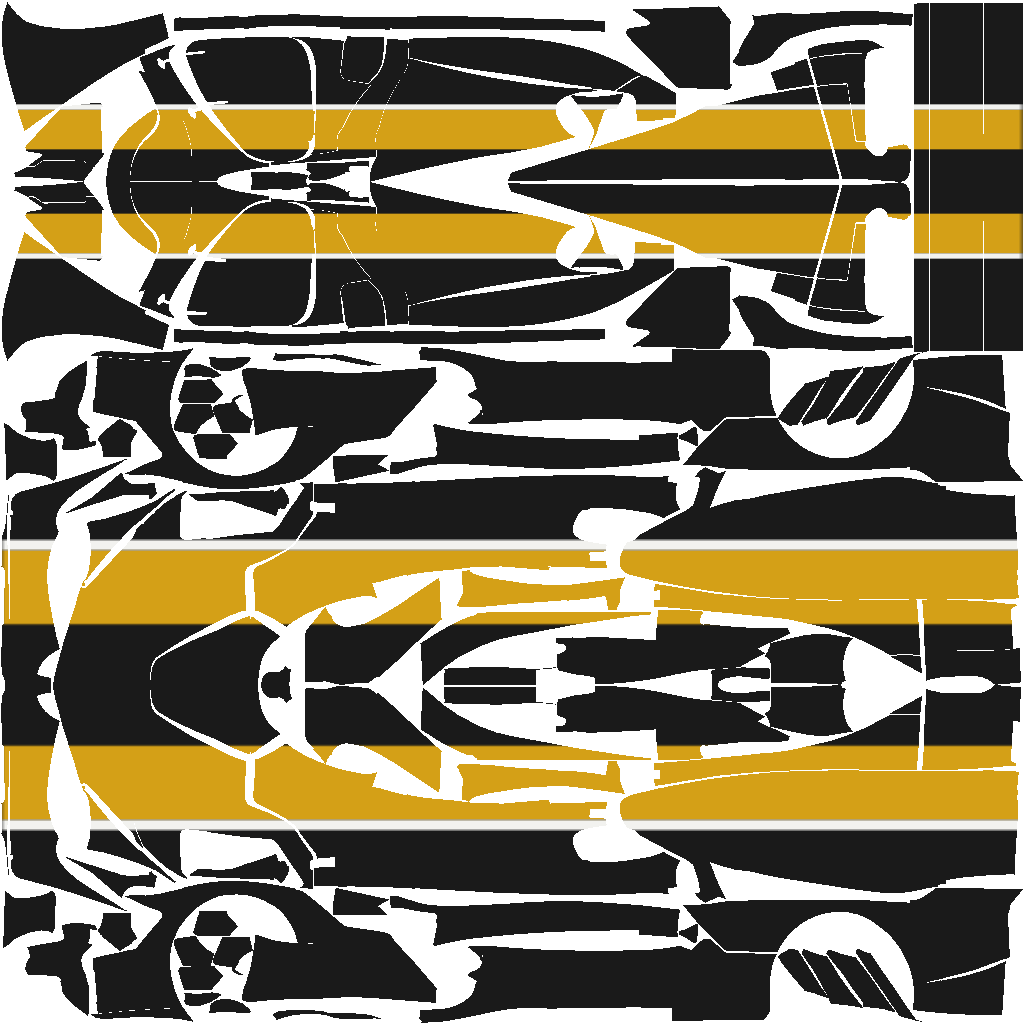
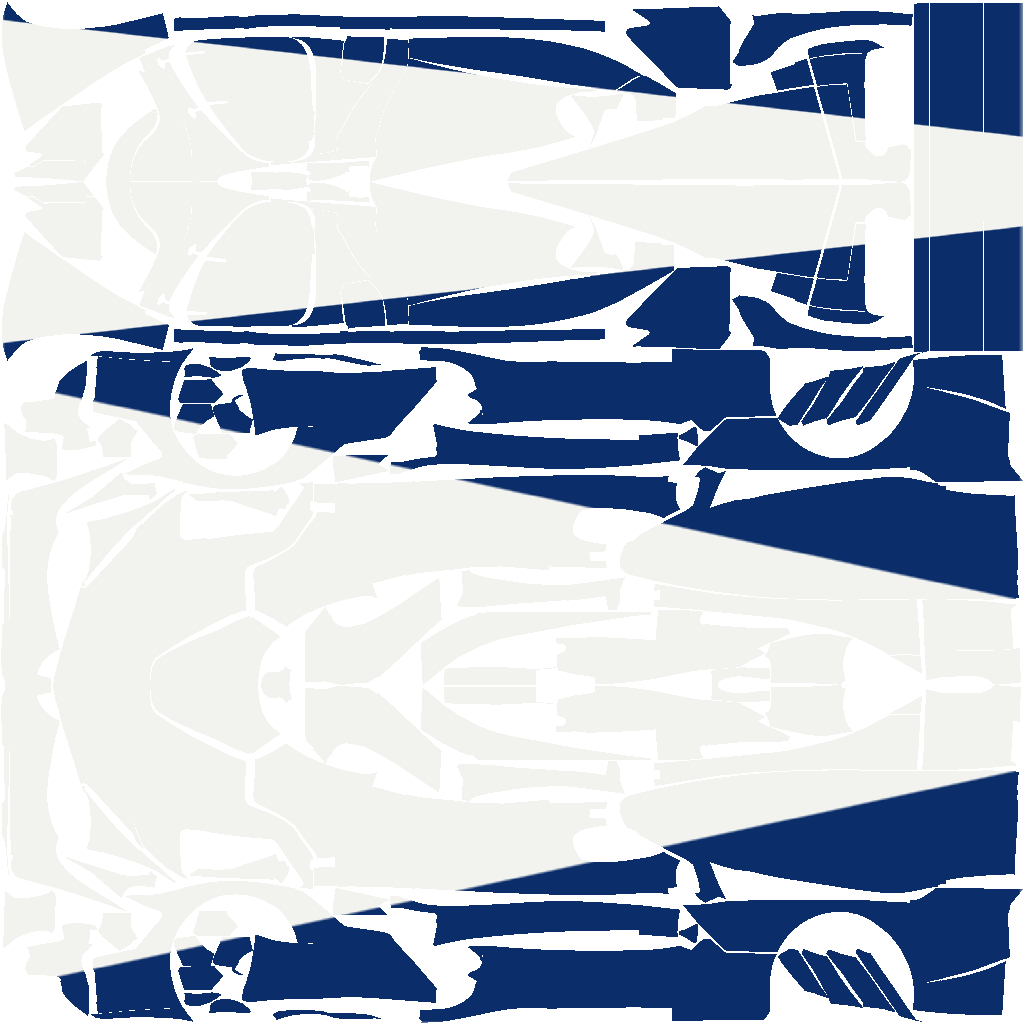
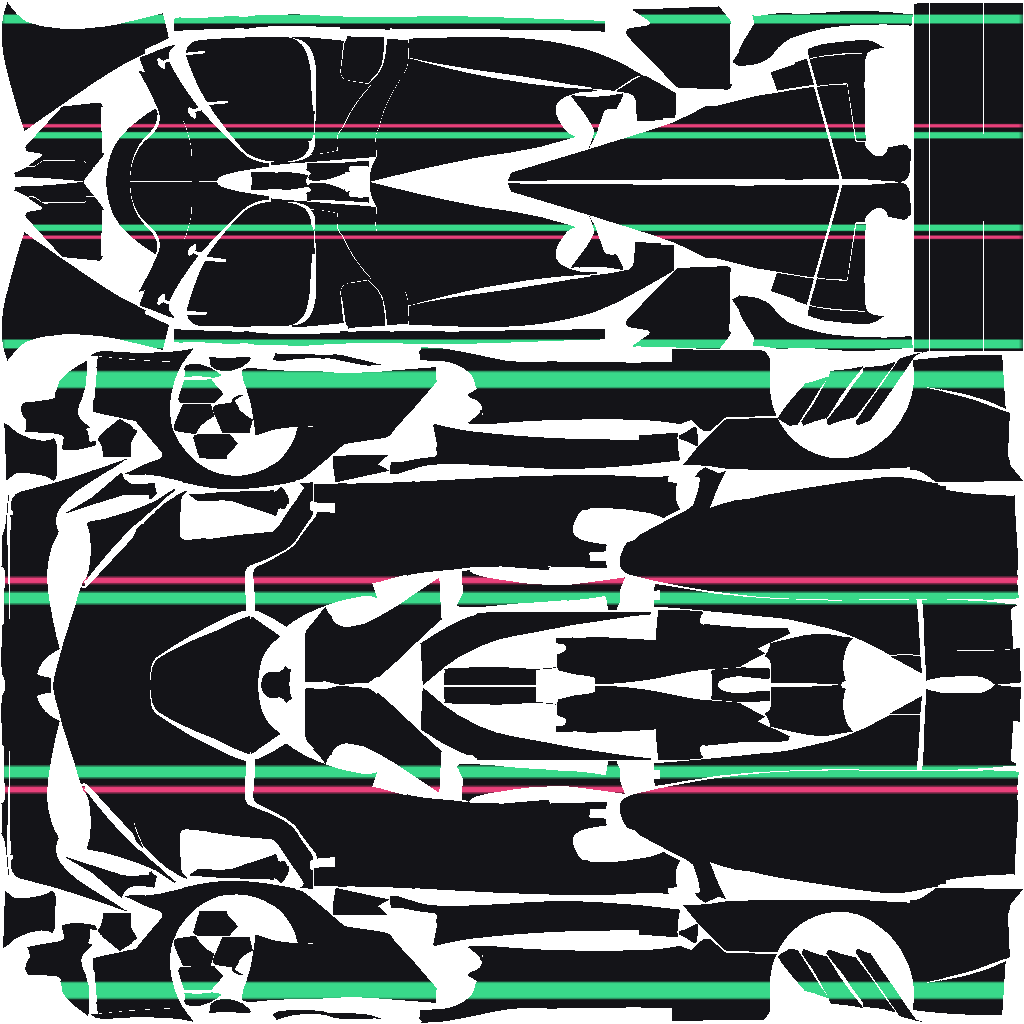
Twelve classic layouts from six decades, laid onto your car and ready to go — pick any colors, instantly there, no AI and no waiting.
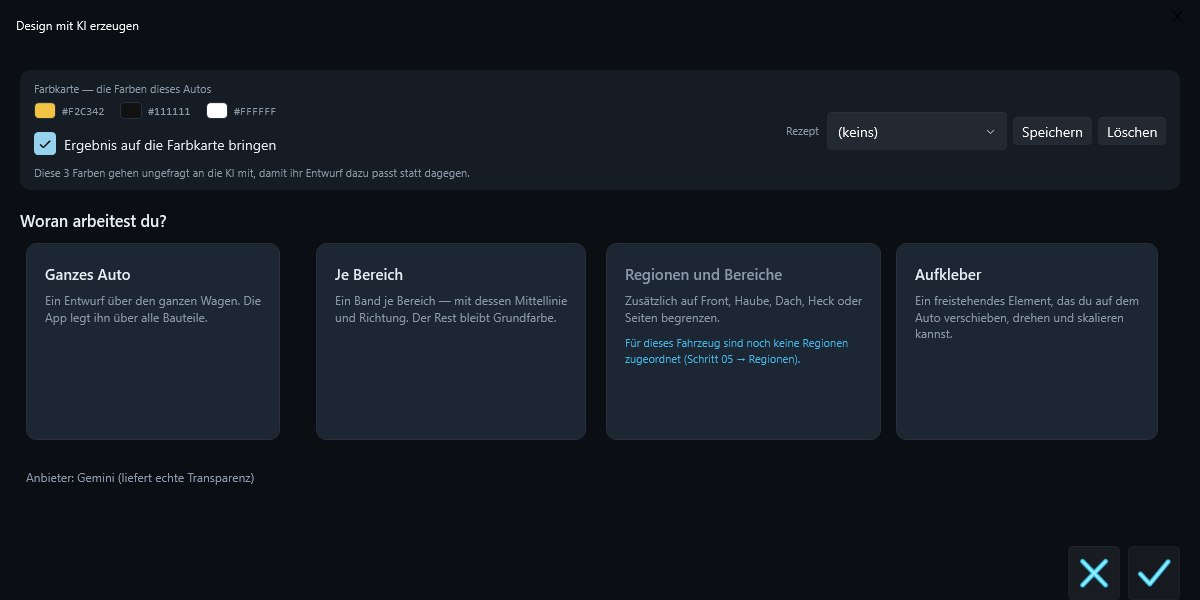
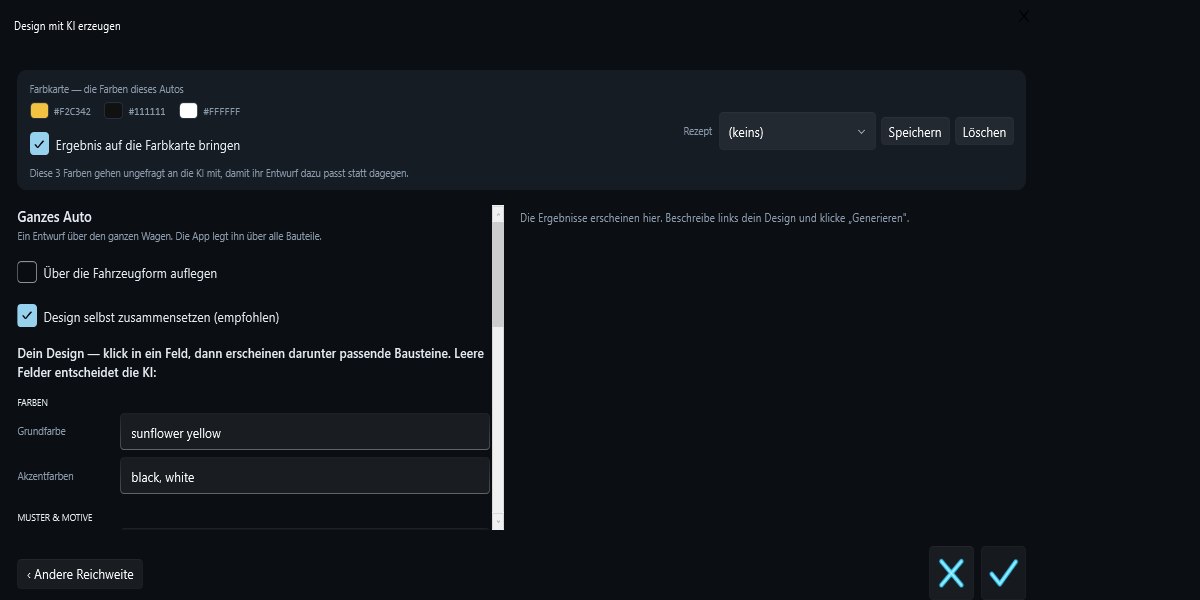
AI design
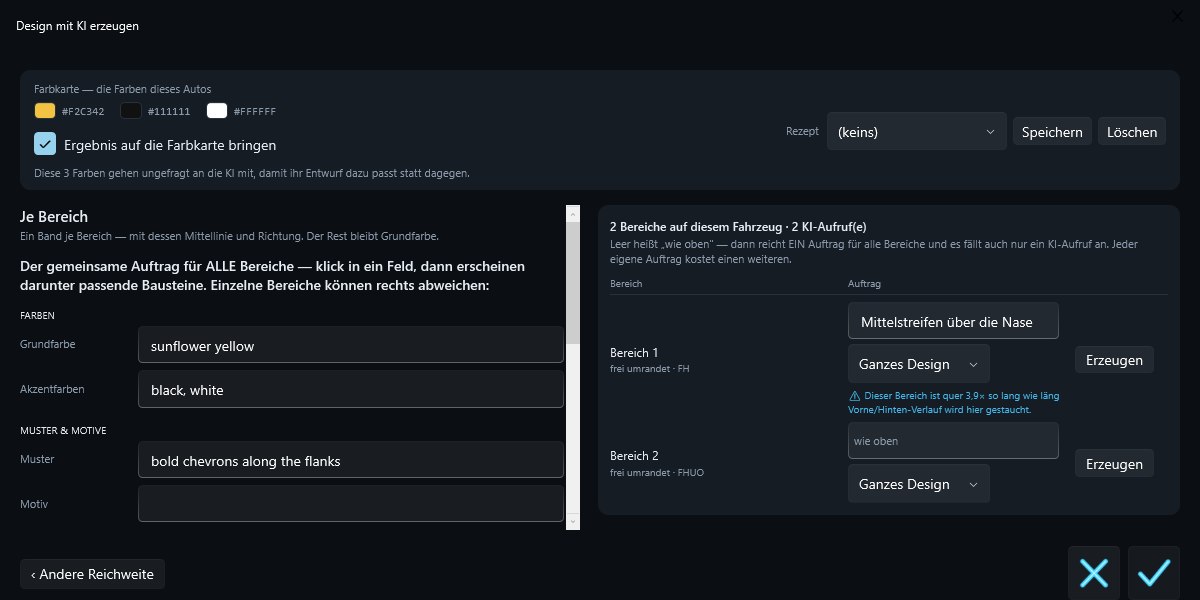
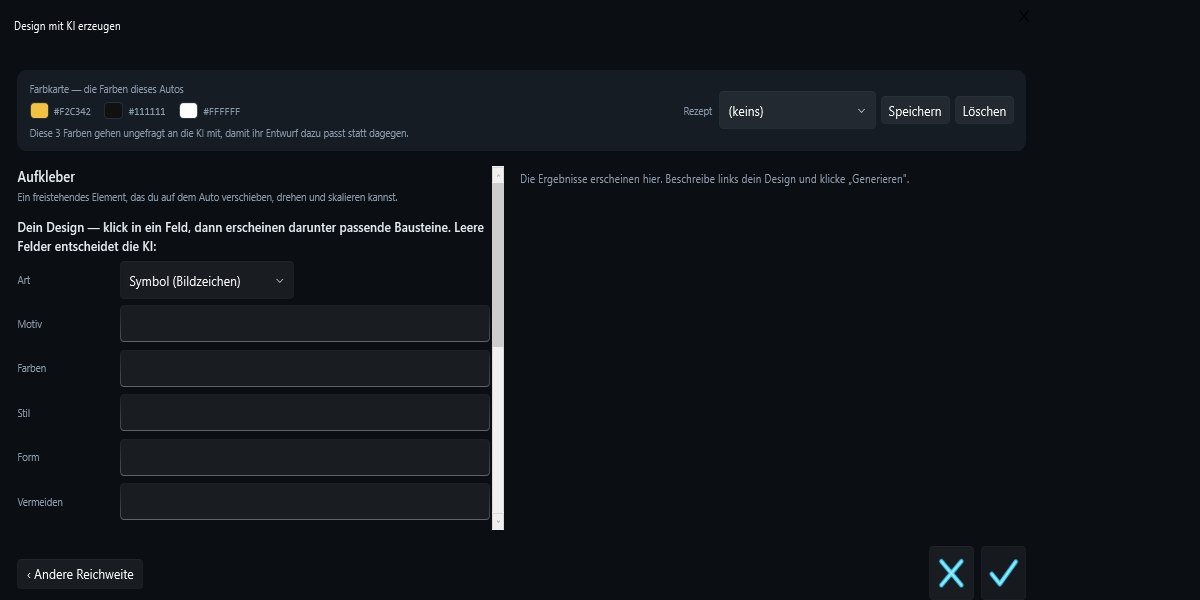
Whole car, per area or individual stickers from a building-block description — with your own Gemini or OpenAI key. Per area with its own center line, forward direction and an active squeeze warning.
AI from an image
Use a concept render or a photo as the source: the AI reads colors, patterns, motif and style into the building blocks, finds the side view and turns it into the band — checked, with retries. The main motif is cut out as a sticker.
Raw images & re-apply
Every AI element keeps its raw image. After you change the areas, you re-apply it without a new AI run; when you transfer it to another vehicle, the band is re-wrapped there instead of scaled.
Regions & areas
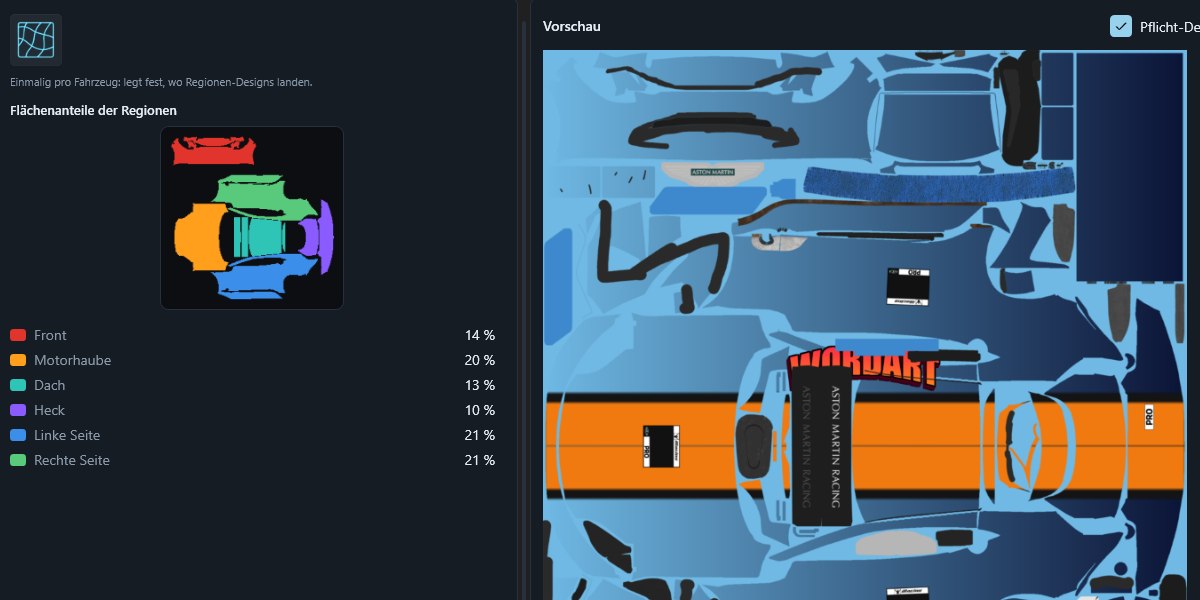
Click panels directly, create regions (hood, roof, sides …) and areas with a center line, front marker and section on the car — so a continuous design lines up across part boundaries. While designing, regions, areas, car parts and freehand outlines are your targets.
WordArt
Team names and numbers with gradient, outline, 3D depth, arc and wave — eight styles with live preview plus a random generator.
Gradients & patterns
Place color stops freely, linear/radial/conic; eight pattern shapes from stripes to honeycomb — foreground and background separate, and they can be filled with a gradient too.
Multi-sim
iRacing templates (ZIP/PSD) and Le Mans Ultimate (4096 PSD with mandatory decals) — the app detects the sim automatically on import.
Export to the sim
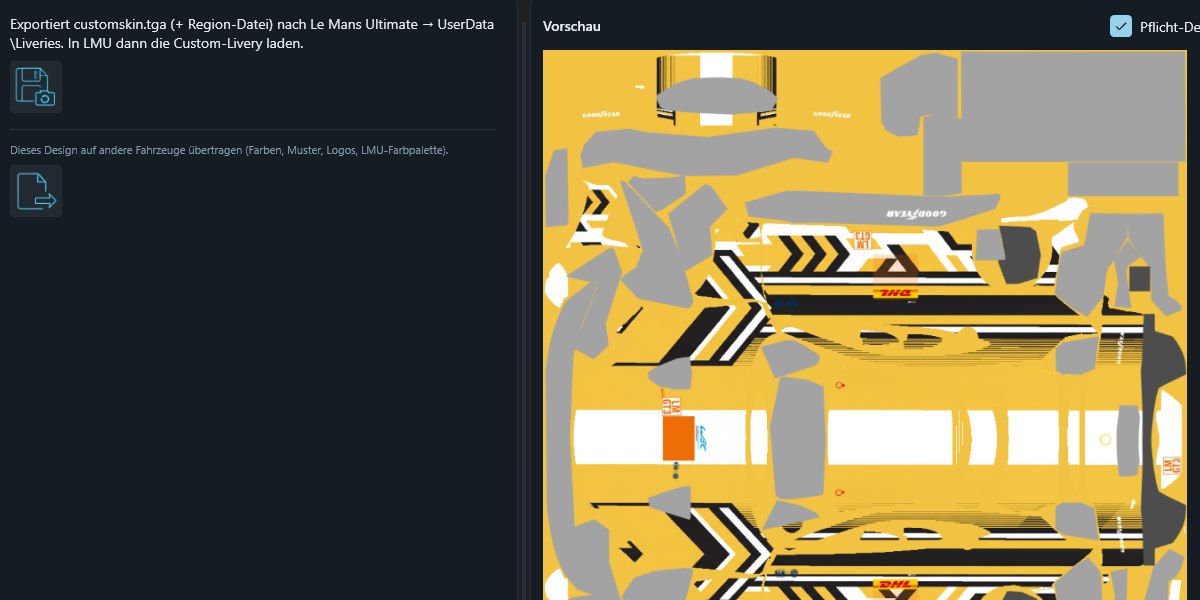
iRacing-compliant TGAs including the spec map straight into the paint folder, the LMU customskin into the liveries folder — plus a one-click path to Trading Paints.
Image library
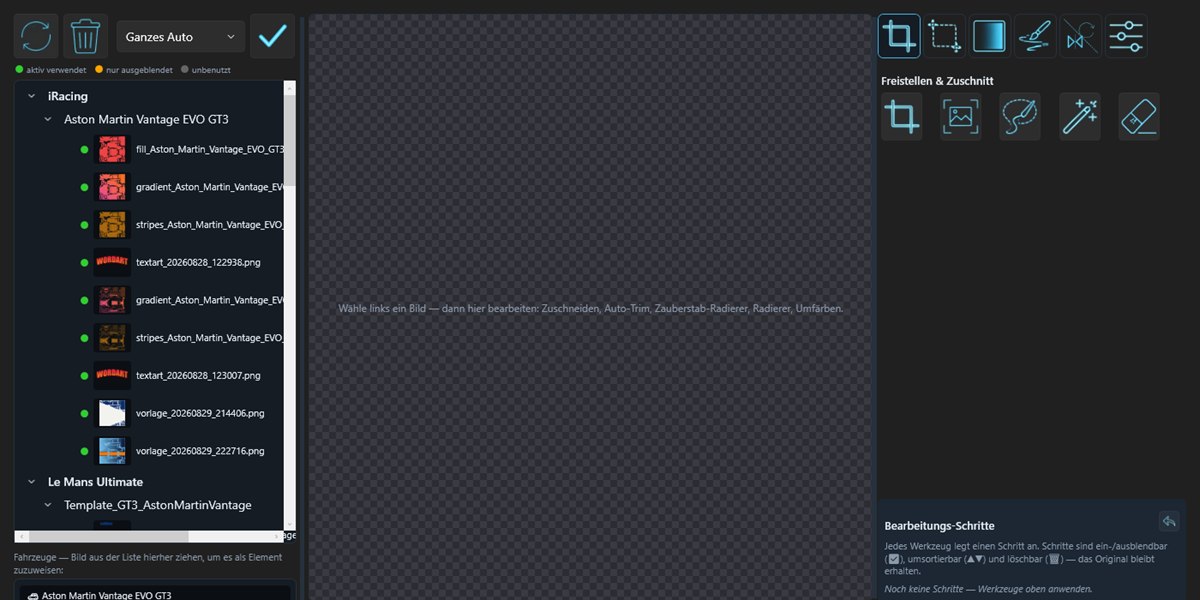
All AI and imported images per vehicle at a glance, with a built-in editor: crop, cut out, magic wand, recolor.
Twelve classics, one click
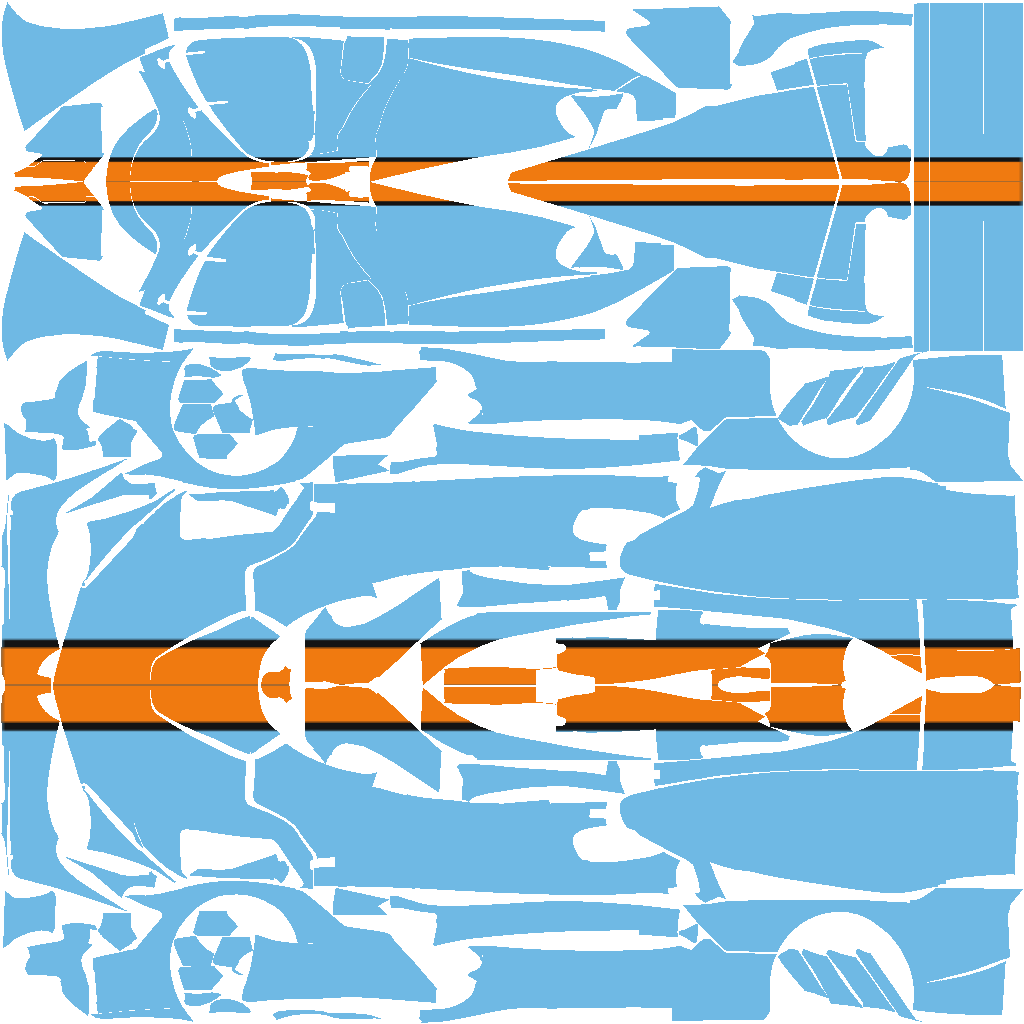
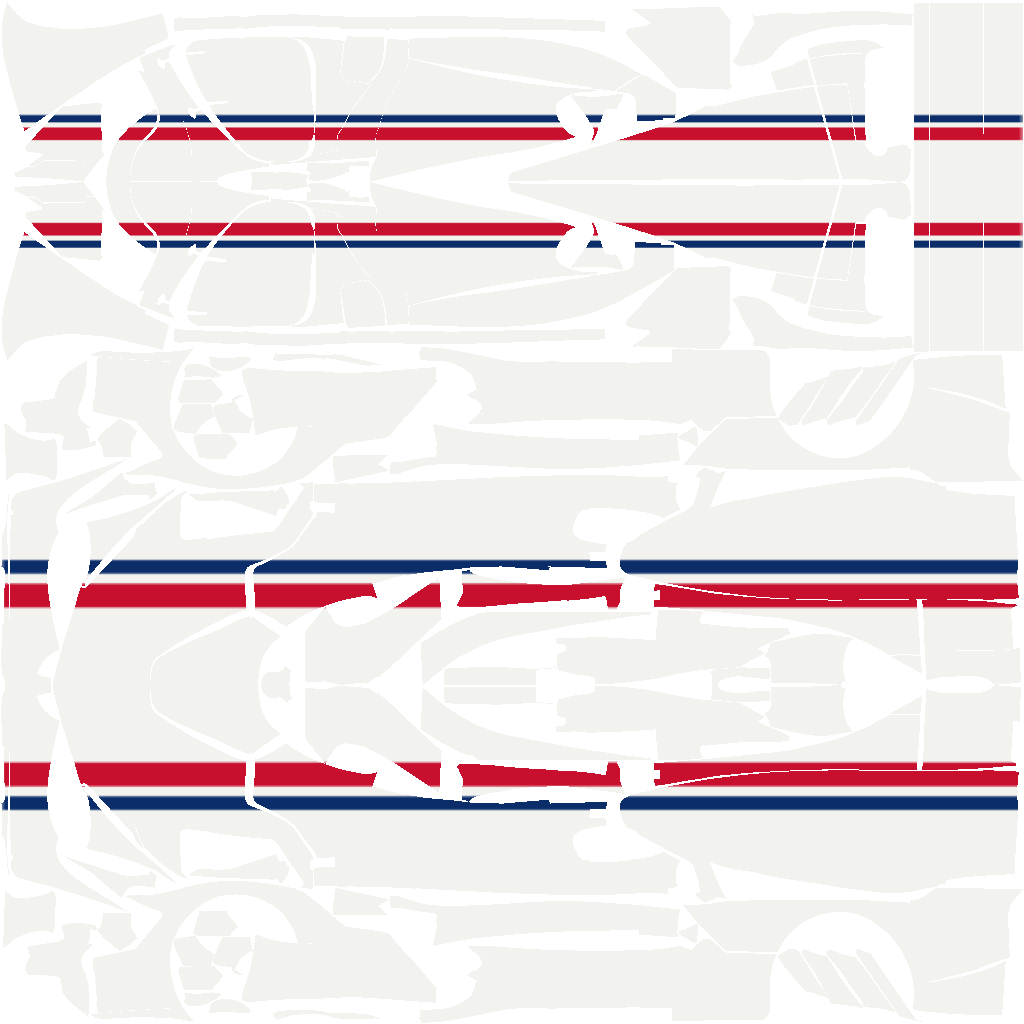
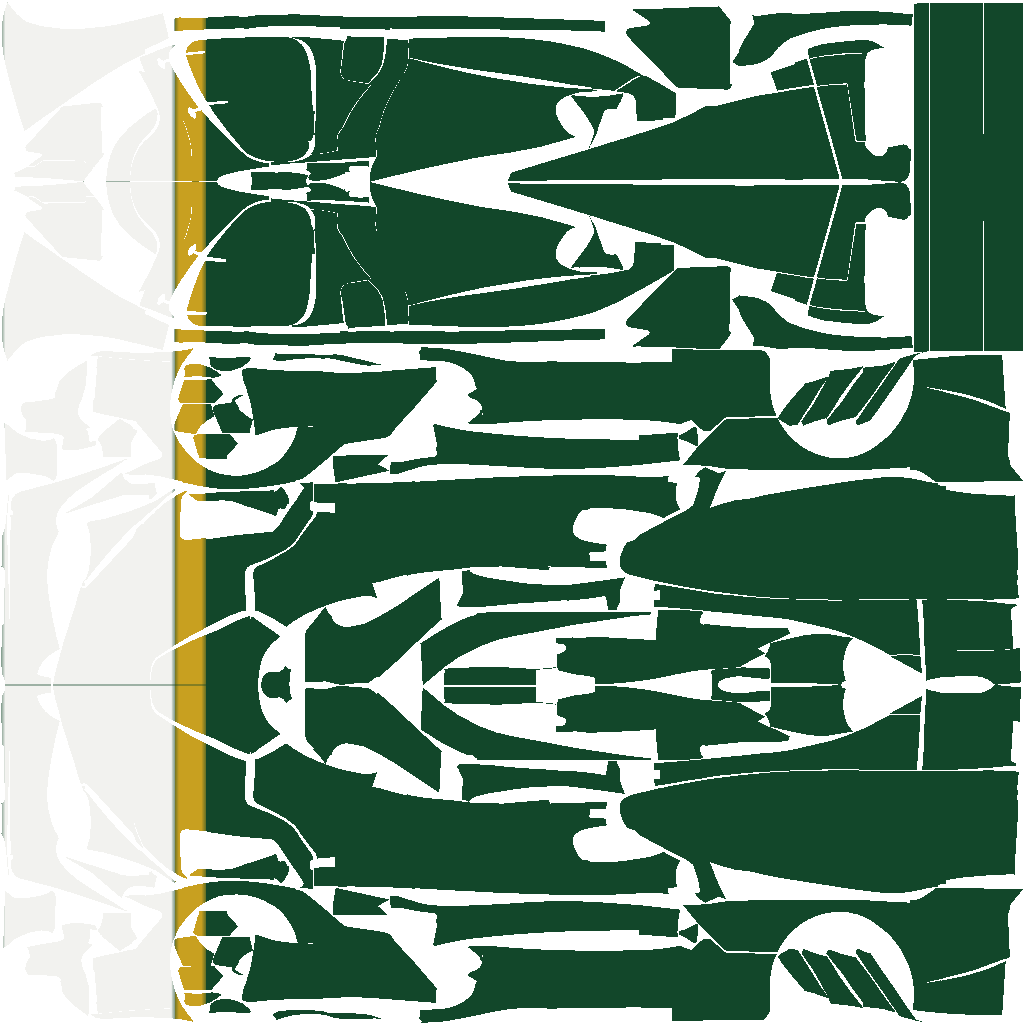
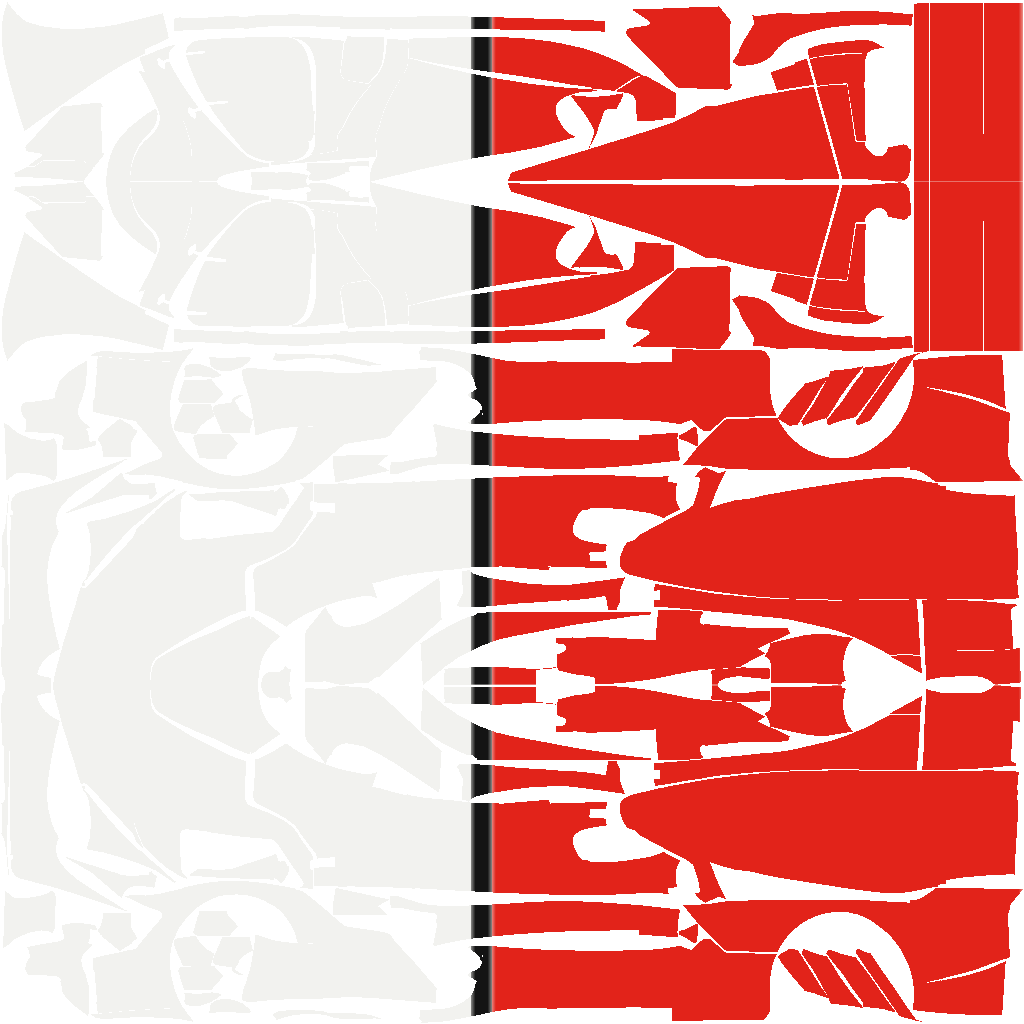
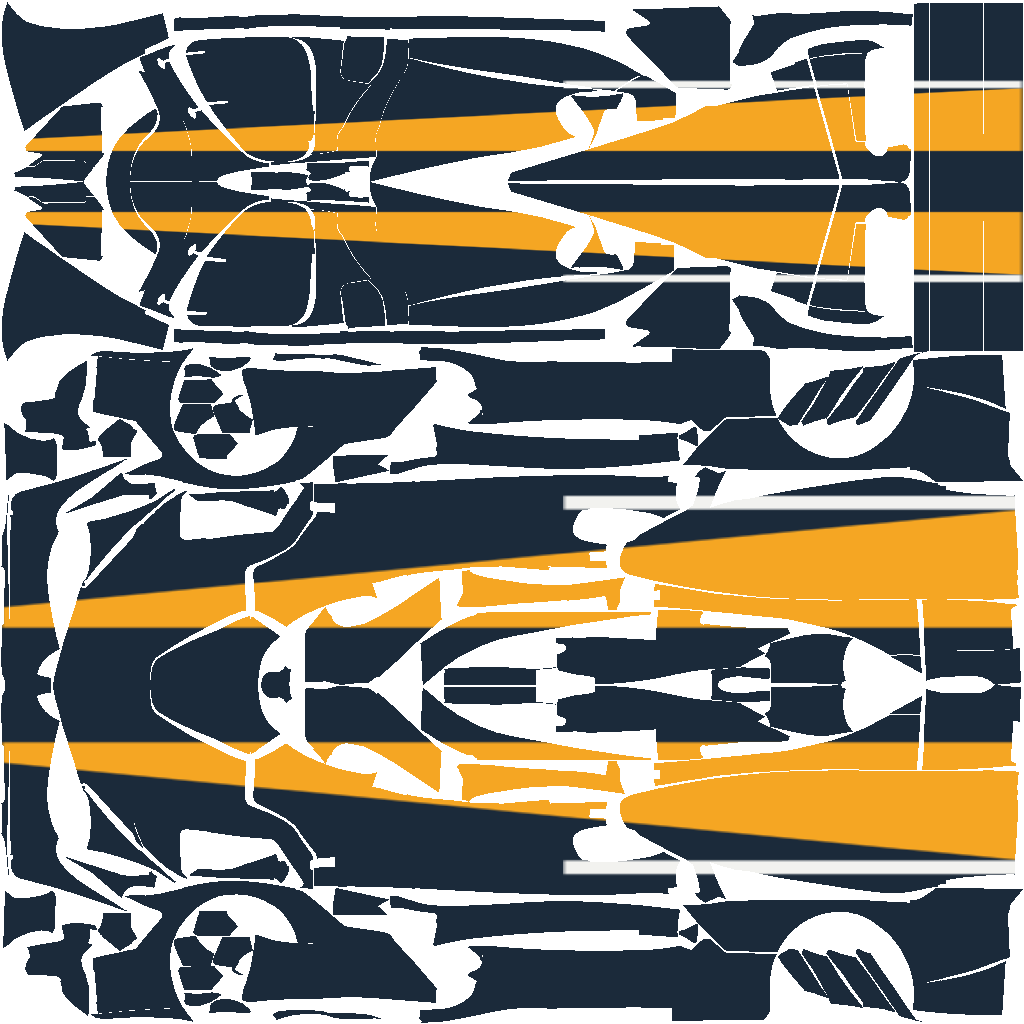
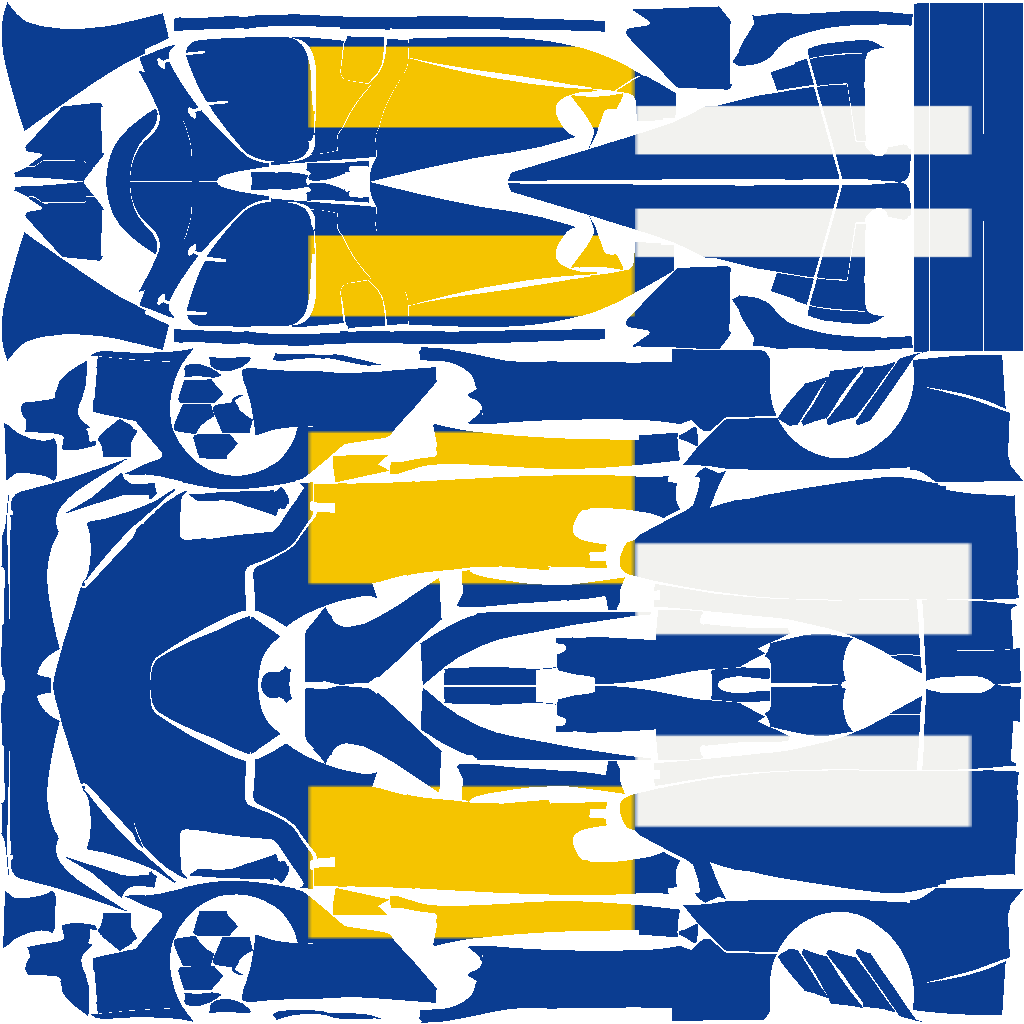
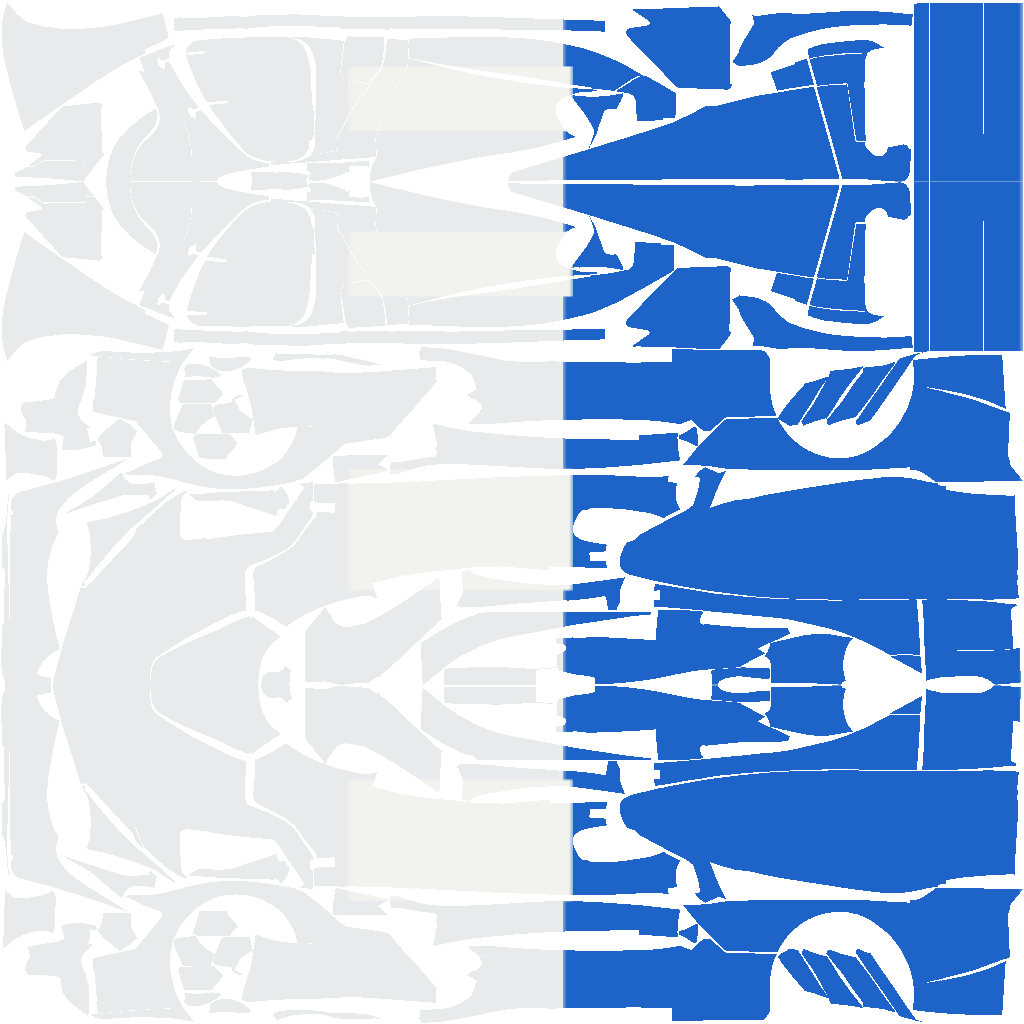
If you want to take your cue from the great liveries of the past, you don’t start from scratch: twelve layouts from six decades are ready to go and sit right on your car instantly — nose, hood, roof and both flanks matched to each other. The colors are up to you: the same layout in your colors is a design of its own. No waiting, no API costs, razor-sharp every time.
Three steps to the track
Import the template
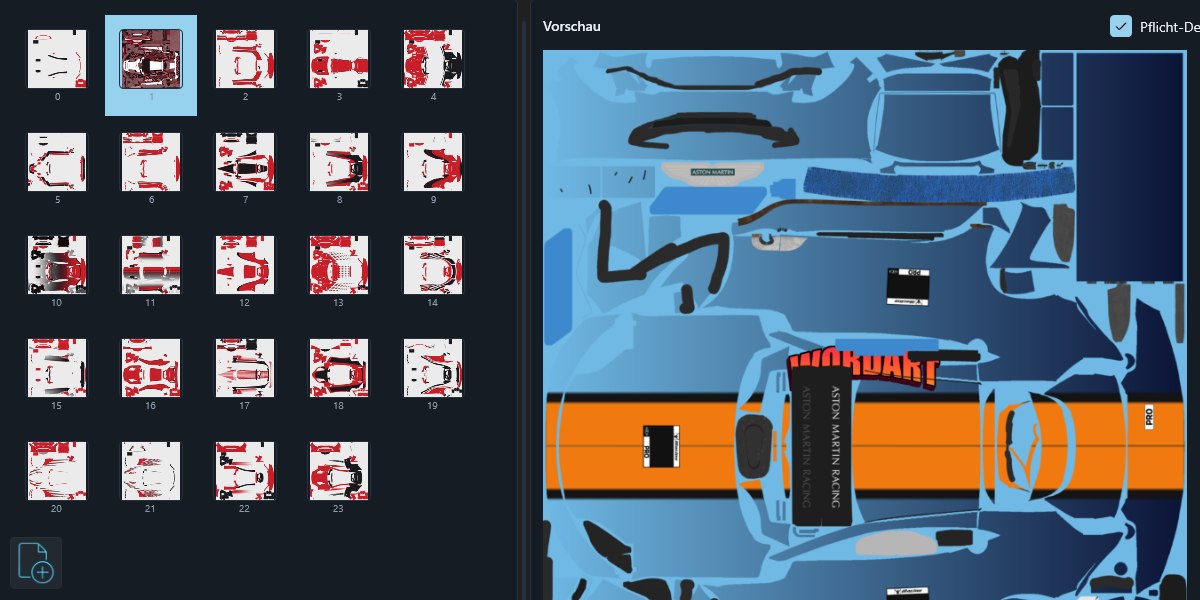
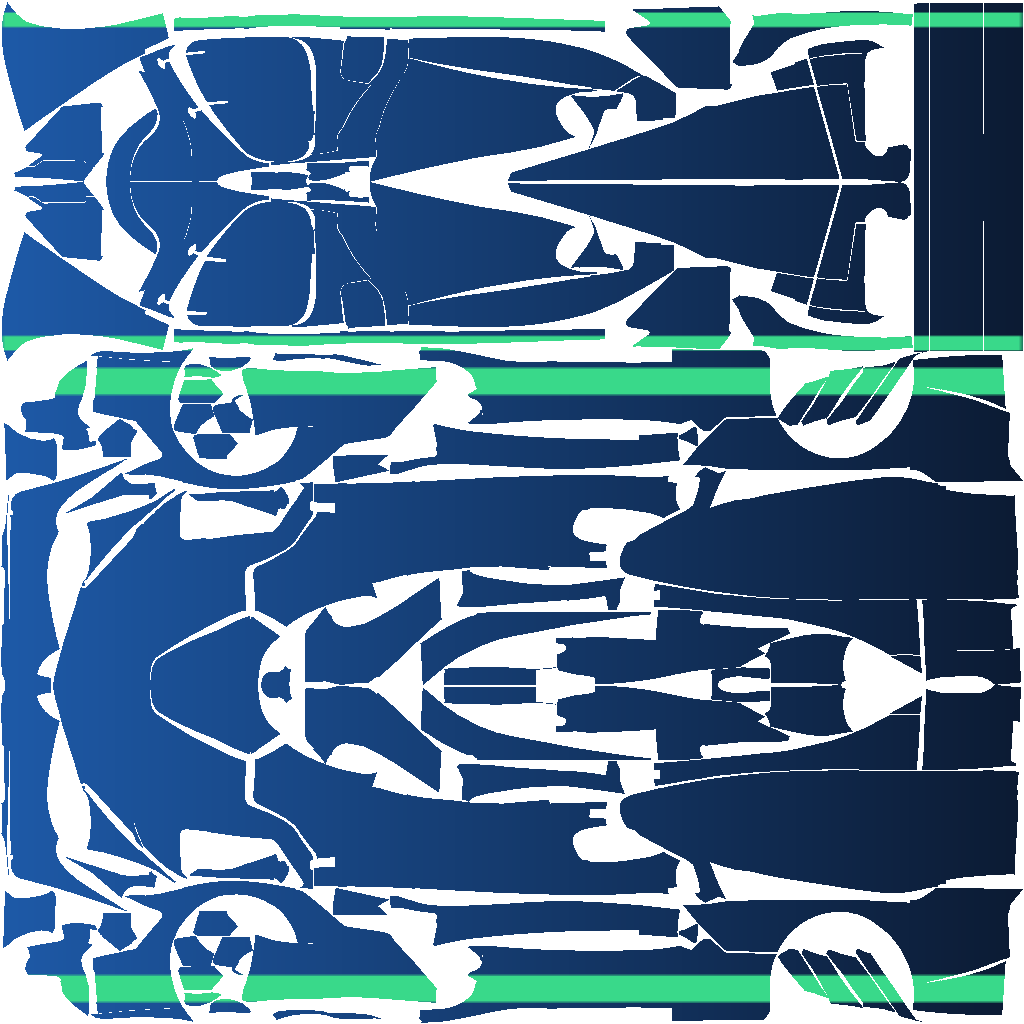
Pick the iRacing ZIP from the members area or the LMU PSD from the Steam folder — the app automatically breaks it down into layers, patterns and wireframe.
Design
Choose an area, then apply color, gradient, pattern, WordArt or AI design. You see every action in the preview right away; every element stays individually editable.
Export
One click writes the livery in the right format to the right place — the next time you start the sim, it’s on the car.
Pricing
Try it first, then decide.
- 14-day free trial (full design toolset, no export & AI)
- License file by email — works without internet, without an account
- All updates included
- iRacing and Le Mans Ultimate
- AI design with your own API key (Gemini/OpenAI)
The app speaks German and English — switch any time with “DE | EN” at the top right.
Purchase & payment are handled by Polar, which acts as the seller and takes care of VAT. Prices plus any applicable taxes.
Frequently asked questions
Do I need Photoshop or GIMP?
No. RacePaintShop comes with every tool you need — from the color wheel to patterns and WordArt to the image editor. You work directly on the car texture with a live preview.
How does the livery get into the sim?
For iRacing, the export writes the TGA files (including the spec map for gloss/metallic) straight into your paint folder; for Le Mans Ultimate, it writes the customskin files into the liveries folder. For other iRacing drivers to see your livery, you also upload it to Trading Paints — the app opens the folder and the upload page with a single click.
What does the AI feature cost?
The AI feature uses your own API key from Google (Gemini) or OpenAI — you only pay what your AI provider charges. Gemini offers a free way to get started via Google AI Studio.
On how many computers can I use the license?
On your own computers. The license file is yours — on a new computer you simply load it again, without having to deactivate it anywhere first.
Which vehicles are supported?
Every vehicle that has an official template: for iRacing, the ZIP/PSD from the members area; for Le Mans Ultimate, the PSD templates from the game folder. The app imports the template and detects patterns, layers and wireframe automatically.
Windows flags the file as “potentially harmful” — is that a problem?
No. RacePaintShop doesn’t carry a purchased digital signature yet, and Windows SmartScreen initially rates every application without such a signature as unknown — regardless of its content. In the browser, choose Keep; when launching, choose More info and then Run anyway. If you want to be sure, check the downloaded file against the checksum in the download section.
Does the app work offline?
Yes, completely. All designing happens locally, and your designs stay on your computer. The license is also checked on your computer: you load the license file once, and after that the app never needs a connection for it again — there’s no license server, no activation and no user account. The only thing that goes online is the optional AI feature, which calls your own AI provider.
Download & system requirements
Download the installer, install it (no admin rights needed), get going — the 14-day trial starts automatically.
▶ All video tutorials Template, colors, regions, AI and export — sorted by topic and searchable (in German).
Download the installer — version 1.25.8
About 58 MB · Windows 10/11 (64-bit) · 14-day trial, after which the license file unlocks export and AI.
Windows warns you during the download?
That’s normal: the file doesn’t carry a purchased digital signature yet, so Windows SmartScreen doesn’t recognize it and reports it as “not commonly downloaded.” In the browser, choose Keep; when launching, choose More info and then Run anyway.
Want to be certain? Open PowerShell in your Downloads folder and
enter Get-FileHash .\RacePaintShop-Setup.exe.
The result must be:
C91351A748C86193B4AF310FFAD374AC9A530DE12330BB8D8A359B7186E313B9
If the number matches, it’s the unmodified file that was built here — also available as a text file.
- Windows 10 / 11 (64-bit)
- The .NET runtime is included in the installer — no additional installation needed
- An iRacing or Le Mans Ultimate installation for templates and export
- Optional for AI design: your own API key (Google Gemini or OpenAI)