Everything you keep missing while learning to fly — at a glance, on your second screen.
✅
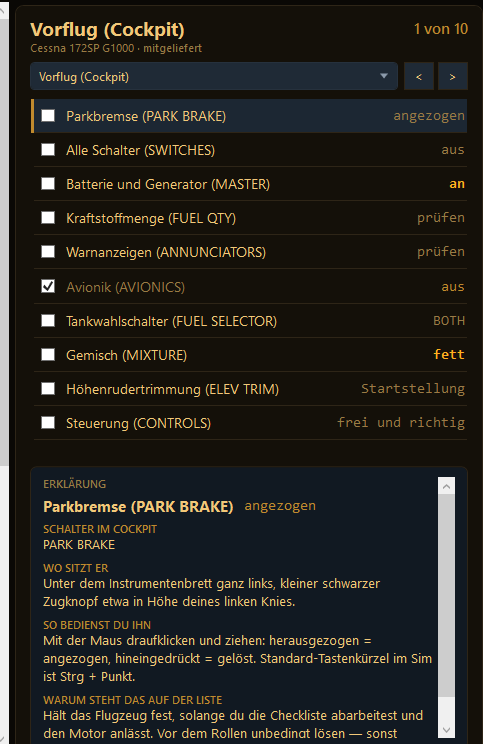
A checklist that keeps pace
Switches automatically with the phase of flight and ticks items off as soon as the simulator
confirms the required setting — parking brake, flaps, landing light, QNH and more.
💡
An explanation for every item
Click an item and the details appear right below it: what the switch is called, exactly where it sits
in the cockpit, how to operate it and why it is on the list.
📻
Radio without the guesswork
Suggests the right frequency at your selected airport for every phase of flight and explains step
by step how to dial it into the radio — on the G1000 glass cockpit right down to the individual
knob. Plus your call sign, already spelled out phonetically.
✈️
Airplane, helicopter or balloon
The helper recognizes what you are flying and picks the matching list: piston engine,
turboprop, jet, helicopter, balloon or glider. In a helicopter you get collective and
pedals instead of flaps, in a balloon burner and valve. Checklists are taken from the
simulator itself first; for the Cessna 172 with G1000 there is a hand-written
German list with detailed help.
📊
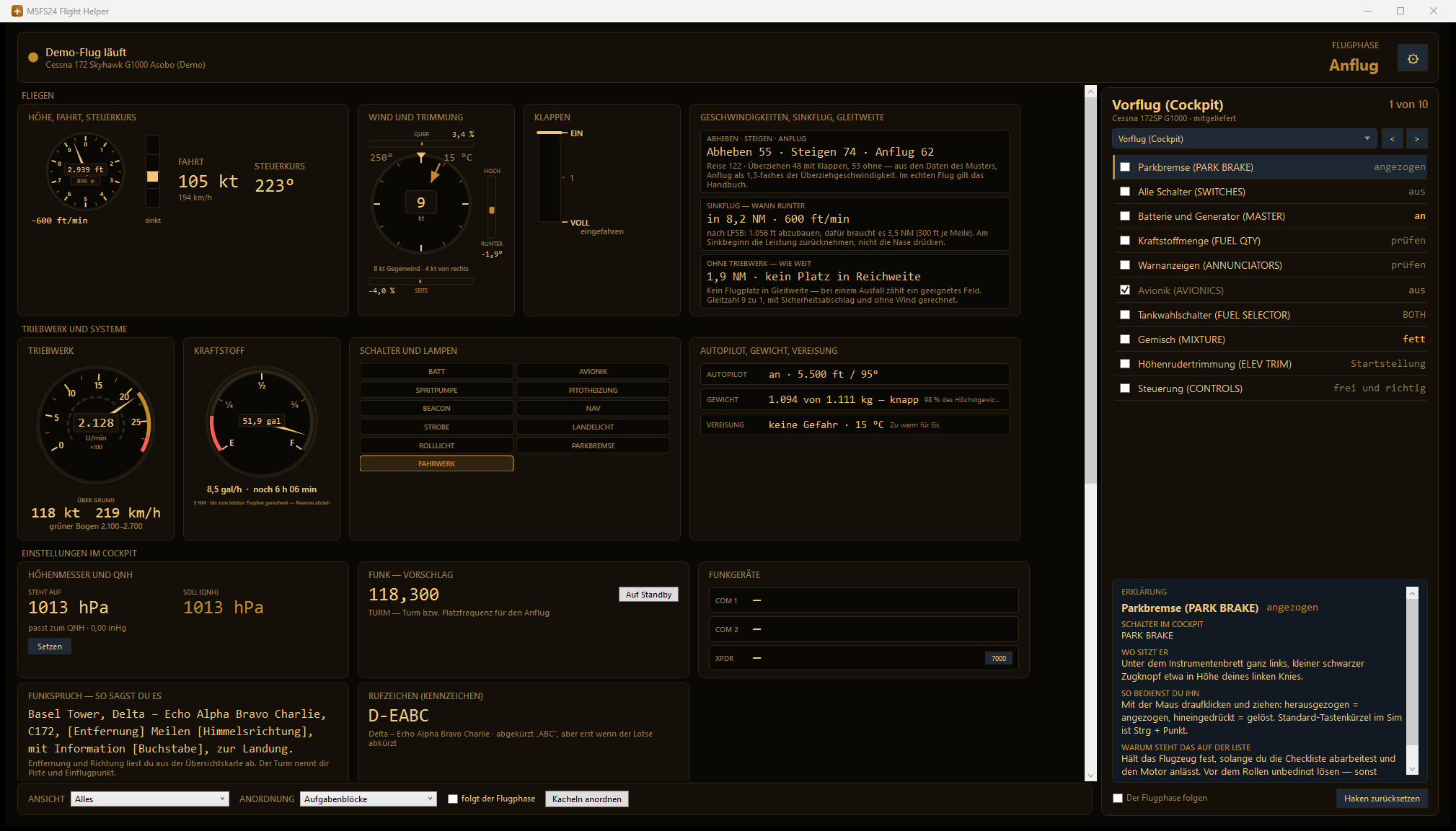
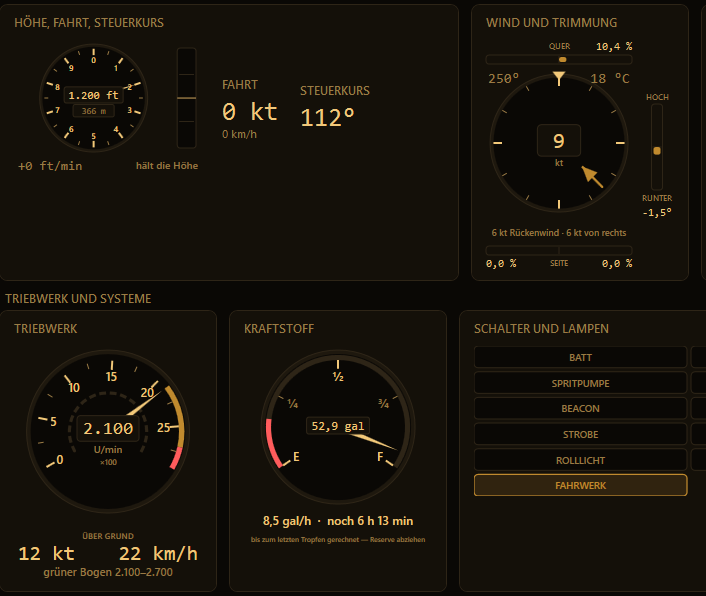
Live values from the sim
Instruments just like in the cockpit: the altimeter as a round gauge, with the vertical speed
as a tape next to it — a needle shows movement, a number only the moment. Plus
RPM with a green arc, wind with trim, a course map, a fuel gauge with range,
a flap scale and a switch panel that shows you what is on right now. Radios and
the altimeter setting sit next to it as a stack, with a button to set them.
If you fly a type with a constant-speed propeller, the engine gauge separates what
are two instruments in the cockpit: the center needle shows RPM, a second
needle on the outer ring shows manifold pressure. You set one with the throttle, the other
with the propeller lever.
Altitude and airspeed are also shown in small print in meters and km/h below: the simulator's
missions give their targets in metric, while the instruments show feet and knots —
so you no longer have to convert in your head.
🗺️
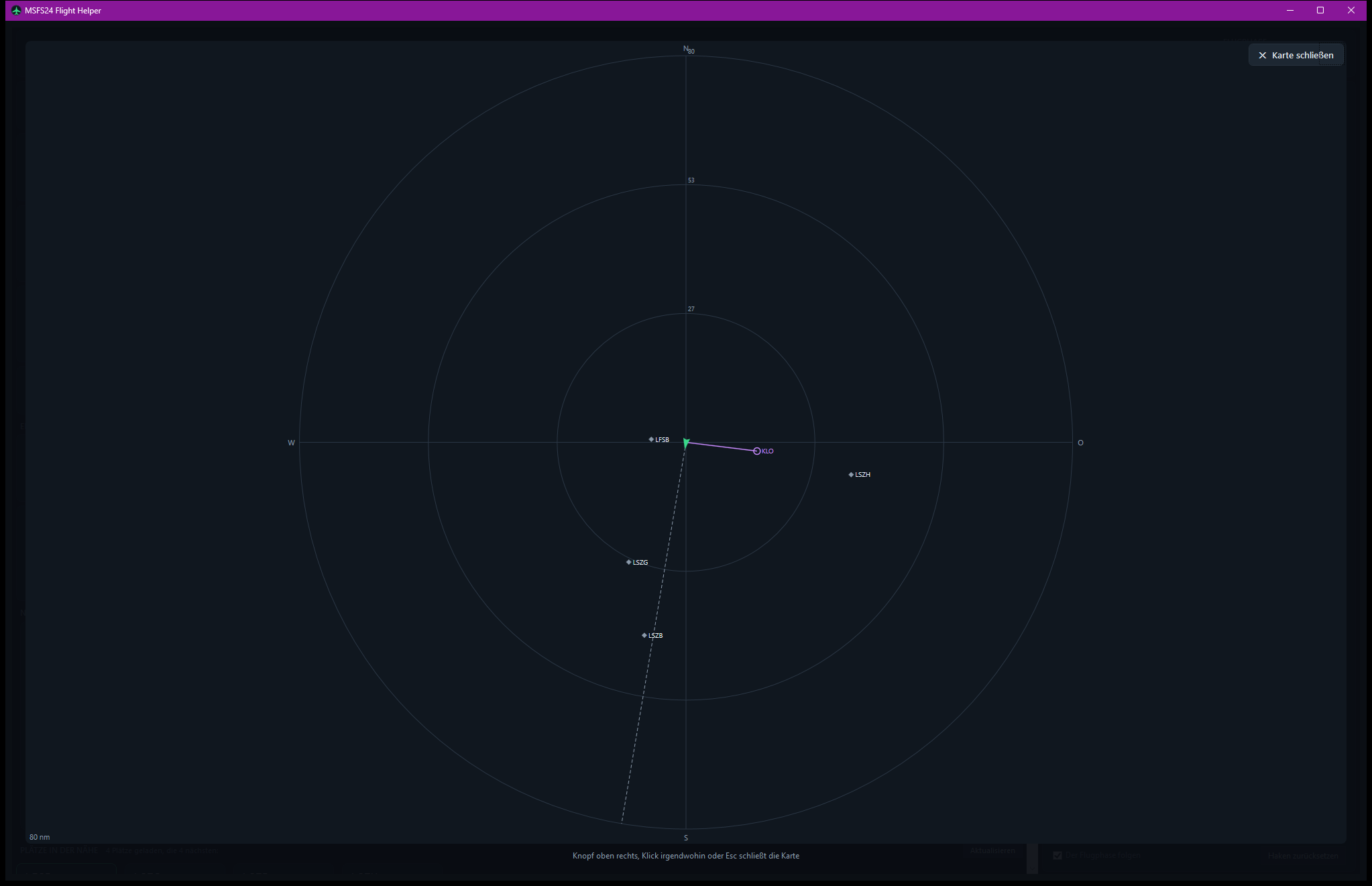
Maps from sim data
An overview with nearby airports, an HSI-style course map and the entire flight route — as
vector graphics straight from the simulator's data, without any map service.
🛬
Airports, runways, frequencies
The nearest airports with all runways, lengths and headings — plus crosswind and
headwind for each runway, so picking a runway is no longer mental arithmetic.
🕹️
Your controls, self-learned
Which joystick button did what again? MSFS 2024 won't tell you — the helper
figures it out by itself: turn on learning mode, press a button, and it checks what
changed in the aircraft. No typing anything in, whatever controls you use.
🎛️
Schematic cockpit
All switch positions at a glance — and the switch for the item that is up next
lights up. It looks the same in every aircraft, so the sequence sticks.
🛬
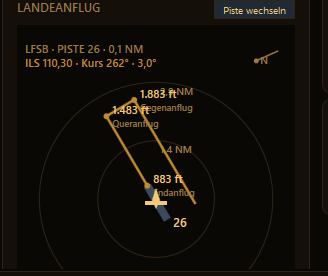
Approach without the guesswork
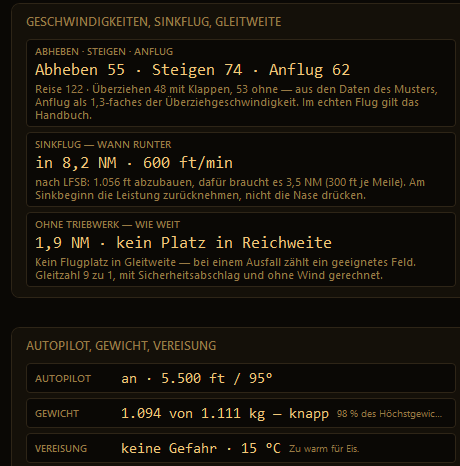
Which runway for this wind, where it lies from your position and how to fly the approach — as a
map that turns with you: you are always in the center, forward is always up. Every
leg shows the altitude you should be at there. If you are too high, the helper
plans the extra loop in for you.
📡
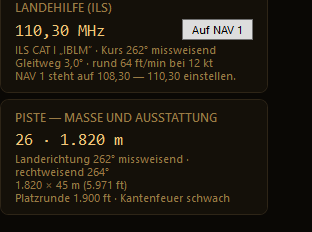
When you can't see the runway
In rain or low clouds, the localizer guides you in. The helper tells you the
frequency for the navigation radio, the approach course and the glide slope angle of the runway you are
currently approaching — plus the descent rate that goes with your speed. One
button puts the frequency on NAV 1, and as soon as you receive it, it tells you in plain words
which way to steer.
🎚️
Trim at a glance
All three trim axes as bars with a number — elevator vertical, the same way round as the
trim wheel in the cockpit. Center means neutral, and you see right away how far you are from
neutral. As a tile and as an overlay on top of the simulator.
🧭
Wind at a glance
A round gauge instead of a number: the needle shows where the wind is coming from relative to
your nose, the strength is shown in the center. "250 degrees" on its own is of little use on approach —
you would have to keep your own heading in mind and work out the difference.
Below it you see what matters for landing: how much of it is headwind and how much
crosswind, from the left or from the right.
🔍
Every window in your size
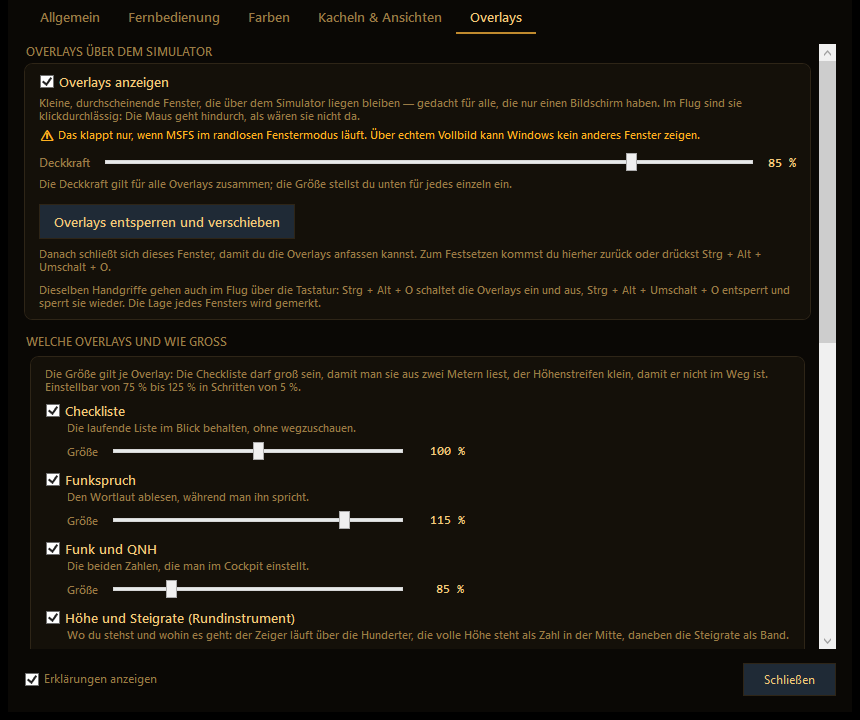
You scale the overlays on top of the simulator individually — from 75 to
125 percent. The checklist can be large so you can read it from two meters away, the
altimeter small so it stays out of the way. The settings themselves are organized in
tabs, and once you no longer need the explanations, you can hide them.
🗂️
Only what matters right now
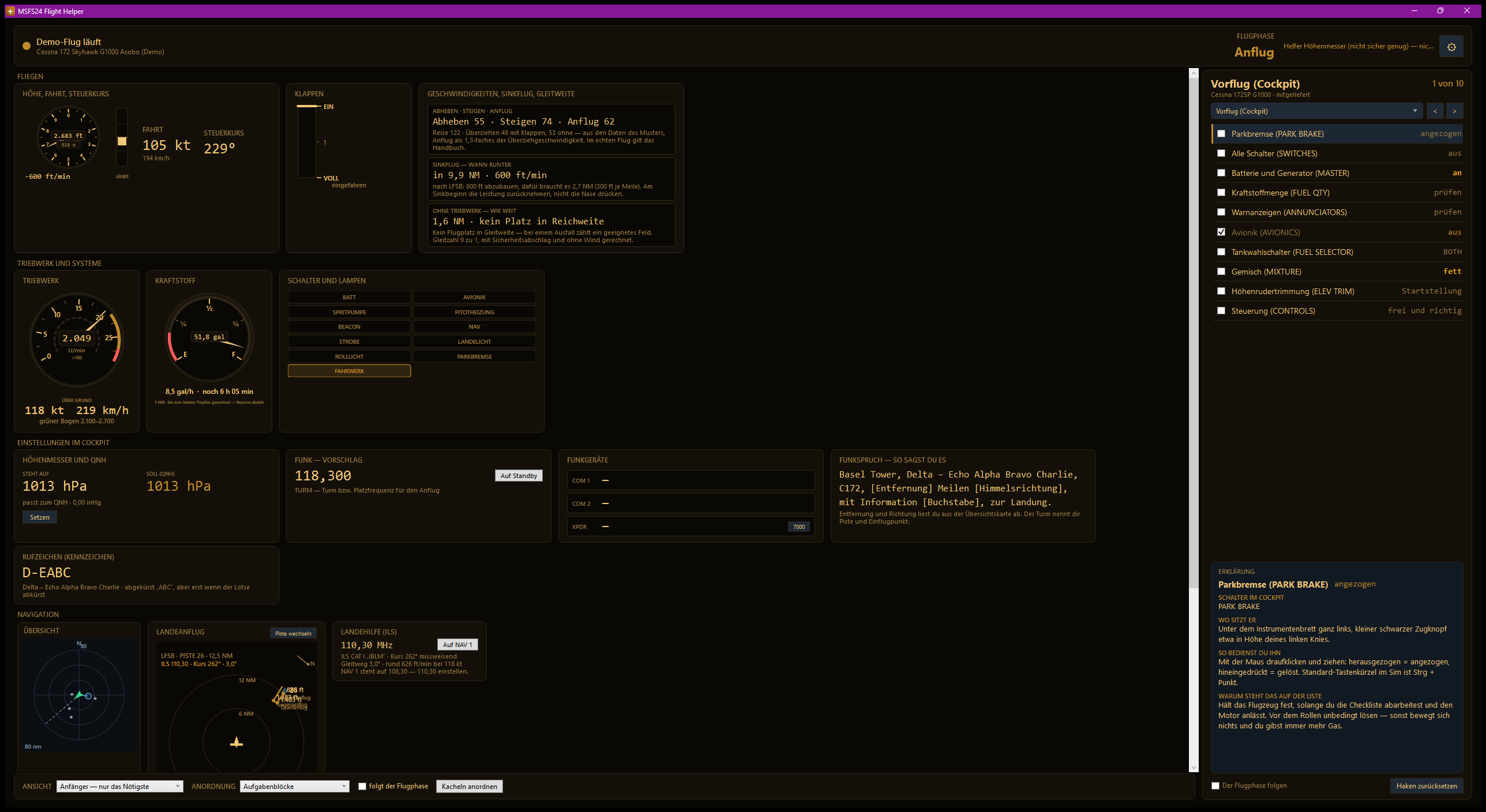
19 tiles, and the first one shows what always applies: the altimeter with the vertical speed,
airspeed and heading next to it. On approach you need only a handful of them. Ready-made views
for every phase of flight hide the rest, and if you like, it switches by itself when the
phase of flight changes. You arrange your own layouts with the mouse.
How the tiles are grouped is up to you, with four arrangements: by task, like
an instrument panel, by urgency, or split into reading and operating.
🎨
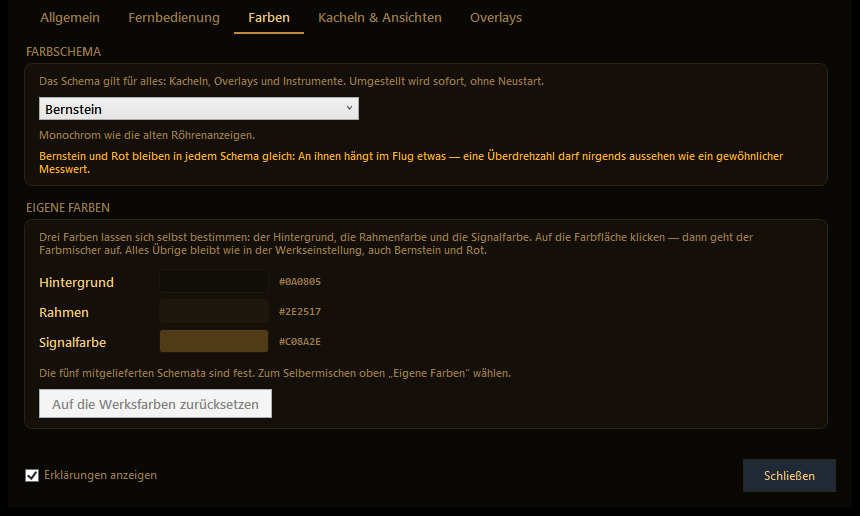
Five color themes — or your own
Signal green on dark, glass cockpit, night flight, amber or light — switching is
instant, no restart. The five are fixed so that "amber" stays amber; if you
want to mix your own, pick the sixth entry Custom colors (Eigene Farben): background, borders
and signal color are yours to set in the color picker.
Amber and red stay the same everywhere: in flight, something depends on them.